A useful review pack contains the pages someone needs, without the private details they do not. Follow a fictional workshop packet from page selection to a checked final attachment.
# Prepare a redacted PDF pack for a recipient
A useful review pack contains the pages someone needs, without the private details they do not. Follow a fictional workshop packet from page selection to a checked final attachment.
Last updated 22 October 2026
## Build the pack, remove private details, then finish it
Start with the [PDF Merger](https://abox.tools/merge-pdf/) to choose and order the pages. Use the [PDF Redactor](https://abox.tools/redact-pdf/) to remove private text from that assembled document. Add a recipient watermark if it helps explain the pack's purpose, then compress only if the finished file needs to be smaller.
These tools process the files locally in your browser. Download each result and load that file into the next tool; where a carry-on link is offered, it can pass the result for you. Keep the originals and working copies in a separate folder from the attachment you intend to send.
## The example: four pages for a workshop reviewer
Morgan is reviewing a fictional workshop plan. The sources also contain a personal phone number and an internal cost that Morgan does not need. Write the page checklist before opening a tool:
| Source pages | Purpose |
| --- | --- |
| `outline.pdf`, pages 1 and 3 | Outline and timetable |
| `delivery.pdf`, page 2 | Delivery arrangements |
| `equipment.pdf`, page 1 | Equipment list |
The output should contain four pages in that order. Excluding an unnecessary page is simpler to check than keeping it and trying to remove everything private from it. Keep enough context for the reader to understand the material that remains.
## 1. Select and order the pages
Load the source PDFs into the [merger](https://abox.tools/merge-pdf/). Keep the required pages and arrange them in reading order. The page numbers in the working list change as pages are removed or moved; check the source filename and contents against your checklist rather than applying the original numbers to a list you have already changed.
Save `01-selected.pdf`, then open it. Confirm four pages, the right sequence, and no missing timetable or extra equipment notes. Check that references such as "see the next page" still make sense. The [merging and splitting guide](https://abox.tools/guides/merge-and-split-pdf-files/) explains what page assembly preserves and what it cannot carry across.
## 2. Remove private text from the assembled pack
Load `01-selected.pdf` into the [PDF Redactor](https://abox.tools/redact-pdf/). Find the phone number and internal cost, review the matches, and select every occurrence that needs removal. Check headers, footers and repeated contact details too. Automatic patterns help find candidates; they do not decide what this particular recipient needs to see.
The redactor removes supported text instructions and checks its output before offering the download. A dark rectangle drawn in an ordinary PDF editor can leave the original words underneath. Follow the [PDF redaction guide](https://abox.tools/guides/redact-a-pdf/) and stop if the tool reports unreadable text or cannot handle the document reliably.
Save `02-redacted.pdf` and reopen that downloaded file. Inspect each removal and the neighbouring information. Search for the removed values and try selecting and copying the affected areas. These are useful checks, not a universal proof: pictures, unreadable font encodings and unsupported content can defeat text search.
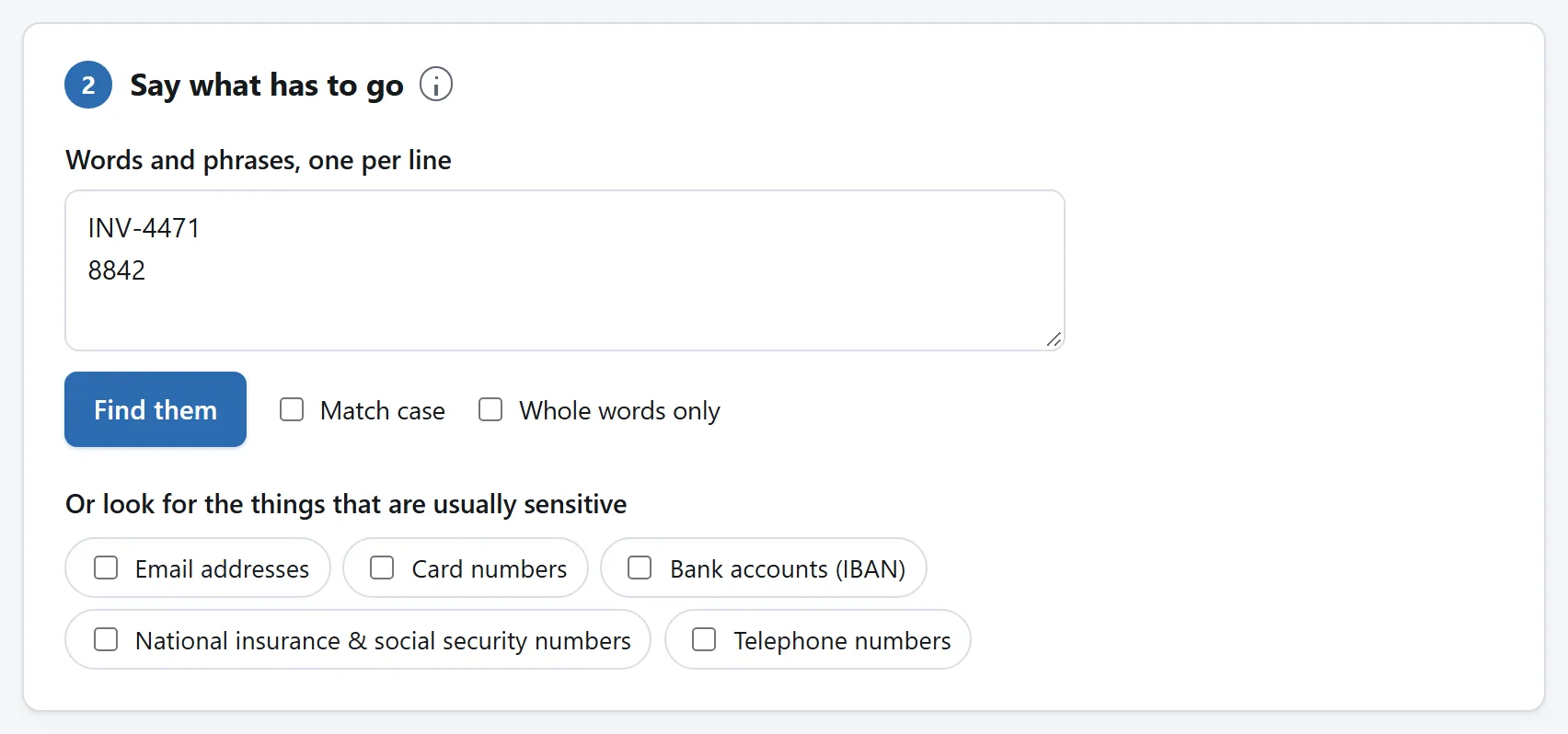
Search for the values you have decided to remove, then review the matches. The sample invoice terms shown here are not a complete checklist for another document.
## If a page is a scan, redact its pixels first
A scan is a picture. Removing its searchable OCR text layer does not erase the words visible in that picture. A search that finds nothing does not establish that a scan has been redacted.
For source photographs, use the [Image Redactor](https://abox.tools/redact-image/) before assembling the exported images with [Images to PDF](https://abox.tools/images-to-pdf/). Inspect the exported pixels, then the resulting PDF. The guides to [image redaction](https://abox.tools/guides/redact-an-image/) and [combining images](https://abox.tools/guides/combine-images-into-a-pdf/) cover this alternative. An existing scanned PDF is not an image input to these tools: return to suitable source images or a workflow that supports it.
## 3. Add the recipient and purpose, if useful
Load `02-redacted.pdf` into [PDF Watermark](https://abox.tools/watermark-pdf/) and add "Workshop review - Morgan". Save `03-marked.pdf`. Check every page to ensure the mark leaves dates, diagrams and small tables readable. The [watermark guide](https://abox.tools/guides/watermark-a-pdf/) explains placement and the limits of the stamp.
The mark tells the reader the intended purpose. It does not prevent forwarding, copying or photography, and it does not replace redaction. Skip it when that label adds no useful information.
## 4. Compress only when the finished file needs it
Check the destination's attachment limit. If the marked file already fits comfortably, keep it. Otherwise try a copy in the [PDF Compressor](https://abox.tools/compress-pdf/) and compare the result with the input. A short text document may barely shrink.
Read the equipment table and small print at a useful viewing size. A smaller attachment is no improvement if Morgan cannot read it. The [compression guide](https://abox.tools/guides/make-a-pdf-smaller/) explains where the savings come from. Name the chosen final version `workshop-review-morgan.pdf`.
## Check the exact attachment you will send
Open the final downloaded file, rather than an earlier preview. Each operation made a different output, so the last attachment needs its own check:
- Count and read all four pages in their final order.
- Inspect the removal areas and repeat the search and copy checks.
- Check the recipient label and readability after compression.
- Check the file size, properties and filename for unintended details.
- Select that checked file when attaching it, not a working copy.
Selecting pages first limits what needs review. Redaction follows; watermarking and compression finish the copy. If the recipient accepts password-protected PDFs and you need one, finish these edits before adding protection. Keep the originals separate and send only the reviewed attachment.
Build the pack, remove private details, then finish it
Start with the PDF Merger to choose and order the pages. Use the PDF Redactor to remove private text from that assembled document. Add a recipient watermark if it helps explain the pack's purpose, then compress only if the finished file needs to be smaller.
These tools process the files locally in your browser. Download each result and load that file into the next tool; where a carry-on link is offered, it can pass the result for you. Keep the originals and working copies in a separate folder from the attachment you intend to send.
The example: four pages for a workshop reviewer
Morgan is reviewing a fictional workshop plan. The sources also contain a personal phone number and an internal cost that Morgan does not need. Write the page checklist before opening a tool:
Source pages
Purpose
outline.pdf, pages 1 and 3
Outline and timetable
delivery.pdf, page 2
Delivery arrangements
equipment.pdf, page 1
Equipment list
The output should contain four pages in that order. Excluding an unnecessary page is simpler to check than keeping it and trying to remove everything private from it. Keep enough context for the reader to understand the material that remains.
1. Select and order the pages
Load the source PDFs into the merger. Keep the required pages and arrange them in reading order. The page numbers in the working list change as pages are removed or moved; check the source filename and contents against your checklist rather than applying the original numbers to a list you have already changed.
Save 01-selected.pdf, then open it. Confirm four pages, the right sequence, and no missing timetable or extra equipment notes. Check that references such as "see the next page" still make sense. The merging and splitting guide explains what page assembly preserves and what it cannot carry across.
2. Remove private text from the assembled pack
Load 01-selected.pdf into the PDF Redactor. Find the phone number and internal cost, review the matches, and select every occurrence that needs removal. Check headers, footers and repeated contact details too. Automatic patterns help find candidates; they do not decide what this particular recipient needs to see.
The redactor removes supported text instructions and checks its output before offering the download. A dark rectangle drawn in an ordinary PDF editor can leave the original words underneath. Follow the PDF redaction guide and stop if the tool reports unreadable text or cannot handle the document reliably.
Save 02-redacted.pdf and reopen that downloaded file. Inspect each removal and the neighbouring information. Search for the removed values and try selecting and copying the affected areas. These are useful checks, not a universal proof: pictures, unreadable font encodings and unsupported content can defeat text search.
Search for the values you have decided to remove, then review the matches. The sample invoice terms shown here are not a complete checklist for another document.
If a page is a scan, redact its pixels first
A scan is a picture. Removing its searchable OCR text layer does not erase the words visible in that picture. A search that finds nothing does not establish that a scan has been redacted.
For source photographs, use the Image Redactor before assembling the exported images with Images to PDF. Inspect the exported pixels, then the resulting PDF. The guides to image redaction and combining images cover this alternative. An existing scanned PDF is not an image input to these tools: return to suitable source images or a workflow that supports it.
3. Add the recipient and purpose, if useful
Load 02-redacted.pdf into PDF Watermark and add "Workshop review - Morgan". Save 03-marked.pdf. Check every page to ensure the mark leaves dates, diagrams and small tables readable. The watermark guide explains placement and the limits of the stamp.
The mark tells the reader the intended purpose. It does not prevent forwarding, copying or photography, and it does not replace redaction. Skip it when that label adds no useful information.
4. Compress only when the finished file needs it
Check the destination's attachment limit. If the marked file already fits comfortably, keep it. Otherwise try a copy in the PDF Compressor and compare the result with the input. A short text document may barely shrink.
Read the equipment table and small print at a useful viewing size. A smaller attachment is no improvement if Morgan cannot read it. The compression guide explains where the savings come from. Name the chosen final version workshop-review-morgan.pdf.
Check the exact attachment you will send
Open the final downloaded file, rather than an earlier preview. Each operation made a different output, so the last attachment needs its own check:
Count and read all four pages in their final order.
Inspect the removal areas and repeat the search and copy checks.
Check the recipient label and readability after compression.
Check the file size, properties and filename for unintended details.
Select that checked file when attaching it, not a working copy.
Selecting pages first limits what needs review. Redaction follows; watermarking and compression finish the copy. If the recipient accepts password-protected PDFs and you need one, finish these edits before adding protection. Keep the originals separate and send only the reviewed attachment.
