How to make a PDF smaller, and why some will not shrink
A PDF that will not fit an email limit is nearly always a PDF full of pictures. This explains how to tell whether yours is, what compressing it costs, and why any tool promising a fixed percentage has not looked at your file.
# How to make a PDF smaller, and why some will not shrink
A PDF that will not fit an email limit is nearly always a PDF full of pictures. This explains how to tell whether yours is, what compressing it costs, and why any tool promising a fixed percentage has not looked at your file.
[Open the PDF Compressor](https://abox.tools/compress-pdf/): Shrink a document without sending it anywhere.
Last updated 26 August 2026
## The short answer
Open the [PDF Compressor](https://abox.tools/compress-pdf/), drop the document in, and look at what it tells you before you change anything. It reads the file and shows where the size actually is — images, fonts, text and drawing, and anything nothing in the document refers to any more. That one screen usually answers the question.
If most of the size is images, you can expect a large saving. If it is fonts and text, you cannot, and no tool can. Which of those you have is the whole story, and it is worth ten seconds of looking.
## Where a PDF's size actually is
A PDF is a container for several different kinds of thing, and they do not compress alike.
- **Images.** Photographs and scans. Almost always the bulk of a large PDF, and the only part with real room in it.
- **Embedded fonts.** A full font can be hundreds of kilobytes; a subset of the characters actually used is far less. Either way, they were compressed by whatever produced the file.
- **Text and vector drawing.** Instructions rather than pixels: draw this line, set this word here. Compact already, and compressed already.
- **Objects nothing points at any more.** PDFs accumulate these. Editing a document often appends the change rather than rewriting the file, so an old version of a page can sit in there indefinitely. Repacking the file drops them.
So the two documents people bring to a PDF compressor have completely different prospects. A scanned document is essentially a stack of photographs, and commonly comes out 60–90% smaller. A contract, a thesis or an exported report is text, drawing and fonts — all already compressed by the software that wrote it — and the saving there is usually a few per cent, from repacking and dropping what is unreferenced.
Any tool that promises “up to 90% smaller” without looking at your file is quoting the best case of the first kind at the second.
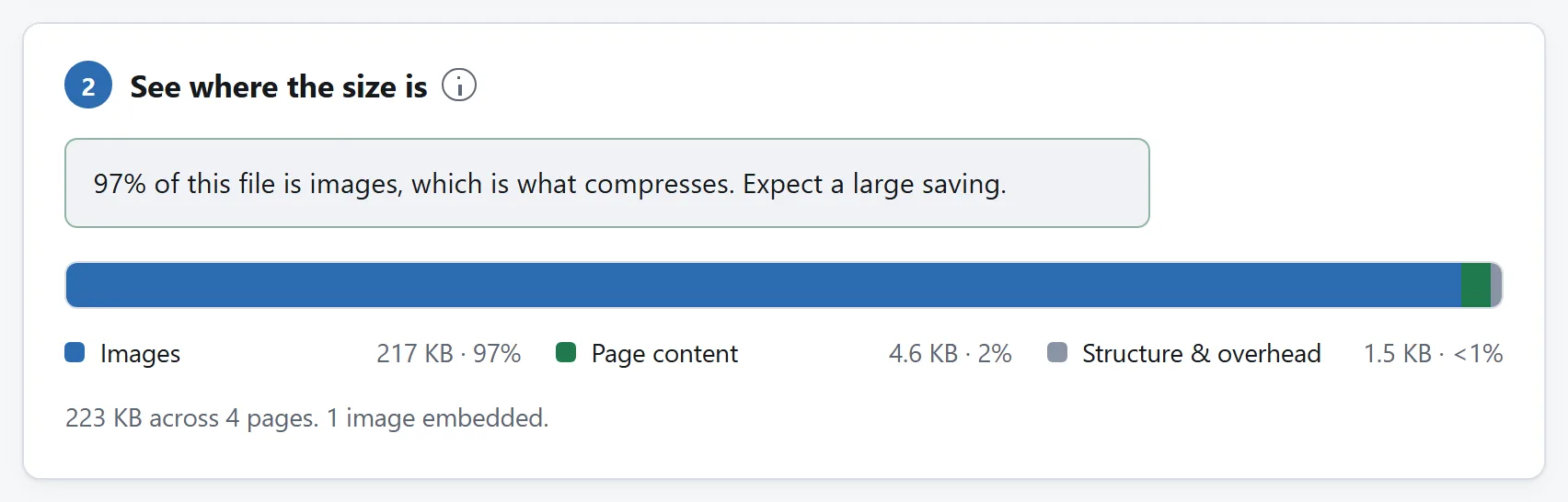
Where the size actually is, before anything is changed. Almost every large PDF is large for the reason this bar shows.
## What DPI has to do with it
A PDF does not just hold a picture; it records how large that picture is drawn on the page. That gives you something more useful than the pixel count: the effective resolution.
A 4000-pixel-wide scan placed across eight inches of paper is carrying 500 pixels to the inch. A screen shows about 100. A good office printer works at 300 and cannot use much more. Everything above that is detail that nothing in the document's future will ever display — and it is usually most of the file.
That is why a sensible PDF compressor asks for a DPI rather than a quality percentage. It throws away the pixels above your figure first, because those cost nothing that anyone can see, and only then starts spending actual quality.
Rough guide: **150 DPI** for a document that will be read on screen, **200–300** for something that will be printed, **72–100** for a draft nobody will keep. Measuring against how large the image is drawn is also why a logo placed small is not treated the same as a full-page scan — the logo is already near its effective resolution and there is nothing to take.
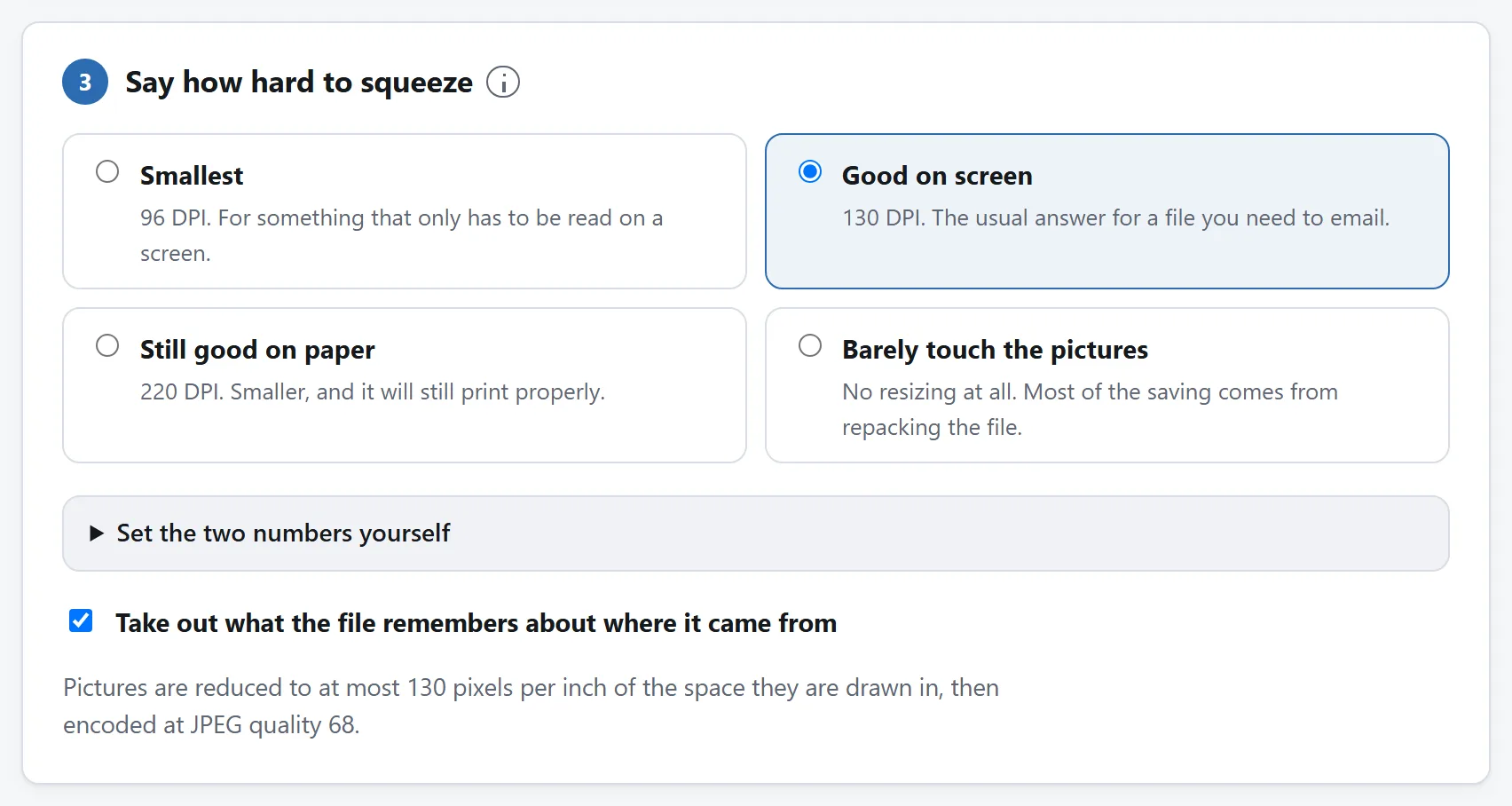
The two dials that matter are the resolution and the quality. What each does to a page of text and a page of photographs is the subject of this section.
## What compressing should and should not touch
The pictures get re-encoded, so those lose a little. Nothing else should be touched at all, and it is worth checking that whatever tool you use holds to that:
- **Text stays text.** Selectable, searchable, copyable. A compressor that flattens pages to images will produce a very small file and destroy the document — you cannot search it, screen readers cannot read it, and it can never be undone.
- **Fonts stay whole.** Substituting fonts changes how the document looks on someone else's machine, which is the one thing PDF exists to prevent.
- **Vector drawing is copied exactly.** It is already small, and rasterising it would make it both larger and worse.
- **Forms, links, bookmarks, accessibility structure and attachments carry across.** These are easy to lose in a rewrite and rarely noticed until somebody needs one.
A related rule that a compressor should follow and many do not: if re-encoding an image does not actually come out smaller than the original, put the original bytes back. Making a picture worse for no saving is the pure-loss case, and it happens more often than you would think on images that were already well compressed.
## The pictures that cannot be compressed
Some images inside a PDF get skipped, and a good tool names them rather than quietly leaving them out of the arithmetic:
- **JPEG 2000, JBIG2 and fax-coded (CCITT) images.** No browser ships a decoder for any of them, so they are passed through untouched. The last two are bilevel — black and white only — and are usually near their smallest already.
- **CMYK images.** Left alone deliberately. Re-encoding them risks shifting the colours a printer would produce, which is a surprising thing to do to a document somebody is going to print.
## Things to try before compressing
Sometimes the file is large for a reason that compression is the wrong answer to.
**Was it scanned when it did not need to be?** A document printed and then scanned is a stack of photographs of text. If the original still exists somewhere as a document, exporting that to PDF will produce a file a fraction of the size that is also searchable.
**Was it exported at print settings?** Word processors and design software often default to a print-quality export. Re-exporting for screen from the source file usually beats compressing the export.
**Does it need to be one file?** An email limit is per message. Splitting a 200-page document into chapters is sometimes the honest fix.
## Encrypted files, and why a compressor should refuse them
A password-protected PDF is refused by the tool here, and that is deliberate rather than a missing feature — including when the password is blank, which is how a lot of scanners and copiers save.
Taking the protection off a document is a different job from compressing it. A tool that did it silently would be doing something you did not ask for, to a file somebody had deliberately locked, and handing you back a copy that no longer had the property they intended it to have. Remove the protection yourself first, deliberately, if that is what you want.
## Checking the result
Open it. Look at the pictures at full zoom, check that the text is still selectable, and confirm the page count.
The tool here does the last of those for you before it offers the file: it re-opens the document it just wrote and counts the pages, on your own machine. It also writes PDF 1.5, which every reader shipped since 2003 understands, so “it opens on my machine” is a reasonable proxy for “it opens on theirs”.
## Why this does not need a server
Compressing a PDF sounds like server work, and for most of the web's life it was. What it actually involves is parsing the file structure, finding the image streams, decoding and re-encoding those with the codecs a browser already ships, and writing the document back out. All of that runs in a browser now.
Which matters more for this file type than most, because of what people compress: contracts, medical letters, bank statements, identity documents, tax returns. The tool here has no network feature at all, and the page's `Content-Security-Policy` names every address it may contact, none of which belongs to this site. Load it, unplug, and compress something anyway.
[Is it safe to upload files to online converters?](https://abox.tools/guides/is-it-safe-to-upload-files/) sets out three more checks like that one.
The short answer
Open the PDF Compressor, drop the document in, and look at what it tells you before you change anything. It reads the file and shows where the size actually is — images, fonts, text and drawing, and anything nothing in the document refers to any more. That one screen usually answers the question.
If most of the size is images, you can expect a large saving. If it is fonts and text, you cannot, and no tool can. Which of those you have is the whole story, and it is worth ten seconds of looking.
Where a PDF's size actually is
A PDF is a container for several different kinds of thing, and they do not compress alike.
Images. Photographs and scans. Almost always the bulk of a large PDF, and the only part with real room in it.
Embedded fonts. A full font can be hundreds of kilobytes; a subset of the characters actually used is far less. Either way, they were compressed by whatever produced the file.
Text and vector drawing. Instructions rather than pixels: draw this line, set this word here. Compact already, and compressed already.
Objects nothing points at any more. PDFs accumulate these. Editing a document often appends the change rather than rewriting the file, so an old version of a page can sit in there indefinitely. Repacking the file drops them.
So the two documents people bring to a PDF compressor have completely different prospects. A scanned document is essentially a stack of photographs, and commonly comes out 60–90% smaller. A contract, a thesis or an exported report is text, drawing and fonts — all already compressed by the software that wrote it — and the saving there is usually a few per cent, from repacking and dropping what is unreferenced.
Any tool that promises “up to 90% smaller” without looking at your file is quoting the best case of the first kind at the second.
Where the size actually is, before anything is changed. Almost every large PDF is large for the reason this bar shows.
What DPI has to do with it
A PDF does not just hold a picture; it records how large that picture is drawn on the page. That gives you something more useful than the pixel count: the effective resolution.
A 4000-pixel-wide scan placed across eight inches of paper is carrying 500 pixels to the inch. A screen shows about 100. A good office printer works at 300 and cannot use much more. Everything above that is detail that nothing in the document's future will ever display — and it is usually most of the file.
That is why a sensible PDF compressor asks for a DPI rather than a quality percentage. It throws away the pixels above your figure first, because those cost nothing that anyone can see, and only then starts spending actual quality.
Rough guide: 150 DPI for a document that will be read on screen, 200–300 for something that will be printed, 72–100 for a draft nobody will keep. Measuring against how large the image is drawn is also why a logo placed small is not treated the same as a full-page scan — the logo is already near its effective resolution and there is nothing to take.
The two dials that matter are the resolution and the quality. What each does to a page of text and a page of photographs is the subject of this section.
What compressing should and should not touch
The pictures get re-encoded, so those lose a little. Nothing else should be touched at all, and it is worth checking that whatever tool you use holds to that:
Text stays text. Selectable, searchable, copyable. A compressor that flattens pages to images will produce a very small file and destroy the document — you cannot search it, screen readers cannot read it, and it can never be undone.
Fonts stay whole. Substituting fonts changes how the document looks on someone else's machine, which is the one thing PDF exists to prevent.
Vector drawing is copied exactly. It is already small, and rasterising it would make it both larger and worse.
Forms, links, bookmarks, accessibility structure and attachments carry across. These are easy to lose in a rewrite and rarely noticed until somebody needs one.
A related rule that a compressor should follow and many do not: if re-encoding an image does not actually come out smaller than the original, put the original bytes back. Making a picture worse for no saving is the pure-loss case, and it happens more often than you would think on images that were already well compressed.
The pictures that cannot be compressed
Some images inside a PDF get skipped, and a good tool names them rather than quietly leaving them out of the arithmetic:
JPEG 2000, JBIG2 and fax-coded (CCITT) images. No browser ships a decoder for any of them, so they are passed through untouched. The last two are bilevel — black and white only — and are usually near their smallest already.
CMYK images. Left alone deliberately. Re-encoding them risks shifting the colours a printer would produce, which is a surprising thing to do to a document somebody is going to print.
Things to try before compressing
Sometimes the file is large for a reason that compression is the wrong answer to.
Was it scanned when it did not need to be? A document printed and then scanned is a stack of photographs of text. If the original still exists somewhere as a document, exporting that to PDF will produce a file a fraction of the size that is also searchable.
Was it exported at print settings? Word processors and design software often default to a print-quality export. Re-exporting for screen from the source file usually beats compressing the export.
Does it need to be one file? An email limit is per message. Splitting a 200-page document into chapters is sometimes the honest fix.
Encrypted files, and why a compressor should refuse them
A password-protected PDF is refused by the tool here, and that is deliberate rather than a missing feature — including when the password is blank, which is how a lot of scanners and copiers save.
Taking the protection off a document is a different job from compressing it. A tool that did it silently would be doing something you did not ask for, to a file somebody had deliberately locked, and handing you back a copy that no longer had the property they intended it to have. Remove the protection yourself first, deliberately, if that is what you want.
Checking the result
Open it. Look at the pictures at full zoom, check that the text is still selectable, and confirm the page count.
The tool here does the last of those for you before it offers the file: it re-opens the document it just wrote and counts the pages, on your own machine. It also writes PDF 1.5, which every reader shipped since 2003 understands, so “it opens on my machine” is a reasonable proxy for “it opens on theirs”.
Why this does not need a server
Compressing a PDF sounds like server work, and for most of the web's life it was. What it actually involves is parsing the file structure, finding the image streams, decoding and re-encoding those with the codecs a browser already ships, and writing the document back out. All of that runs in a browser now.
Which matters more for this file type than most, because of what people compress: contracts, medical letters, bank statements, identity documents, tax returns. The tool here has no network feature at all, and the page's Content-Security-Policy names every address it may contact, none of which belongs to this site. Load it, unplug, and compress something anyway.

