The short answer
Open the PDF Merger & Splitter, drop in every file you want to use, and drag the pages into the order you want. Then say whether it comes out as one document or several, and press the button. Nothing is uploaded: the files are opened, taken apart and written back out by your own browser.
The three jobs people search for separately — merge, split, reorder — are one screen, because they are one operation with a different answer at the end: choose some pages, put them in an order, and decide how many files they come out as.
Merging two or more documents
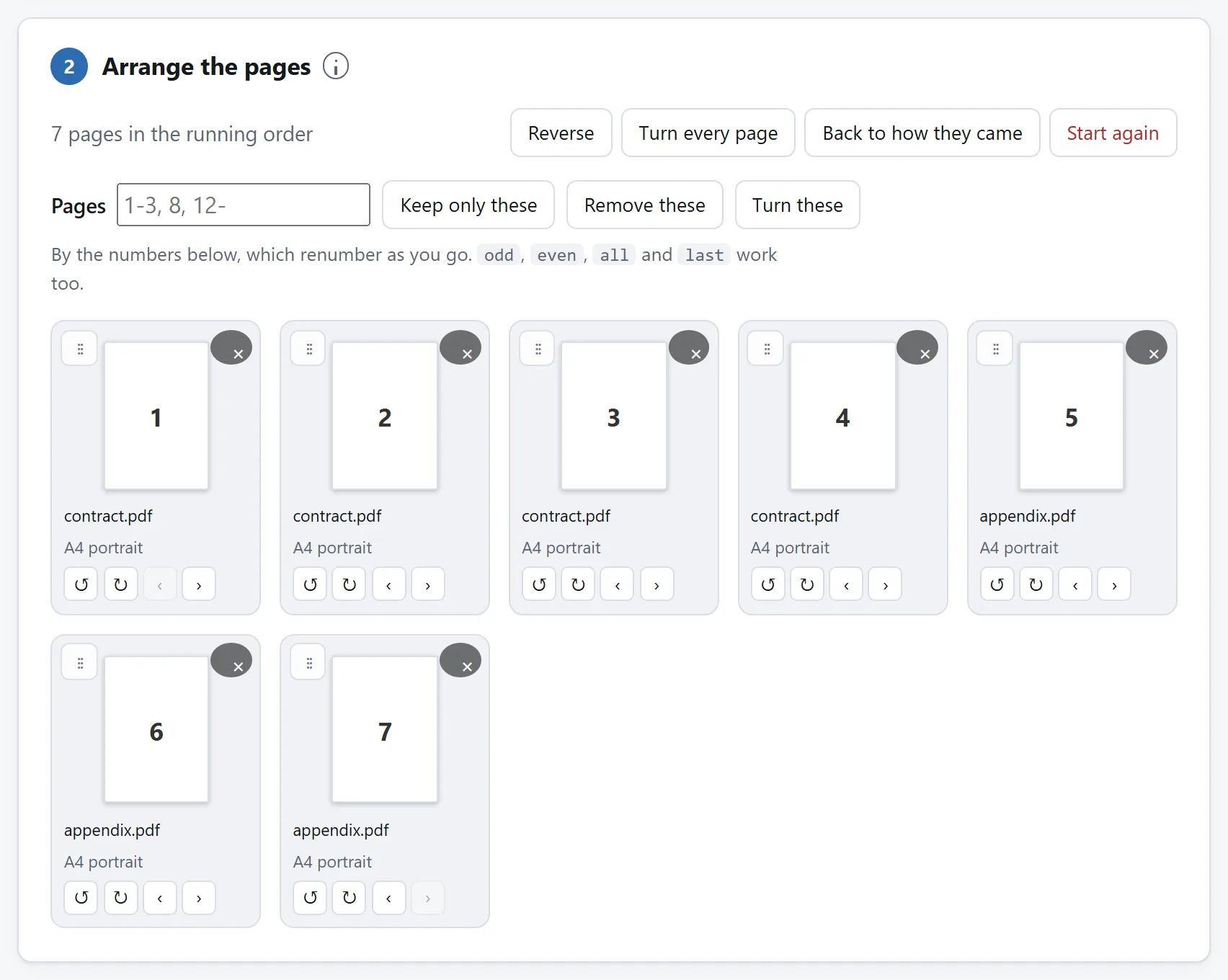
Choose the first file, then choose the second; each one's pages go on the end of the running order, so you can keep adding files from different folders without starting over. If they went in the wrong order, drag a page by its handle, or use the arrows on each tile.
Merging does not re-encode anything. The content of each page and every font, image and vector drawing it refers to is copied across exactly, so text stays selectable and searchable and a scan is the same scan. The merged file is usually a little smaller than the two inputs added together, which is not compression — it is the structure around the pages being written once instead of twice.
Pages keep their own size. Merge an A4 report with a US Letter appendix and you get a document with both in it, which is what the files say. Scaling somebody's pages onto one paper size is a different operation and not one a merger should do quietly.
Splitting one document into several
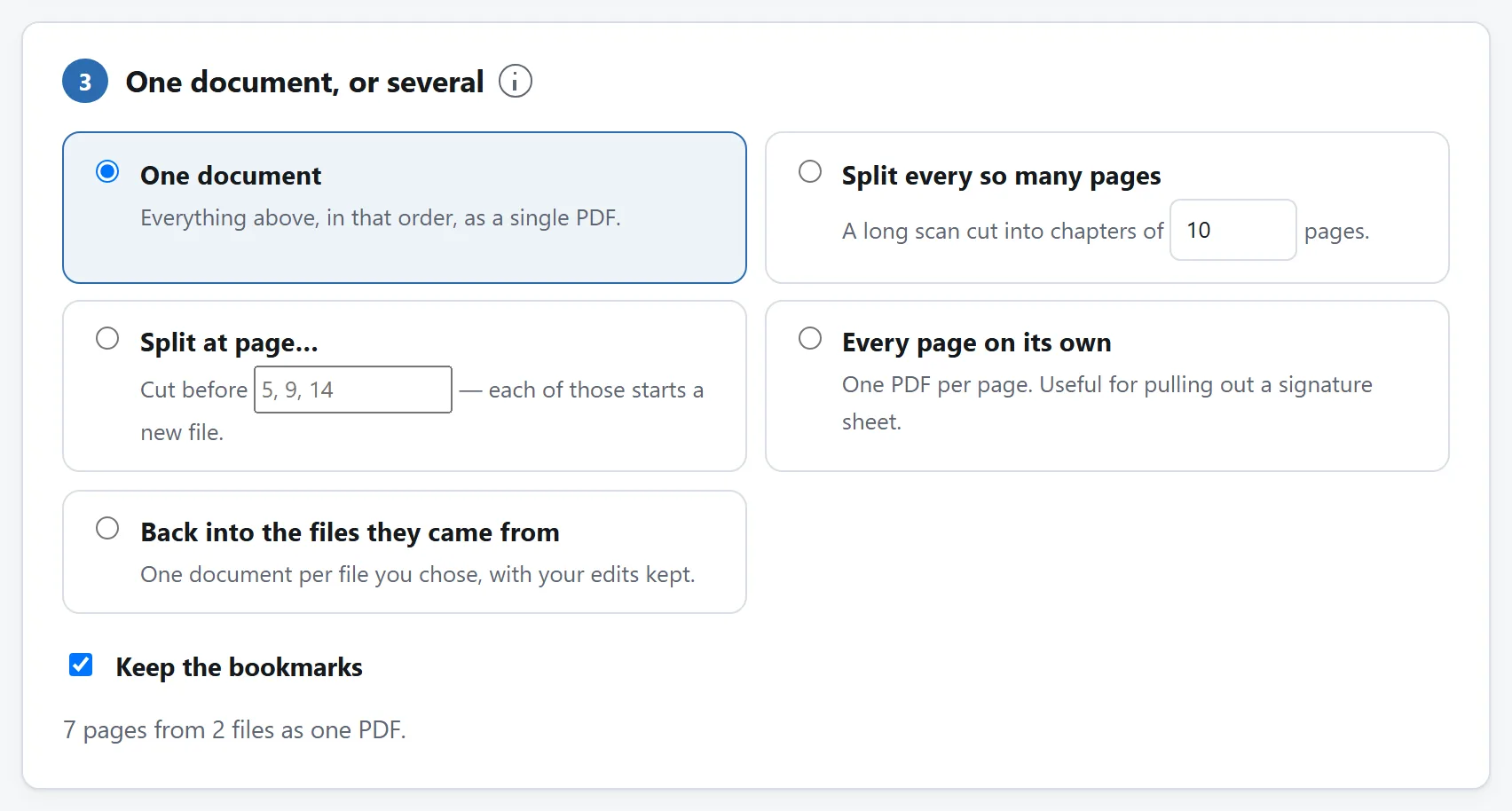
There are four ways to cut, and which one you want depends on why you are cutting:
- Every so many pages. For a long scan of something that was originally a stack of separate documents — twelve payslips at two pages each.
- At page numbers you name. For a report with chapters that start at pages you can see. Each number you type starts a new file.
- One file per page. For pulling a single signature sheet or certificate out of a batch.
- Back into the files they came from. Only offered when you have merged more than one file, and useful after editing: remove the blank pages from three scans at once, then get three files back.
If you only want a few pages out of a long document, you do not need to split it at all. Type the pages you want in the range box — 1-3, 8, 12- — press “Keep only these”, and build one document.
More than one output file is handed over as a single ZIP. Fifty downloads is fifty save prompts, which is roughly where anybody gives up.
Reordering, rotating and removing pages
Drag a tile by its handle to move it. The arrows on each tile nudge it one place, or turn it a quarter turn at a time — which is the fix for the page that came out of the scanner sideways. The × removes it.
For anything involving more than a couple of pages, use the range box instead. It takes what you would write on paper: 1-3, 8, 12-, and also odd, even, all and last. Keep those, remove those, or turn those. A common one: a double-sided scan where every second page is upside down is even and two turns.
The numbers on the tiles renumber as you work, so they always mean “position in the finished document” rather than “page in whichever file it came from”. Nothing is written until you press the button, so there is nothing to undo — and “back to how they came” restores the original order of everything.
What survives a reshuffle, and what does not
This is the part no tool tells you, and it is the reason a merged document sometimes feels subtly broken.
A PDF is not a stack of pages. It is a graph, and a good deal of it is about the document rather than about any page: the bookmarks panel, the links, the form, the reading order a screen reader follows, the numbering that calls the first four pages “i, ii, iii, iv”. Move the pages and every one of those has to be rebuilt or dropped.
- Bookmarks are rebuilt. An entry whose page is still there points at wherever it has moved to. An entry whose page you removed goes — unless it has surviving entries under it, in which case it stays as a heading, because a chapter title is still where the chapter is. Merging several files nests each one's bookmarks under a heading named after the file, which is what makes a merged report navigable at all.
- Links are followed. A link from page 2 to page 40 knows where page 40 went, including the named destinations that Word and LaTeX write for every heading. A link whose target did not come along is left with nothing behind it, rather than pointing at whatever page now happens to be in that position.
- Filled-in forms survive, and the new document is registered as a form so readers treat it as one. One quirk worth knowing: two fields with the same name are one field to any reader, so merging two copies of the same form links them — typing in one fills the other.
- The tagged reading order does not. It describes a sequence that no longer exists, and a wrong one is worse for a screen reader than none. If a document's accessibility tagging matters, keep the original alongside.
- Page labels do not. The “iii, iv, 1, 2” numbering is a statement about an order you have just changed.
- Attachments and document scripting do not. Files attached to the document belong to it, not to any page. Actions that run JavaScript, submit a form somewhere or launch a program are not carried into your new file, which is the right default for pages that came from somebody else.
A digital signature is a special case, and not a limitation of any tool: a signature certifies a document as it stood. Move a page and it is broken, because that is exactly what it is there to tell you.
Password-protected files
An encrypted PDF is refused, including the empty-password kind that a lot of office copiers produce. Removing a document's protection is a different job from moving its pages, and a tool that did it quietly would be doing something you did not ask for. Open it in a reader with the password and save an unprotected copy first.
Checking the result
Open it, and check three things: the page count, the order, and — if the document had them — the bookmarks panel and a link or two.
The tool here does the first of those for you before it offers the file. Each finished document is re-opened by the same code that read your originals, and its pages counted by walking the page tree rather than believing the count written in the file. If that disagrees with what you asked for, no download is offered at all.
Why this does not need a server
Merging sounds like server work, and for most of the web's life it was. What it actually involves is parsing the file structure, copying the objects a page depends on into a new file, and writing a fresh cross-reference table. No pixels are decoded and nothing is rendered. A browser has been able to do all of it for years.
Which matters more here than almost anywhere else, because of what people merge. The documents that get combined are the ones that came from somewhere: a contract and its signature page, a passport scan and a bank statement, a medical letter and a claim form. An online merger receives all of them at once, already collated, from one person. It is the single most revealing upload most people ever make.
The tool here has no network feature at all, and the page's Content-Security-Policy names every address it may contact, none of which belongs to this site. Load it, unplug, and merge something anyway.
Is it safe to upload files to online converters? sets out three more checks like that one.