The short answer
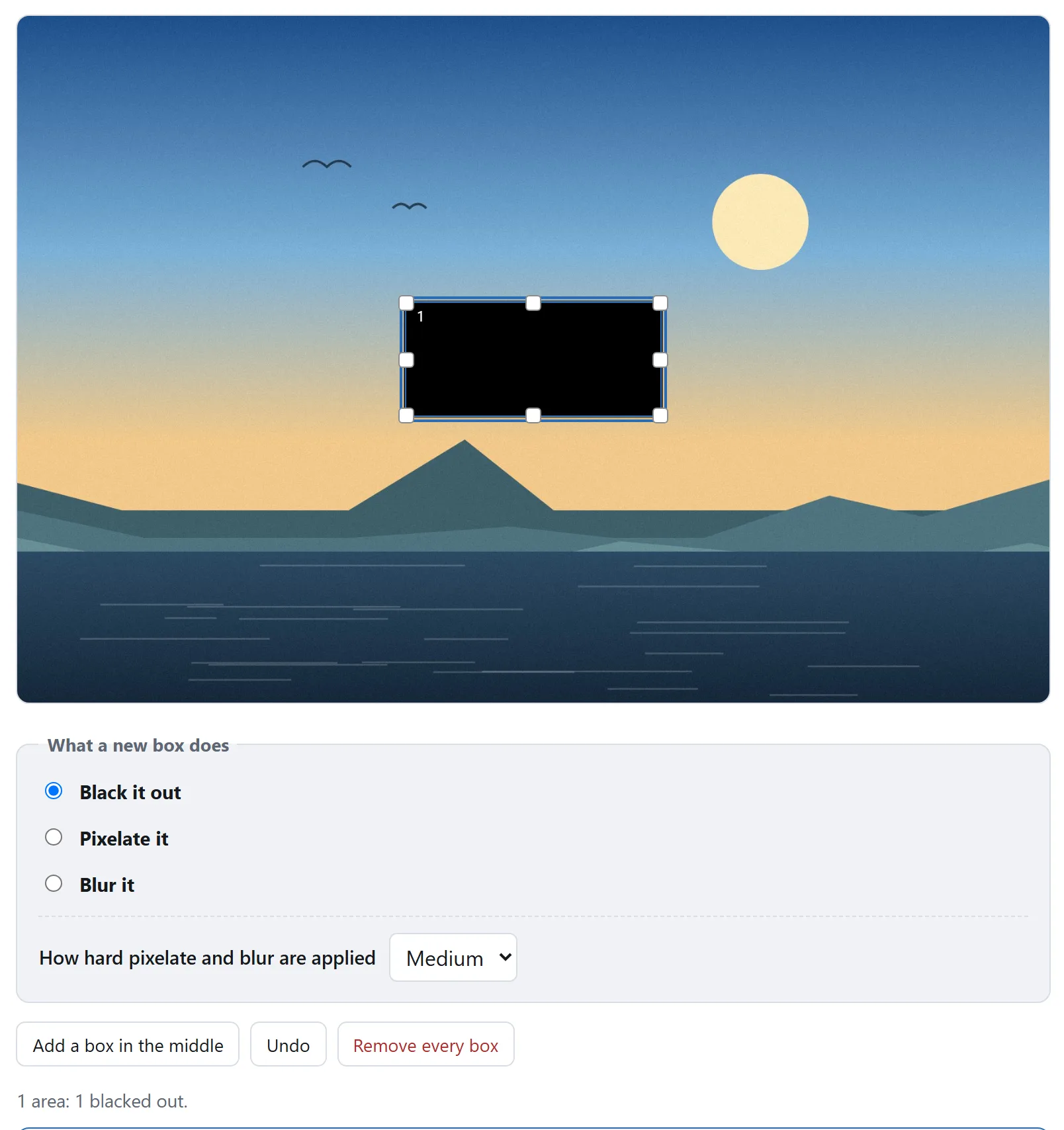
Open the Image Redactor, drop the picture in, drag a box over each thing that should not be seen, and press “Redact and save”. Use the black fill for anything that reads as text. The file you get back has different pixel values where the boxes were: there is no rectangle in it to move aside, because there is no rectangle in it at all.
Everything below is why that last sentence is the whole point, and how to tell whether a tool you already use can say the same.
Covering and removing look identical on screen
Draw a black rectangle over a name in a PDF reader, a slide deck, a word processor or a layered image editor, and what you see is a name with a black rectangle over it. What you have saved, in most of those programs, is a document containing the name and, separately, a rectangle with a position, a size and a colour.
Anyone who opens that file can move the rectangle, delete it, or open the document in a program that draws the layers in a different order. The name is still in there. Nothing about the screen tells you which of the two things just happened, which is exactly why this keeps happening to organisations with lawyers.
It has published court filings, government reports, contracts, and more than one newspaper's scanned documents. The pattern is always the same: the rectangle was the annotation, and the annotation was not the picture.
What a real redaction is
A picture is a grid of numbers, one per pixel. Redacting it means writing different numbers into the grid and then saving the grid. After that there is nothing to recover, not because the file hides it well but because the values are not in the file. That is the only version of this that survives being opened by somebody curious.
Three consequences worth knowing, because they are what a redacted file should look like:
- The result is one flat picture. No layers, no objects, no annotation list, nothing to toggle. If your tool hands back a file with a layer in it, it covered rather than removed.
- It is a new file, not an edited old one. The pixels went through a decoder and an encoder, so what comes out is written from the redacted grid.
- The metadata is gone too, as a side effect. A grid of pixels carries no camera model, no GPS position, no timestamp. See what a photo says about you for what that would otherwise have been.
That last one is worth spelling out, because it hides a trap of its own. Many photos carry an embedded thumbnail: a small second copy of the picture, written when the file was created and not always regenerated when the picture is edited. A photo redacted by a tool that edits the file in place, rather than re-encoding it, can travel with a thumbnail of the un-redacted original. It is a small picture, and it is easily large enough to read a name off.
Black, pixelate or blur — and why they are not equivalent
All three overwrite the pixels. Only one of them leaves nothing behind.
Black fill
Every pixel in the box becomes the same colour. Nothing about what was there survives: not an outline, not an average brightness, not the number of characters, not the length of the word. It is the only one of the three where the question “could this be undone?” has a flat no for an answer, and it is what to use for a name, an address, an account number, a licence plate, a signature or a barcode.
Pixelation
The box is cut into blocks and each block becomes the average colour of that block. The original pixels really are gone — but a grid of averages is still a measurement of what was underneath, and for text that measurement can be enough.
The attack is not subtle. Text is drawn from a small set of possibilities: a font, a size, a position, and a string. Someone who suspects what kind of thing was there can render every candidate string the same way, pixelate each one with the same block grid, and compare the averages with yours. The match is usually unique. This has been demonstrated on real pixelated screenshots, and there is published software that does it.
What decides it is how many blocks the mosaic is made of. Two blocks across a word are two numbers, and two numbers cannot identify a string. Forty blocks across the same word are forty numbers, and forty is plenty. This is why the Image Redactor tells you the block count for the finest mosaic on the picture rather than calling a setting “strong” — the number is the fact, and the adjective is an opinion about it.
Blur
Every pixel becomes a weighted average of its neighbours. That is a convolution, and convolutions are in principle invertible: recovering the original from a blurred copy is a standard problem with standard software, and it does best on exactly the case that matters here, which is crisp text blurred by a small radius.
None of this makes pixelation and blur useless. A face in the background of a street photo, a house number across the road, a colleague's screen behind you on a video call — those are all fine, and they keep the picture looking like a picture. The rule is simply: if it reads as text, black it out.
Four checks before you send it
These take a minute between them and they work on the output of any tool, including this one. A claim you can check is worth more than a claim you are asked to accept.
- Try to select the text. Open the file and drag across the covered area. If anything highlights, the text is still in the document and you are looking at a shape drawn on top of it.
- Open it in an editor and look for layers. One layer, called something like “Background”, is what a redacted image looks like. A separate rectangle object means the original is underneath it.
- Look at the thumbnail. Some file managers and photo viewers show the embedded thumbnail rather than re-reading the picture. If the small version still shows what you covered, the file was edited rather than rebuilt.
- Zoom all the way in on the edges of the box. A redaction that was applied to the pixels has a hard edge at the exact boundary. A soft or semi-transparent edge means something was drawn over the picture with an opacity, and an opacity below 100% is a copy of the original with a tint on it.
Crop rather than cover, where you can
If the thing you are hiding is at the edge of the picture — a header with an account name, a browser tab, a taskbar with your username in it — cropping it off is stronger than covering it and produces a cleaner-looking file. There is no box to be suspicious of because there is nothing there at all.
The Image Resizer crops, and its guide covers what else it does. Use the redactor for what is in the middle.
A screenshot is often the worst offender
The picture is usually not the only thing in a screenshot that identifies you. Before sending one, look at what surrounds the part you meant to share: the window title, the browser's address bar and its autocomplete dropdown, open tabs, a notification, the clock and the date, the taskbar, a signed-in avatar in the corner, the name of the wifi network. Any one of them can place you, and none of them is what you were looking at when you took the shot.
None of this needs an upload
Reading a picture, writing over some of its pixels and encoding it again are things every browser has been able to do for years. There is no technical reason for a photograph of your passport, your payslip or your bank statement to travel to a stranger's server and back in order to have a black box put on it — and those are precisely the pictures a redaction tool is handed.
The tool here does not send it anywhere: the page's Content-Security-Policy names every address it may contact, and none of them belongs to this site. Load the page, unplug from the internet, and redact something anyway if you would rather check than be told. Is it safe to upload files to online converters? sets out three more checks you can run on any tool.