Getting the frames out takes one drop and one button. What is worth understanding is what a "frame" of a GIF actually is, because the format stores something rather different from what you see — and that difference is why your fourteenth frame is a rectangle of somebody's mouth.
# How to split a GIF into frames
Getting the frames out takes one drop and one button. What is worth understanding is what a "frame" of a GIF actually is, because the format stores something rather different from what you see — and that difference is why your fourteenth frame is a rectangle of somebody's mouth.
[Open the GIF Splitter](https://abox.tools/split-gif/): Every frame out as its own PNG.
Last updated 26 August 2026
## The short answer
Open [GIF Splitter](https://abox.tools/split-gif/), drop the GIF in, and every frame appears as a PNG you can download — one at a time, or all of them as a single ZIP. Leave the settings alone and you get exactly what most people mean: each frame as the whole picture, as it looks at that moment of the animation.
The rest of this page is about the three things that surprise people afterwards: a frame that is only a small patch, transparency that turns black somewhere else, and timing that no longer exists once the frames are separate files.
## What a GIF frame actually is
A GIF is not a stack of pictures. It is *one* picture, followed by a series of patches.
Each frame after the first stores only the rectangle that changed, along with a rule for what to do with the canvas afterwards. Everything else on screen is simply what the earlier frames left there. A person talking in front of a still wall costs a rectangle of face per frame instead of a whole picture per frame, and that is the entire reason a format with no motion compensation and no lossy step is not completely unusable.
So there are two different, equally honest answers to "give me frame 14", and the tool offers both:
**The frame as it appears.** The whole picture at that moment: frame 14 drawn on top of everything before it. This is the default, and it is what you want for a contact sheet, a thumbnail, a still to post, or frames going into a video editor.
**Only the pixels that frame stores.** The patch itself, at its own size, at its own position, with everything it does not carry left transparent. Frame 14 might be 60 × 40 pixels of mouth. This is the view that explains where a GIF's bytes went, and it is what you want if you are editing the animation rather than harvesting pictures from it.
Nothing is wrong with your file when a stored frame looks like a fragment. That is the file.
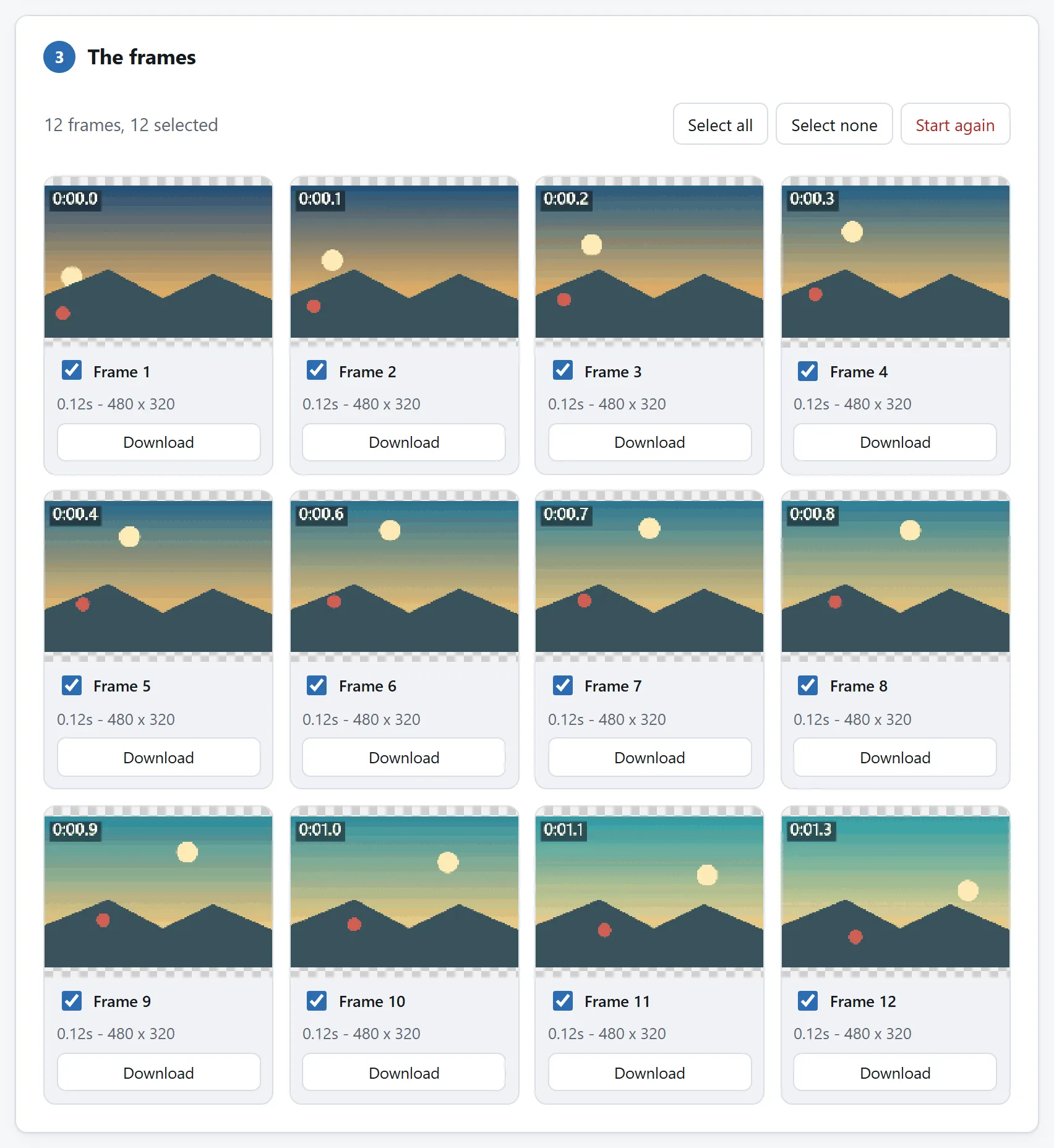
Every frame as a whole picture, which is not what is in the file: the section here is about the difference.
## The disposal rule, and why some frames leave holes
Every frame also carries one of four instructions about what happens to its rectangle before the next frame is drawn. The tool shows it under each frame in the stored view:
**Stays on screen.** The usual one. The patch stays where it landed and the next frame draws over it.
**Clears its area after.** The rectangle is wiped before the next frame lands. This is what an animation with a moving transparent object does, and it is also the classic cause of flickering GIFs.
**Restores what was under it.** The canvas goes back to what it looked like before this frame drew — a stamp, then an undo. Rare, and the one most home-made GIF readers get wrong.
One detail worth knowing if you compare tools: the specification says "clears its area" should restore the *background colour*, but every browser since the 1990s clears to *transparent* instead, because that is what the animations of the time assumed. This tool follows the browsers deliberately, so the frames you get are the frames you saw.
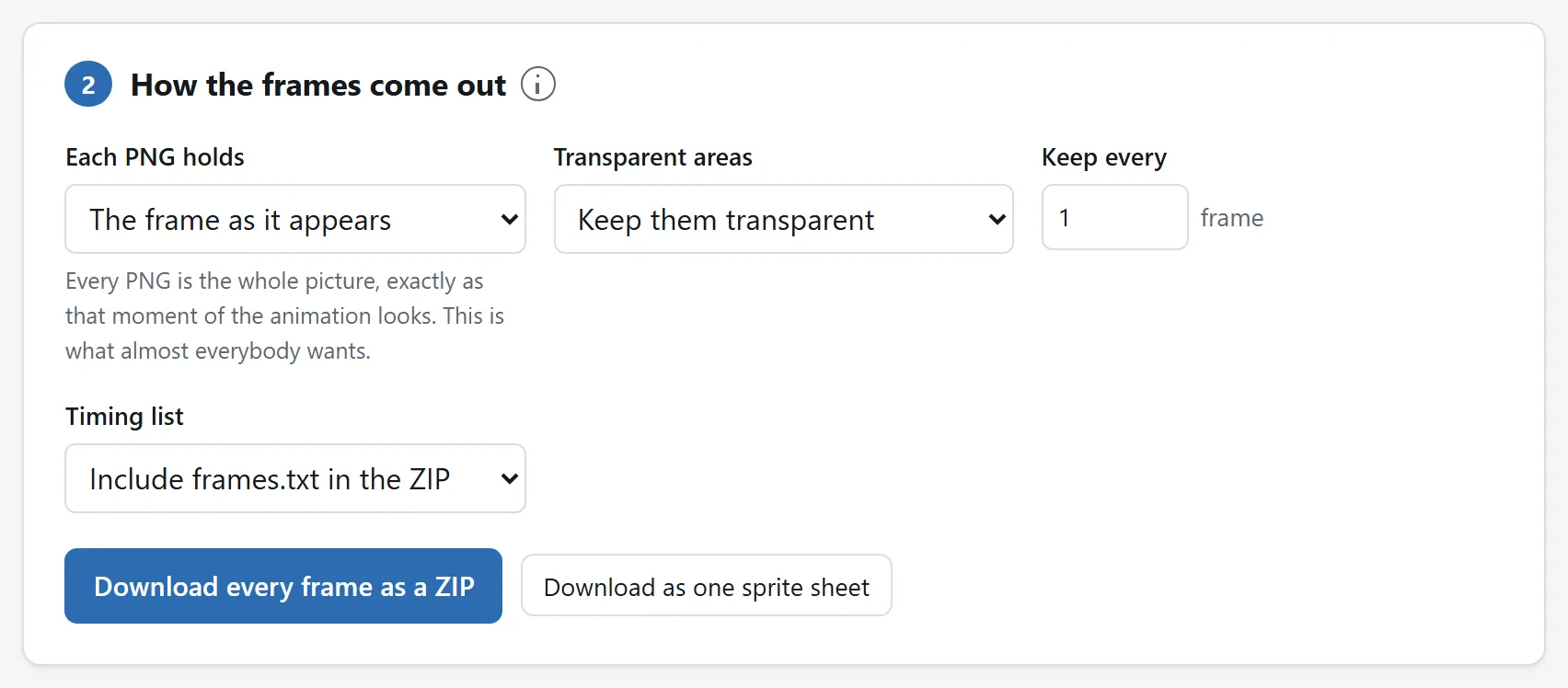
"As it appears" replays the disposal rules and hands you pictures. The other mode hands you what is really in the file, holes and all.
## What happens to the transparency
GIF transparency is one bit. A pixel is either painted or invisible, and there is nothing in between — no soft edges, no partial shadows. That is why a GIF with a transparent background has a hard, slightly jagged outline.
PNG stores exactly that, losslessly, so the frames come out with their transparency intact and nothing is invented. Keep it if the frames are going anywhere that understands transparency.
Fill it with a colour instead if they are not. Software that ignores an alpha channel usually renders it black, so a frame that looked fine in the browser arrives with a black background — and a stored patch, which is transparent nearly everywhere, arrives as a black rectangle with a mouth in it. Choosing the colour up front is the fix. It is written into the PNG and cannot be undone afterwards, which is the only reason it is not the default.
## The timing, which the frames cannot carry
A PNG has nowhere to record how long it was on screen. Split an animation into PNGs and the timing is gone, which matters the moment you want to put it back together.
That is what the `frames.txt` in the ZIP is for. It lists every frame's delay, position and size, so the animation can be rebuilt in the [GIF Maker](https://abox.tools/gif-maker/) or anywhere else. It costs a couple of kilobytes and there is no way to reconstruct it later.
Two things about GIF delays that catch everybody:
**The unit is hundredths of a second**, so the finest step the format has is 0.01 s. There is no such thing as an exactly 30 fps GIF; 0.03 s a frame is 33.3 fps and 0.04 s is 25.
**Anything under 0.02 s is played at 0.10 s.** Browsers have clamped it since the 1990s — a rule written for the spinning globes of the era and never removed. A GIF whose file says 0.01 s per frame claims 100 fps and plays at 10. The tool shows the delay as it is really played, and says what the file stores beside it when the two differ, because that gap is the reason a GIF you split and rebuilt can come out slower than the original.
## Frame numbers, and why they are padded
Frames come out as `name-001.png`, `name-002.png`, numbered from one and padded to the width of the last number. That is not decoration: `frame9.png` sorts *after* `frame10.png` in every file manager and in most software that imports a sequence, because they sort text rather than numbers. Padded names sort correctly everywhere, and every video editor that imports an image sequence expects them.
Thinning a long animation with "keep every second frame" does not renumber anything. Frame 42 is still called frame 42, so the files line up against the original and against the timing list.
## Why this does not need a server
Reading a GIF is two jobs: walking the blocks of the file, and undoing the LZW compression its pixels are wrapped in. Together they are a few hundred lines, they are written out in the repository, and they run on your own machine — which is why the page keeps working with the network unplugged.
Your browser can already play a GIF, but it will not hand you the parts: an `<img>` gives you an animation, drawing one to a canvas gives you the first frame forever, and the one API that does more is missing from Safari. So the format is read out here instead, the same way in every browser — and reading it yourself is also what makes it possible to show you the patches and the disposal rules at all.
[Is it safe to upload files to online converters?](https://abox.tools/guides/is-it-safe-to-upload-files/) sets out four checks that will tell you the same thing about any tool, including this one.
The short answer
Open GIF Splitter, drop the GIF in, and every frame appears as a PNG you can download — one at a time, or all of them as a single ZIP. Leave the settings alone and you get exactly what most people mean: each frame as the whole picture, as it looks at that moment of the animation.
The rest of this page is about the three things that surprise people afterwards: a frame that is only a small patch, transparency that turns black somewhere else, and timing that no longer exists once the frames are separate files.
What a GIF frame actually is
A GIF is not a stack of pictures. It is one picture, followed by a series of patches.
Each frame after the first stores only the rectangle that changed, along with a rule for what to do with the canvas afterwards. Everything else on screen is simply what the earlier frames left there. A person talking in front of a still wall costs a rectangle of face per frame instead of a whole picture per frame, and that is the entire reason a format with no motion compensation and no lossy step is not completely unusable.
So there are two different, equally honest answers to "give me frame 14", and the tool offers both:
The frame as it appears. The whole picture at that moment: frame 14 drawn on top of everything before it. This is the default, and it is what you want for a contact sheet, a thumbnail, a still to post, or frames going into a video editor.
Only the pixels that frame stores. The patch itself, at its own size, at its own position, with everything it does not carry left transparent. Frame 14 might be 60 × 40 pixels of mouth. This is the view that explains where a GIF's bytes went, and it is what you want if you are editing the animation rather than harvesting pictures from it.
Nothing is wrong with your file when a stored frame looks like a fragment. That is the file.
Every frame as a whole picture, which is not what is in the file: the section here is about the difference.
The disposal rule, and why some frames leave holes
Every frame also carries one of four instructions about what happens to its rectangle before the next frame is drawn. The tool shows it under each frame in the stored view:
Stays on screen. The usual one. The patch stays where it landed and the next frame draws over it.
Clears its area after. The rectangle is wiped before the next frame lands. This is what an animation with a moving transparent object does, and it is also the classic cause of flickering GIFs.
Restores what was under it. The canvas goes back to what it looked like before this frame drew — a stamp, then an undo. Rare, and the one most home-made GIF readers get wrong.
One detail worth knowing if you compare tools: the specification says "clears its area" should restore the background colour, but every browser since the 1990s clears to transparent instead, because that is what the animations of the time assumed. This tool follows the browsers deliberately, so the frames you get are the frames you saw.
"As it appears" replays the disposal rules and hands you pictures. The other mode hands you what is really in the file, holes and all.
What happens to the transparency
GIF transparency is one bit. A pixel is either painted or invisible, and there is nothing in between — no soft edges, no partial shadows. That is why a GIF with a transparent background has a hard, slightly jagged outline.
PNG stores exactly that, losslessly, so the frames come out with their transparency intact and nothing is invented. Keep it if the frames are going anywhere that understands transparency.
Fill it with a colour instead if they are not. Software that ignores an alpha channel usually renders it black, so a frame that looked fine in the browser arrives with a black background — and a stored patch, which is transparent nearly everywhere, arrives as a black rectangle with a mouth in it. Choosing the colour up front is the fix. It is written into the PNG and cannot be undone afterwards, which is the only reason it is not the default.
The timing, which the frames cannot carry
A PNG has nowhere to record how long it was on screen. Split an animation into PNGs and the timing is gone, which matters the moment you want to put it back together.
That is what the frames.txt in the ZIP is for. It lists every frame's delay, position and size, so the animation can be rebuilt in the GIF Maker or anywhere else. It costs a couple of kilobytes and there is no way to reconstruct it later.
Two things about GIF delays that catch everybody:
The unit is hundredths of a second, so the finest step the format has is 0.01 s. There is no such thing as an exactly 30 fps GIF; 0.03 s a frame is 33.3 fps and 0.04 s is 25.
Anything under 0.02 s is played at 0.10 s. Browsers have clamped it since the 1990s — a rule written for the spinning globes of the era and never removed. A GIF whose file says 0.01 s per frame claims 100 fps and plays at 10. The tool shows the delay as it is really played, and says what the file stores beside it when the two differ, because that gap is the reason a GIF you split and rebuilt can come out slower than the original.
Frame numbers, and why they are padded
Frames come out as name-001.png, name-002.png, numbered from one and padded to the width of the last number. That is not decoration: frame9.png sorts afterframe10.png in every file manager and in most software that imports a sequence, because they sort text rather than numbers. Padded names sort correctly everywhere, and every video editor that imports an image sequence expects them.
Thinning a long animation with "keep every second frame" does not renumber anything. Frame 42 is still called frame 42, so the files line up against the original and against the timing list.
Why this does not need a server
Reading a GIF is two jobs: walking the blocks of the file, and undoing the LZW compression its pixels are wrapped in. Together they are a few hundred lines, they are written out in the repository, and they run on your own machine — which is why the page keeps working with the network unplugged.
Your browser can already play a GIF, but it will not hand you the parts: an <img> gives you an animation, drawing one to a canvas gives you the first frame forever, and the one API that does more is missing from Safari. So the format is read out here instead, the same way in every browser — and reading it yourself is also what makes it possible to show you the patches and the disposal rules at all.

