Usually the honest answer is “probably, but you cannot check.” This explains what uploading actually does with your file, why most tools still do it, and four tests that tell you whether the one in front of you has to.
# Is it safe to upload files to online converters?
Usually the honest answer is “probably, but you cannot check.” This explains what uploading actually does with your file, why most tools still do it, and four tests that tell you whether the one in front of you has to.
Last updated 12 October 2026
## The short answer
Uploading can be appropriate for a non-sensitive file and a service whose terms fit the job. Retention and access vary by provider and feature; a deletion timer alone does not establish where every copy goes.
The problem is not that they are lying. It is that **you have no way to tell whether they are**. Once a file leaves your machine, every promise about what happens next is a promise you are taking on trust: how long it is kept, who can reach it, whether it is copied to a backup that outlives the deletion timer, what happens to it if the company is sold or breached. None of that is visible from outside.
So the useful question is not “do I trust this site?” It is **“does this job need my file to leave at all?”** For a large and growing number of jobs the answer is no, and when the answer is no, the trust question stops being one you have to answer.
## What “upload” actually does
An upload sends file data from your browser to another computer. The bytes may be the original file or a transformed copy. Choosing a file alone is not an upload: a local tool can read it without sending it.
Server processing may create working files, logs that identify the request, cached results and backups. These are possibilities to check in a provider's terms, rather than three copies every service necessarily makes. An external browser test cannot verify internal deletion or retention.
The filename and embedded metadata may travel with the upload. Photos can contain location, time, camera or software details and embedded thumbnails; the actual fields depend on the device, settings and edits. Inspect the file rather than assuming every phone photo has all of them.
## Why most tools upload anyway
Not because they want your files. Because for most of the web's life there was no alternative. A browser could not decode a video, re-encode an image at a chosen quality, or parse a file format; a server with FFmpeg and ImageMagick could. Uploading was not a business model, it was the only place the work could happen.
That stopped being true recently and quietly. Browsers now ship WebAssembly, which runs the same compiled codecs at close to native speed, WebCodecs, which exposes the hardware video encoder already in your machine, and a Canvas API that can decode and re-encode images directly. The work a server used to be needed for now runs on the device that already has the file.
Plenty of tools still upload, and there are honest reasons: an existing pipeline nobody wants to rewrite, a format with no browser-side decoder, a job genuinely too heavy for a phone. There is also a less honest reason, which is that a server is where accounts, quotas and paid tiers live. A tool that runs entirely in your browser is difficult to meter.
## Four checks you can run yourself
Run these checks on the exact operation and input you plan to use. Each answers part of the question; together they are stronger than any one alone.
### 1. Disconnect for the local operation
Load the tool fully and, if it caches offline assets, wait until its indicator says ready. Disconnect, then process a file from your device. Completion proves this operation did not need a server while disconnected. A failure can also mean missing assets or an unsupported browser feature. It does not prove an upload. A successful offline run does not establish what happens after reconnection; [the offline guide](https://abox.tools/guides/how-can-a-web-page-work-offline/) explains that limit.
### 2. Inspect the requests
Open DevTools before the operation, clear the list and preserve the log. Inspect destinations, URL parameters, request bodies and WebSocket messages. Transfer-size columns often describe responses, and small requests can carry extracted or compressed data; matching the file's size is not a sufficient test. Ordinary request lists also do not show WebRTC peer payloads. For a peer feature, read its transport code and use the browser's WebRTC diagnostics.
### 3. Read the Content-Security-Policy
The [connect-src directive](https://www.w3.org/TR/CSP3/#directive-connect-src) restricts destinations for APIs such as fetch and WebSocket. An allowed third-party host can still receive data. Other directives govern images, forms and resources; WebRTC peer traffic is not described by this host list. CSP is a useful constraint, not a payload audit or a standalone no-upload proof.
### 4. Follow the data in the source
Compare the published source and generated code. Trace chosen files through fetch, XMLHttpRequest, sendBeacon, WebSocket and RTCPeerConnection, and check forms, resource URLs and app handoffs too. These are examples of paths to inspect, not an exhaustive list. The decisive question is what data each path is given, including platform and feedback scripts.
## What “runs in your browser” does not mean
It is worth being precise, because the phrase gets used loosely and this site has to hold itself to the same standard it is proposing.
- **It does not mean no requests at all.** The page itself arrived over the network, and most free tools carry advertising or analytics that talk to somebody. The claim is about your *file*, not about traffic in general.
- **It does not hide your IP address.** Every site you visit sees it, this one included. Local processing is about the contents of your files, not about anonymity.
- **It does not survive a feature that fetches something.** A tool that lets you paste a web address has to contact that address, and that server learns your IP and what you asked for. That is inherent to the feature, not a flaw in it — but it is a real exception and a tool should say so plainly rather than round it off.
- **It is not the same as “we delete your files.”** Local processing identifies where a particular operation runs. Retention is a separate claim about what a provider does after receiving data. Read the implementation and any network-feature boundaries before treating either phrase as a privacy guarantee.
## When uploading is genuinely fine
This is not an argument that every upload is a mistake. Send the file when the content is not sensitive and the job is easier that way; when the work really is too heavy for your device; when the format has no browser-side decoder; or when you are using a service you already have a relationship with and whose terms you have actually read.
Be more careful when the file contains something you would not post publicly: identity documents, medical scans, contracts, anything with an address or a face you did not intend to share, or a photo whose location data you have not looked at. For those, a tool you can check is worth preferring over a tool you have to trust — not because the trusted one is likely to betray you, but because with the checkable one the question does not arise.
## How this site answers those four checks
It would be a strange guide that told you to check and then asked to be exempt. So, in order:
- **Offline.** Local processing works with loaded assets and a ready cache. Image URL retrieval, online rates and browser introductions require their respective connections.
- **Requests.** The processing code does not upload selected files. Platform page visits and optional fixed feedback votes are separate. Rate requests contain a currency pair and date, and intentional peer features send content to the chosen browser.
- **Policy.** Most tools inherit platform destinations. Receipt extraction adds Frankfurter; Share Text & Files and Remote Camera add the rendezvous. The policy constrains destinations and does not prove every payload.
- **Source.** The [source is public](https://github.com/A-Box-of-Tools/website). Build it and compare generated output. Shared modules and bundled engines are available alongside the first-party code.
The [Privacy page](https://abox.tools/privacy/) gives the full boundaries: [image URL imports](https://abox.tools/images-to-video/), optional [receipt exchange rates and app handoffs](https://abox.tools/receipt-invoice-extractor/), [browser-to-browser sharing](https://abox.tools/share-text/) and [remote camera viewing](https://abox.tools/remote-camera/), plus ads, Analytics and fixed feedback. A deliberate transfer is distinct from uploading a file for processing.
For local file processing, examples include [compressing toward a target size](https://abox.tools/compress-image/), [cropping a video](https://abox.tools/crop-video/), [removing EXIF and GPS](https://abox.tools/exif-editor/) and [making a PDF from images](https://abox.tools/images-to-pdf/). Check supported formats and the downloaded result. These jobs need no processing upload or account.
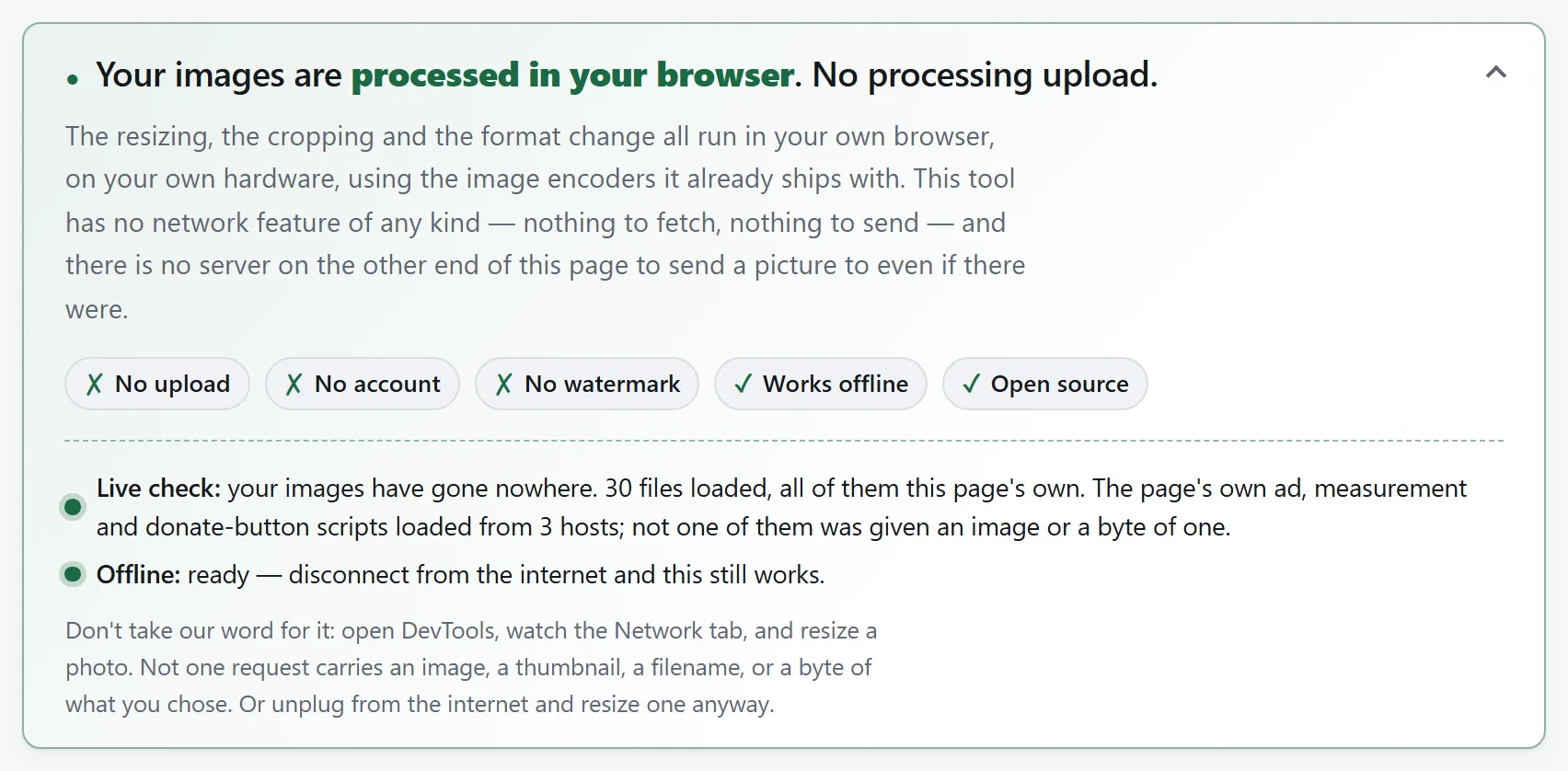
The panel makes the claim and its supporting source files visible. Its resource summary is a useful prompt to inspect the browser's own requests; it does not independently inspect their payloads.
The short answer
Uploading can be appropriate for a non-sensitive file and a service whose terms fit the job. Retention and access vary by provider and feature; a deletion timer alone does not establish where every copy goes.
The problem is not that they are lying. It is that you have no way to tell whether they are. Once a file leaves your machine, every promise about what happens next is a promise you are taking on trust: how long it is kept, who can reach it, whether it is copied to a backup that outlives the deletion timer, what happens to it if the company is sold or breached. None of that is visible from outside.
So the useful question is not “do I trust this site?” It is “does this job need my file to leave at all?” For a large and growing number of jobs the answer is no, and when the answer is no, the trust question stops being one you have to answer.
What “upload” actually does
An upload sends file data from your browser to another computer. The bytes may be the original file or a transformed copy. Choosing a file alone is not an upload: a local tool can read it without sending it.
Server processing may create working files, logs that identify the request, cached results and backups. These are possibilities to check in a provider's terms, rather than three copies every service necessarily makes. An external browser test cannot verify internal deletion or retention.
The filename and embedded metadata may travel with the upload. Photos can contain location, time, camera or software details and embedded thumbnails; the actual fields depend on the device, settings and edits. Inspect the file rather than assuming every phone photo has all of them.
Why most tools upload anyway
Not because they want your files. Because for most of the web's life there was no alternative. A browser could not decode a video, re-encode an image at a chosen quality, or parse a file format; a server with FFmpeg and ImageMagick could. Uploading was not a business model, it was the only place the work could happen.
That stopped being true recently and quietly. Browsers now ship WebAssembly, which runs the same compiled codecs at close to native speed, WebCodecs, which exposes the hardware video encoder already in your machine, and a Canvas API that can decode and re-encode images directly. The work a server used to be needed for now runs on the device that already has the file.
Plenty of tools still upload, and there are honest reasons: an existing pipeline nobody wants to rewrite, a format with no browser-side decoder, a job genuinely too heavy for a phone. There is also a less honest reason, which is that a server is where accounts, quotas and paid tiers live. A tool that runs entirely in your browser is difficult to meter.
Four checks you can run yourself
Run these checks on the exact operation and input you plan to use. Each answers part of the question; together they are stronger than any one alone.
1. Disconnect for the local operation
Load the tool fully and, if it caches offline assets, wait until its indicator says ready. Disconnect, then process a file from your device. Completion proves this operation did not need a server while disconnected. A failure can also mean missing assets or an unsupported browser feature. It does not prove an upload. A successful offline run does not establish what happens after reconnection; the offline guide explains that limit.
2. Inspect the requests
Open DevTools before the operation, clear the list and preserve the log. Inspect destinations, URL parameters, request bodies and WebSocket messages. Transfer-size columns often describe responses, and small requests can carry extracted or compressed data; matching the file's size is not a sufficient test. Ordinary request lists also do not show WebRTC peer payloads. For a peer feature, read its transport code and use the browser's WebRTC diagnostics.
3. Read the Content-Security-Policy
The connect-src directive restricts destinations for APIs such as fetch and WebSocket. An allowed third-party host can still receive data. Other directives govern images, forms and resources; WebRTC peer traffic is not described by this host list. CSP is a useful constraint, not a payload audit or a standalone no-upload proof.
4. Follow the data in the source
Compare the published source and generated code. Trace chosen files through fetch, XMLHttpRequest, sendBeacon, WebSocket and RTCPeerConnection, and check forms, resource URLs and app handoffs too. These are examples of paths to inspect, not an exhaustive list. The decisive question is what data each path is given, including platform and feedback scripts.
What “runs in your browser” does not mean
It is worth being precise, because the phrase gets used loosely and this site has to hold itself to the same standard it is proposing.
It does not mean no requests at all. The page itself arrived over the network, and most free tools carry advertising or analytics that talk to somebody. The claim is about your file, not about traffic in general.
It does not hide your IP address. Every site you visit sees it, this one included. Local processing is about the contents of your files, not about anonymity.
It does not survive a feature that fetches something. A tool that lets you paste a web address has to contact that address, and that server learns your IP and what you asked for. That is inherent to the feature, not a flaw in it — but it is a real exception and a tool should say so plainly rather than round it off.
It is not the same as “we delete your files.” Local processing identifies where a particular operation runs. Retention is a separate claim about what a provider does after receiving data. Read the implementation and any network-feature boundaries before treating either phrase as a privacy guarantee.
When uploading is genuinely fine
This is not an argument that every upload is a mistake. Send the file when the content is not sensitive and the job is easier that way; when the work really is too heavy for your device; when the format has no browser-side decoder; or when you are using a service you already have a relationship with and whose terms you have actually read.
Be more careful when the file contains something you would not post publicly: identity documents, medical scans, contracts, anything with an address or a face you did not intend to share, or a photo whose location data you have not looked at. For those, a tool you can check is worth preferring over a tool you have to trust — not because the trusted one is likely to betray you, but because with the checkable one the question does not arise.
How this site answers those four checks
It would be a strange guide that told you to check and then asked to be exempt. So, in order:
Offline. Local processing works with loaded assets and a ready cache. Image URL retrieval, online rates and browser introductions require their respective connections.
Requests. The processing code does not upload selected files. Platform page visits and optional fixed feedback votes are separate. Rate requests contain a currency pair and date, and intentional peer features send content to the chosen browser.
Policy. Most tools inherit platform destinations. Receipt extraction adds Frankfurter; Share Text & Files and Remote Camera add the rendezvous. The policy constrains destinations and does not prove every payload.
Source. The source is public. Build it and compare generated output. Shared modules and bundled engines are available alongside the first-party code.
The panel makes the claim and its supporting source files visible. Its resource summary is a useful prompt to inspect the browser's own requests; it does not independently inspect their payloads.
