What a photo says about you, and how to take it out
A picture straight off a phone typically carries the coordinates of the place it was taken, the time to the second, and enough about the camera to tie it to every other photo from the same device. None of it is visible on screen. This is what is in there and how to remove it.
# What a photo says about you, and how to take it out
A picture straight off a phone typically carries the coordinates of the place it was taken, the time to the second, and enough about the camera to tie it to every other photo from the same device. None of it is visible on screen. This is what is in there and how to remove it.
[Open the EXIF Viewer & Remover](https://abox.tools/exif-editor/): See what a photo says about you. Then take it out.
Last updated 4 October 2026
## The short answer
Open the [EXIF Viewer & Remover](https://abox.tools/exif-editor/), drop the photos in, and press “Remove all metadata”. Every tag, the XMP and IPTC blocks, the comments and the embedded thumbnail go, on every JPEG, PNG or WebP photo on the list at once. Their compressed picture data is copied unchanged. AVIF cleaning instead creates a new PNG from the browser's first decoded image, without copying the original metadata. The original file stays unchanged; the PNG may be larger and HDR or colour representation may change.
Before you do that, it is worth looking at what was in there. It is usually more than people expect, and the list is the argument for doing this at all.
## What is actually inside a photo
A JPEG is not just a compressed picture. It is a container, and beside the picture sit several blocks of information that your camera, phone or editor wrote there.
- **EXIF.** The main one. Camera make and model, lens, exposure settings, ISO, the date and time to the second, the orientation the picture should be shown in, and — on a phone with location services on for the camera — a GPS position accurate to a few metres. Frequently a camera body serial number as well.
- **GPS.** Technically part of EXIF, and worth naming separately because it is the one that matters most. It is written in degrees, minutes and seconds, which is a format that does a very good job of not looking like an address.
- **XMP.** A packet of XML that editors write. It can carry your name, your software, ratings, keywords, edit history, and a copy of some of the EXIF fields — which is why removing EXIF alone is not enough.
- **IPTC.** An older block of caption, byline, credit and copyright fields, used across the press and stock photography.
- **The embedded thumbnail.** A small second copy of the image. It is generated when the file is written, and it is not always regenerated when the picture is edited — which is how a cropped photo can travel with a thumbnail of what was cropped out.
- **The maker note.** An undocumented block of manufacturer data. Nobody outside the manufacturer knows everything that is in it.
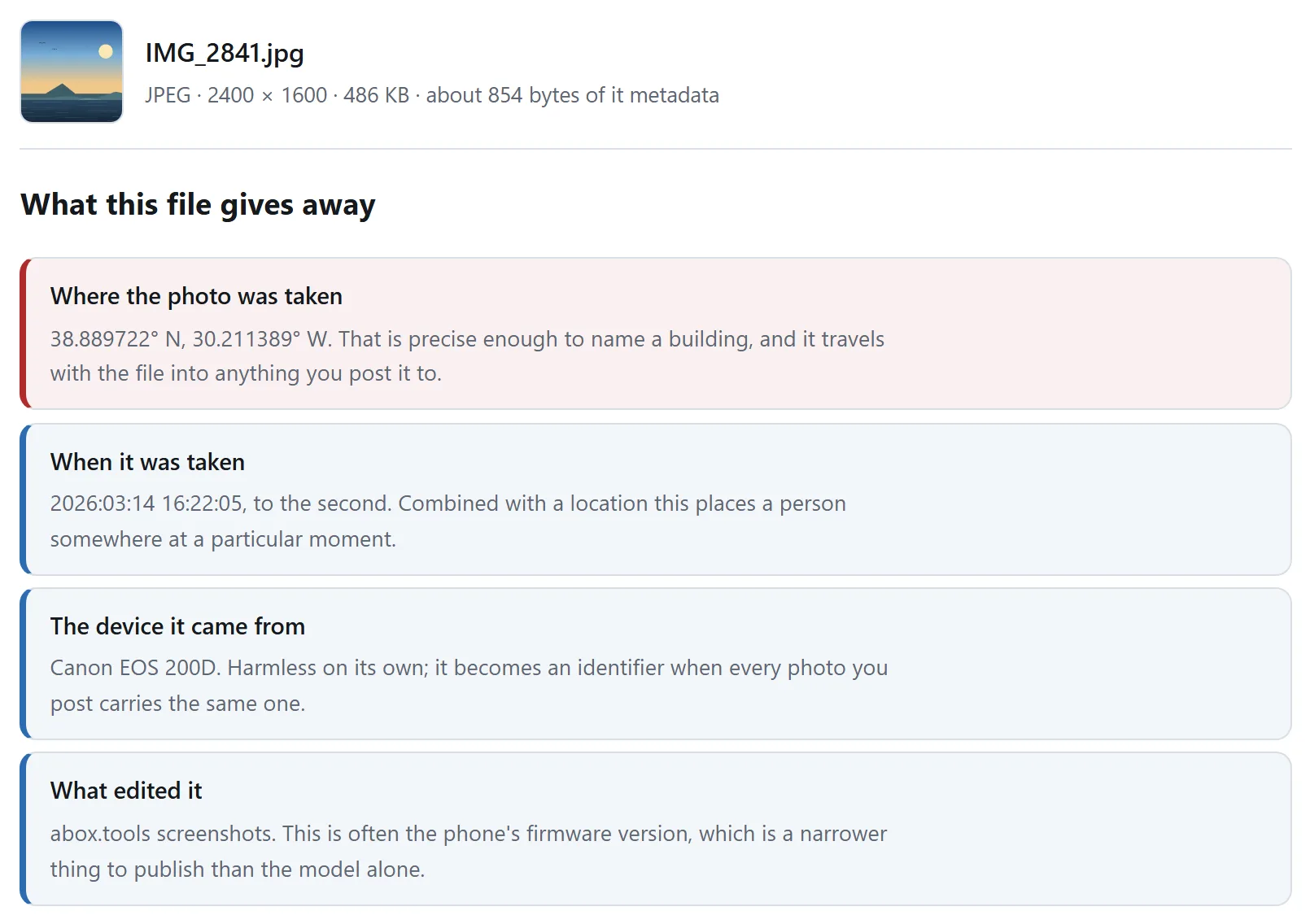
What a photograph off a phone is actually carrying. Most people have never looked, which is the reason this guide exists.
## Who actually sees it
This is the part worth being accurate about, because both the alarmed and the dismissive versions are wrong.
**Most large social networks strip metadata when you post.** Facebook, Instagram and X re-encode uploaded images and drop the tags in the process. This is not a kindness — they keep the data on their side — but it does mean a photo posted to those services does not hand its coordinates to every viewer.
**Almost everything else keeps it.** An email attachment. A file sent over most chat apps as a “document” rather than a photo. A picture on a forum, a marketplace listing, a personal site, a shared drive, a bug report, a support ticket. In all of those the file arrives intact, and anyone who downloads it can read the tags with tools that ship with their operating system.
The realistic risks are mundane rather than dramatic: a marketplace listing photographed at home, a picture of a child taken at their school, an apparently anonymous account posting photos that all share one camera serial number, a “taken last week” that was taken in March.
## Why not just re-save it?
Re-saving a photo through an editor or a compressor does remove the metadata — the picture is decoded to pixels and encoded again, and a canvas full of pixels carries no tags. It works, and it costs you quality, when the new encoding is lossy. A lossless PNG can avoid another lossy compression step, but decoding may still change HDR or colour representation.
For JPEG, PNG and WebP, container cleaning avoids re-encoding. The tags sit in the container *around* the compressed picture, not inside it, so stripping them is deleting entries from a list and writing the list back out. The compressed image data is copied across byte for byte and the result decodes to exactly the same pixels. That is the whole reason to use a metadata tool rather than a converter.
The exception is if you were going to re-encode anyway. If you are already compressing or resizing the photo, the tags go as a side effect and you do not need a second step.
## The one thing to keep: orientation
Phones do not rotate the picture when you turn the phone. They record it the way the sensor saw it and add an Orientation tag saying how it should be turned for display. Strip every tag and some viewers will show your photo on its side.
This is why the tool here has a “keep the orientation tag” option, on by default. It writes back a tiny EXIF block containing that one tag and nothing else, and only for photos that actually needed it. The GPS, the timestamps, the serial number and the rest are still gone.
Turn it off if you would rather the file carry no EXIF whatsoever — and then check the result before you send it, because a sideways photo is the usual outcome.
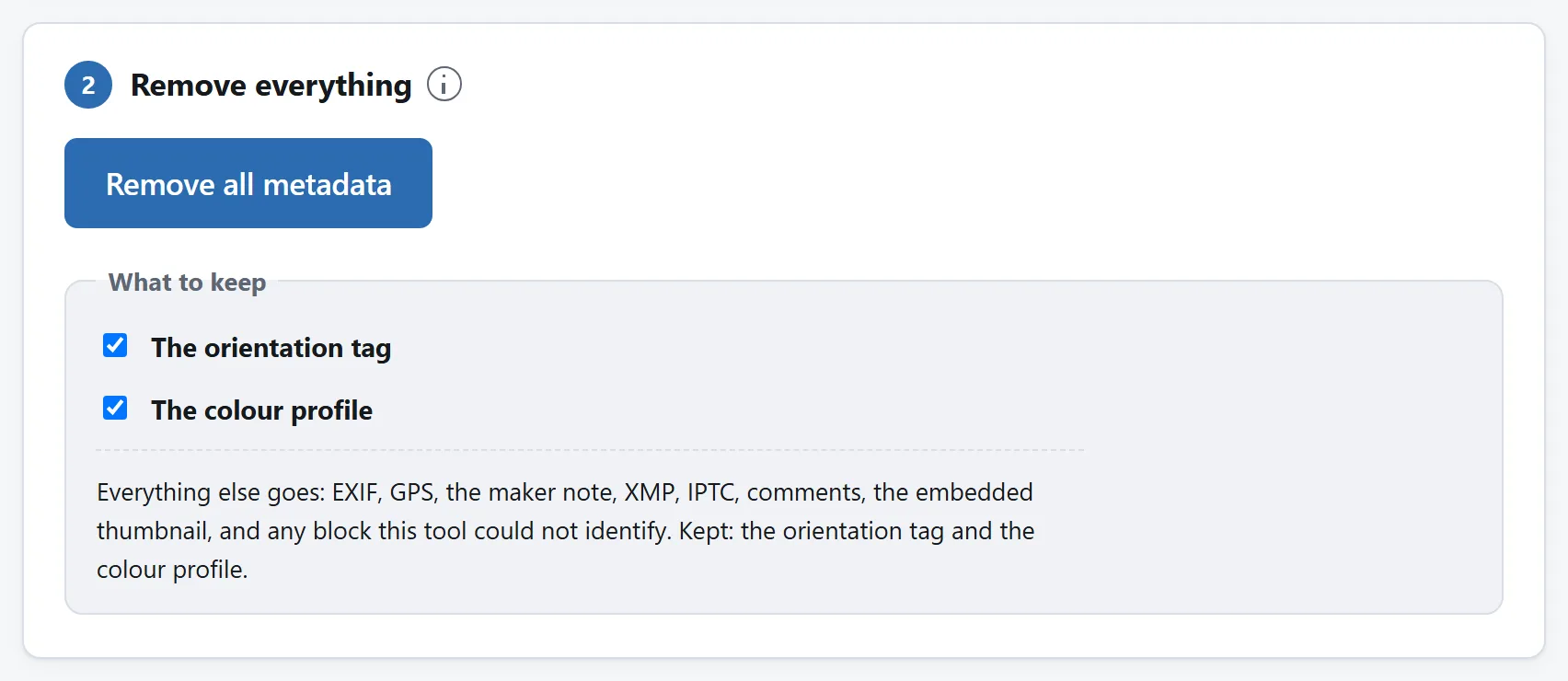
Take it all out - except the two things worth keeping. Orientation is the one that turns half a set of photographs sideways when it goes.
## Editing instead of removing
Removing everything is the right answer for most people. Sometimes it is not: a photographer may want the copyright line and the camera settings kept and only the location gone; an archivist may need to correct a date that was wrong because the camera clock was.
Both are possible. The location can be deleted on its own, and text tags, dates, ISO, orientation and resolution can be edited in place.
One caveat that applies to every tool that does this, not just this one: writing the file rebuilds the EXIF block, and a maker note contains offsets into the *original* block. A rebuilt maker note may therefore no longer be readable by the manufacturer's own software. If that matters, delete the maker note or leave the file unedited.
## Formats, and the ones that cannot be done this way
JPEG, PNG and WebP support container cleaning and tag editing. AVIF supports an available EXIF preview and cleaning to a new PNG. AVIF tag editing is unavailable, and its preview does not inventory every other metadata block. Animated AVIF uses the first decoded image.
HEIC — what an iPhone often saves — uses a different codec and is still recognised but refused by this metadata tool. If you have a HEIC, choose metadata removal when converting it to JPEG.
A bare TIFF is not handled either, and for a more interesting reason: in a TIFF the metadata and the pixel data are addressed by the same offsets, so removing tags means rewriting the picture's own addressing. It is doable and it is a different job.
## A habit worth having
Check before you post rather than after. Reading the tags takes a few seconds and the finding list names the things worth knowing about — the position, the timestamps, the serial numbers — before the full table of every tag, so you do not have to know what to look for.
The position is shown in decimal degrees first, on purpose. “51 degrees, 30 minutes, 26 seconds” does not make it obvious that a photo names the building it was taken in. A pair of decimals you can paste into a map does.
## Do not upload the photo to find out what is in it
There is a particular irony in the usual way this problem gets solved: somebody worried about what their photo reveals uploads it to a website to find out. The site now has the photo, the coordinates, the timestamp and the serial number, and a copy of the picture on a disk they own.
There is no reason for it. Reading and rewriting the container around a JPEG is a few hundred lines of parsing that a browser runs perfectly well, which is why the tool here has no network feature at all: no `fetch`, no `XMLHttpRequest`, nothing that could send a file even if something tried. Load it once, disconnect, and it keeps working.
[Is it safe to upload files to online converters?](https://abox.tools/guides/is-it-safe-to-upload-files/) sets out how to check that claim on this site or any other — and this is the file type where it is most worth checking.
The short answer
Open the EXIF Viewer & Remover, drop the photos in, and press “Remove all metadata”. Every tag, the XMP and IPTC blocks, the comments and the embedded thumbnail go, on every JPEG, PNG or WebP photo on the list at once. Their compressed picture data is copied unchanged. AVIF cleaning instead creates a new PNG from the browser's first decoded image, without copying the original metadata. The original file stays unchanged; the PNG may be larger and HDR or colour representation may change.
Before you do that, it is worth looking at what was in there. It is usually more than people expect, and the list is the argument for doing this at all.
What is actually inside a photo
A JPEG is not just a compressed picture. It is a container, and beside the picture sit several blocks of information that your camera, phone or editor wrote there.
EXIF. The main one. Camera make and model, lens, exposure settings, ISO, the date and time to the second, the orientation the picture should be shown in, and — on a phone with location services on for the camera — a GPS position accurate to a few metres. Frequently a camera body serial number as well.
GPS. Technically part of EXIF, and worth naming separately because it is the one that matters most. It is written in degrees, minutes and seconds, which is a format that does a very good job of not looking like an address.
XMP. A packet of XML that editors write. It can carry your name, your software, ratings, keywords, edit history, and a copy of some of the EXIF fields — which is why removing EXIF alone is not enough.
IPTC. An older block of caption, byline, credit and copyright fields, used across the press and stock photography.
The embedded thumbnail. A small second copy of the image. It is generated when the file is written, and it is not always regenerated when the picture is edited — which is how a cropped photo can travel with a thumbnail of what was cropped out.
The maker note. An undocumented block of manufacturer data. Nobody outside the manufacturer knows everything that is in it.
What a photograph off a phone is actually carrying. Most people have never looked, which is the reason this guide exists.
Who actually sees it
This is the part worth being accurate about, because both the alarmed and the dismissive versions are wrong.
Most large social networks strip metadata when you post. Facebook, Instagram and X re-encode uploaded images and drop the tags in the process. This is not a kindness — they keep the data on their side — but it does mean a photo posted to those services does not hand its coordinates to every viewer.
Almost everything else keeps it. An email attachment. A file sent over most chat apps as a “document” rather than a photo. A picture on a forum, a marketplace listing, a personal site, a shared drive, a bug report, a support ticket. In all of those the file arrives intact, and anyone who downloads it can read the tags with tools that ship with their operating system.
The realistic risks are mundane rather than dramatic: a marketplace listing photographed at home, a picture of a child taken at their school, an apparently anonymous account posting photos that all share one camera serial number, a “taken last week” that was taken in March.
Why not just re-save it?
Re-saving a photo through an editor or a compressor does remove the metadata — the picture is decoded to pixels and encoded again, and a canvas full of pixels carries no tags. It works, and it costs you quality, when the new encoding is lossy. A lossless PNG can avoid another lossy compression step, but decoding may still change HDR or colour representation.
For JPEG, PNG and WebP, container cleaning avoids re-encoding. The tags sit in the container around the compressed picture, not inside it, so stripping them is deleting entries from a list and writing the list back out. The compressed image data is copied across byte for byte and the result decodes to exactly the same pixels. That is the whole reason to use a metadata tool rather than a converter.
The exception is if you were going to re-encode anyway. If you are already compressing or resizing the photo, the tags go as a side effect and you do not need a second step.
The one thing to keep: orientation
Phones do not rotate the picture when you turn the phone. They record it the way the sensor saw it and add an Orientation tag saying how it should be turned for display. Strip every tag and some viewers will show your photo on its side.
This is why the tool here has a “keep the orientation tag” option, on by default. It writes back a tiny EXIF block containing that one tag and nothing else, and only for photos that actually needed it. The GPS, the timestamps, the serial number and the rest are still gone.
Turn it off if you would rather the file carry no EXIF whatsoever — and then check the result before you send it, because a sideways photo is the usual outcome.
Take it all out - except the two things worth keeping. Orientation is the one that turns half a set of photographs sideways when it goes.
Editing instead of removing
Removing everything is the right answer for most people. Sometimes it is not: a photographer may want the copyright line and the camera settings kept and only the location gone; an archivist may need to correct a date that was wrong because the camera clock was.
Both are possible. The location can be deleted on its own, and text tags, dates, ISO, orientation and resolution can be edited in place.
One caveat that applies to every tool that does this, not just this one: writing the file rebuilds the EXIF block, and a maker note contains offsets into the original block. A rebuilt maker note may therefore no longer be readable by the manufacturer's own software. If that matters, delete the maker note or leave the file unedited.
Formats, and the ones that cannot be done this way
JPEG, PNG and WebP support container cleaning and tag editing. AVIF supports an available EXIF preview and cleaning to a new PNG. AVIF tag editing is unavailable, and its preview does not inventory every other metadata block. Animated AVIF uses the first decoded image.
HEIC — what an iPhone often saves — uses a different codec and is still recognised but refused by this metadata tool. If you have a HEIC, choose metadata removal when converting it to JPEG.
A bare TIFF is not handled either, and for a more interesting reason: in a TIFF the metadata and the pixel data are addressed by the same offsets, so removing tags means rewriting the picture's own addressing. It is doable and it is a different job.
A habit worth having
Check before you post rather than after. Reading the tags takes a few seconds and the finding list names the things worth knowing about — the position, the timestamps, the serial numbers — before the full table of every tag, so you do not have to know what to look for.
The position is shown in decimal degrees first, on purpose. “51 degrees, 30 minutes, 26 seconds” does not make it obvious that a photo names the building it was taken in. A pair of decimals you can paste into a map does.
Do not upload the photo to find out what is in it
There is a particular irony in the usual way this problem gets solved: somebody worried about what their photo reveals uploads it to a website to find out. The site now has the photo, the coordinates, the timestamp and the serial number, and a copy of the picture on a disk they own.
There is no reason for it. Reading and rewriting the container around a JPEG is a few hundred lines of parsing that a browser runs perfectly well, which is why the tool here has no network feature at all: no fetch, no XMLHttpRequest, nothing that could send a file even if something tried. Load it once, disconnect, and it keeps working.

