Copying can shorten a video without changing its encoded frames. This guide explains the keyframe limits, when Copy is safe, and when to choose a re-encode.
Open the Video CutterMark the parts worth keeping as it plays. Get them back as one video.
# How to trim a video without re-encoding it
Copying can shorten a video without changing its encoded frames. This guide explains the keyframe limits, when Copy is safe, and when to choose a re-encode.
[Open the Video Cutter](https://abox.tools/trim-video/): Mark the parts worth keeping as it plays. Get them back as one video.
Last updated 26 August 2026
## The short answer
Open the [Video Cutter](https://abox.tools/trim-video/), drop the clip in, press `I` and `O` to mark each part you want, then choose how to export. On an MP4, MOV or M4V, “Keep every byte” moves the retained frames and sound into the new file unchanged. It is available for one section, or for several when every later section starts on a keyframe. Other selections need the explicitly labelled re-encoding path.
Copying costs nothing in quality, and it is fast: cutting a minute out of a four-gigabyte recording costs about what writing that minute to disk costs, because the frames are pointed at rather than loaded. The choice depends on where each retained section begins, which is the rest of this page.
## Why a trim need not lose quality at all
For a selection that Copy can handle, every retained frame can stay exactly as it was encoded. Moving those existing bytes avoids decoding and re-encoding them, so this path shortens the video without adding another lossy encoding step.
When a copy can preserve the requested timing, the trimmer reads the file's index, works out which encoded frames are needed, and writes those bytes into a new container with a new index in front of them. Nothing is decoded on that path.
Re-encoding is useful when the requested timing cannot be preserved reliably by copying. It usually takes longer because the browser has to decode and encode every retained picture; copying is mostly limited by how fast the file can be written.
## Keyframes, and why your cut may land early
Here is the constraint that everything about trimming follows from.
Video is not stored as a sequence of complete pictures. That would be enormous. Most frames are stored as a description of how they differ from their neighbours, which means they cannot be decoded on their own — you need the frames around them. Only a **keyframe** stands alone as a complete picture, and keyframes are typically one to ten seconds apart.
So if you mark a cut two seconds after the last keyframe, a trimmer that copies frames cannot start there. The frames at your mark are unreadable without the run that leads up to them. It has to carry the whole stretch from the keyframe in front of your mark.
For the first retained section, the file format can say *start playing at this point*: the extra frames remain in the file, with an edit mark asking the player to skip them. Players that honour that instruction begin at the mark. A player that ignores it can show the earlier frames too.
Hidden frames at a later join can make browsers show a section too early, even with a correct edit list. The tool therefore refuses Copy when any section after the first starts between keyframes. It explains why and leaves you to choose the re-encoding method explicitly.
## When to accept a re-encode
“Cut exactly here” decodes from the preceding keyframe, discards frames outside the marked sections, and re-encodes every retained video frame. It is not limited to the opening stretch. It takes longer than copying and can reduce picture quality throughout the retained video. The sound is copied when its format permits it.
Choose it when Copy is unavailable for your selection, or when you need the output to begin at the retained frames without relying on an initial edit mark. Copy remains useful for one section or for several whose later starts fall on keyframes, if the receiving player handles the initial edit mark correctly.
You can also move a section's start to a keyframe shown on the timeline. That can make Copy available for a later section without re-encoding. It changes which footage you keep, so make that choice according to the content you need.
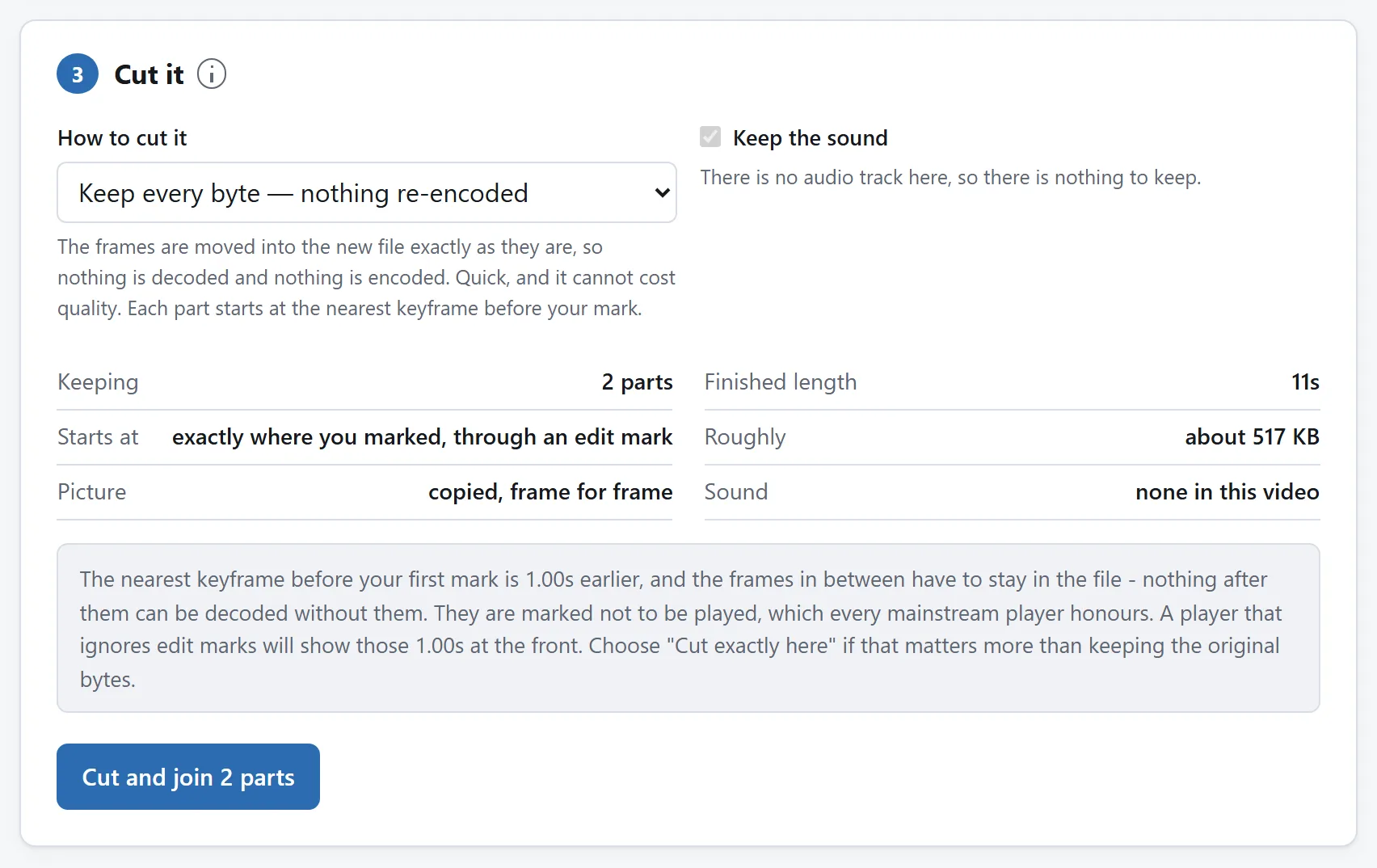
The summary is where the decision in this section is made: what the copy will cost, and what the re-encode would cost instead.
## Taking a piece out of the middle
Cutting a section out is a different operation from keeping one, and worth knowing is supported, because a lot of trimmers only do the second. Mark the part you do not want, choose to cut it out, and what is left on either side is joined into one clip with the sound carried across in step.
Copy can join the remaining parts when every part after the first resumes on a keyframe. If a later part needs hidden frames before its start, choose “Cut exactly here” instead. The recording fallback below cannot join separate parts, because it records one uninterrupted pass from one playhead.
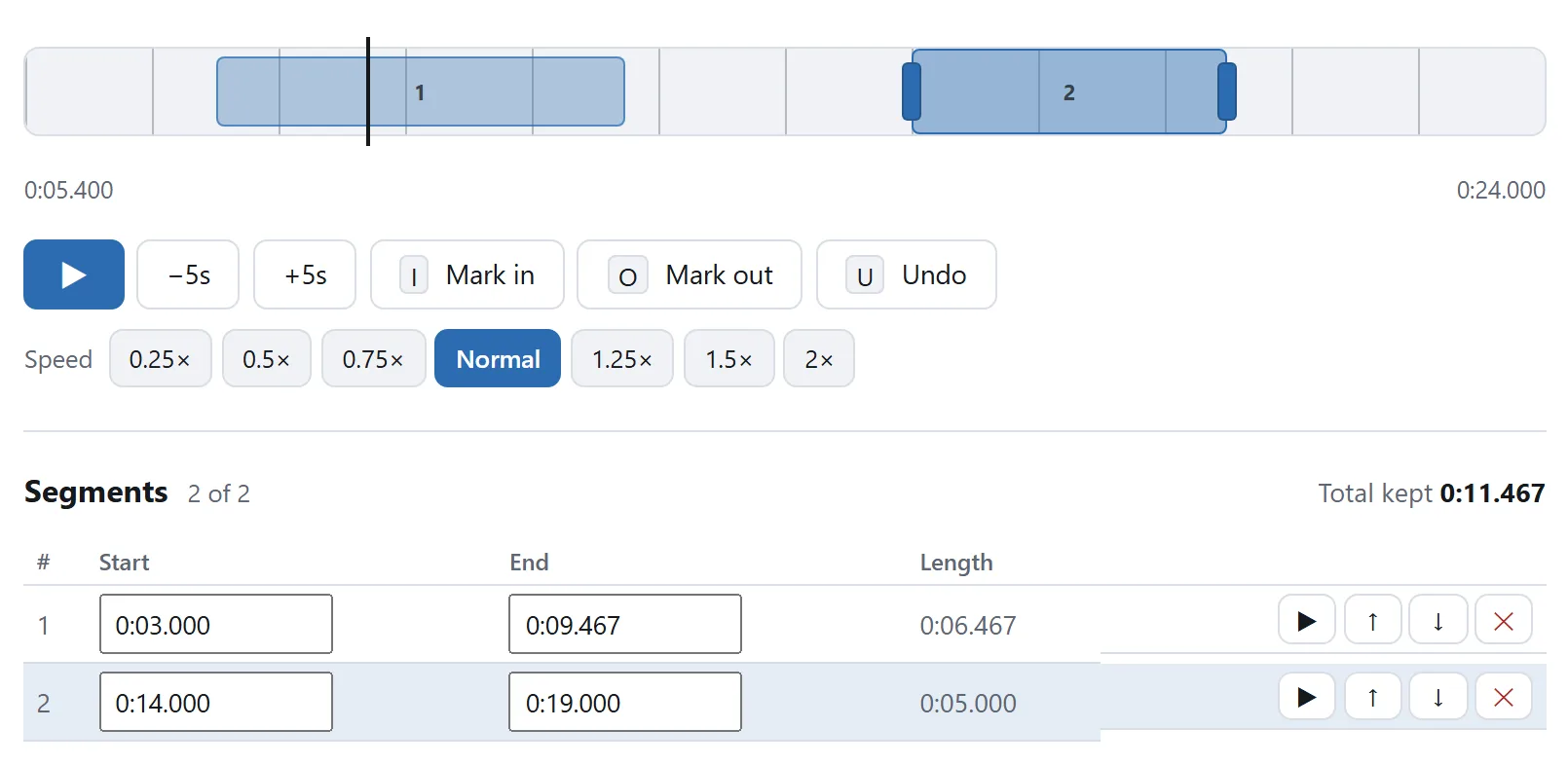
Two pieces kept out of one clip. The table is editable, so a mark that landed a fifth of a second late can be typed rather than re-marked.
## Formats, and the fallback
**MP4, M4V and MOV** are read directly, whatever codec is inside them — H.264, HEVC, AV1, VP9. Copying frames does not involve decoding them, so this path works even for a codec your browser has no decoder for at all, which is a pleasant consequence of not looking at the pictures.
**Anything else your browser can play**, WebM most obviously, is trimmed by playing it and recording the result. That works, and it has two costs: it takes as long as the section is long, and the picture and sound are encoded again.
**AVI, WMV, FLV and most MKVs** the browser can neither read nor play, and the tool says so rather than failing halfway through. Convert those to MP4 first with something that handles them.
## Two things that quietly go wrong elsewhere
**Rotation.** A phone films in landscape and writes a rotation instruction into the file rather than turning the pixels. A trimmer that copies frames has to carry that instruction across, or your portrait clip comes out on its side — which is the classic way a trimmed video is ruined. The exact path here turns the frames as it re-encodes them and writes a file that needs no rotation at all.
**Audio sync.** Audio and video are stored as separate streams with their own timing, and they are not chopped at the same points. If the two are not lined up deliberately at the cut, the sound drifts. On the copy path here the audio is copied sample by sample without being decoded, so it is byte for byte what was in the file, and an edit mark keeps it in step with the picture to within a thousandth of a second.
## Trimming is not cropping
Two words that get used for each other. Trimming changes the length of the clip; cropping changes the shape of the picture. If what you want is a square version of a landscape video, or the black bars gone from the sides, that is the [Video Cropper](https://abox.tools/crop-video/) — and unlike trimming it does have to re-encode, for the reason [its guide](https://abox.tools/guides/crop-a-video/) explains.
## Why this does not need an upload — especially this
Video is the file type people most expect to have to upload, because the files are large and the work sounds heavy. Trimming is the case where that is least true: on the copy path the file is barely read at all. The tool walks the index, works out which byte ranges to keep, and writes them out. Uploading a four-gigabyte file to a server so it can do that would be the slowest possible way to arrange it.
It is also the file type where uploading costs the most if you would rather not: video carries faces, voices, homes and locations in a way a document does not. The tool here has no network feature of any kind, and the page's `Content-Security-Policy` names every address it may contact, none of which belongs to this site.
Unplug from the internet and trim a clip anyway if you would rather check than be told. [Is it safe to upload files to online converters?](https://abox.tools/guides/is-it-safe-to-upload-files/) sets out three more checks like it.
The short answer
Open the Video Cutter, drop the clip in, press I and O to mark each part you want, then choose how to export. On an MP4, MOV or M4V, “Keep every byte” moves the retained frames and sound into the new file unchanged. It is available for one section, or for several when every later section starts on a keyframe. Other selections need the explicitly labelled re-encoding path.
Copying costs nothing in quality, and it is fast: cutting a minute out of a four-gigabyte recording costs about what writing that minute to disk costs, because the frames are pointed at rather than loaded. The choice depends on where each retained section begins, which is the rest of this page.
Why a trim need not lose quality at all
For a selection that Copy can handle, every retained frame can stay exactly as it was encoded. Moving those existing bytes avoids decoding and re-encoding them, so this path shortens the video without adding another lossy encoding step.
When a copy can preserve the requested timing, the trimmer reads the file's index, works out which encoded frames are needed, and writes those bytes into a new container with a new index in front of them. Nothing is decoded on that path.
Re-encoding is useful when the requested timing cannot be preserved reliably by copying. It usually takes longer because the browser has to decode and encode every retained picture; copying is mostly limited by how fast the file can be written.
Keyframes, and why your cut may land early
Here is the constraint that everything about trimming follows from.
Video is not stored as a sequence of complete pictures. That would be enormous. Most frames are stored as a description of how they differ from their neighbours, which means they cannot be decoded on their own — you need the frames around them. Only a keyframe stands alone as a complete picture, and keyframes are typically one to ten seconds apart.
So if you mark a cut two seconds after the last keyframe, a trimmer that copies frames cannot start there. The frames at your mark are unreadable without the run that leads up to them. It has to carry the whole stretch from the keyframe in front of your mark.
For the first retained section, the file format can say start playing at this point: the extra frames remain in the file, with an edit mark asking the player to skip them. Players that honour that instruction begin at the mark. A player that ignores it can show the earlier frames too.
Hidden frames at a later join can make browsers show a section too early, even with a correct edit list. The tool therefore refuses Copy when any section after the first starts between keyframes. It explains why and leaves you to choose the re-encoding method explicitly.
When to accept a re-encode
“Cut exactly here” decodes from the preceding keyframe, discards frames outside the marked sections, and re-encodes every retained video frame. It is not limited to the opening stretch. It takes longer than copying and can reduce picture quality throughout the retained video. The sound is copied when its format permits it.
Choose it when Copy is unavailable for your selection, or when you need the output to begin at the retained frames without relying on an initial edit mark. Copy remains useful for one section or for several whose later starts fall on keyframes, if the receiving player handles the initial edit mark correctly.
You can also move a section's start to a keyframe shown on the timeline. That can make Copy available for a later section without re-encoding. It changes which footage you keep, so make that choice according to the content you need.
The summary is where the decision in this section is made: what the copy will cost, and what the re-encode would cost instead.
Taking a piece out of the middle
Cutting a section out is a different operation from keeping one, and worth knowing is supported, because a lot of trimmers only do the second. Mark the part you do not want, choose to cut it out, and what is left on either side is joined into one clip with the sound carried across in step.
Copy can join the remaining parts when every part after the first resumes on a keyframe. If a later part needs hidden frames before its start, choose “Cut exactly here” instead. The recording fallback below cannot join separate parts, because it records one uninterrupted pass from one playhead.
Two pieces kept out of one clip. The table is editable, so a mark that landed a fifth of a second late can be typed rather than re-marked.
Formats, and the fallback
MP4, M4V and MOV are read directly, whatever codec is inside them — H.264, HEVC, AV1, VP9. Copying frames does not involve decoding them, so this path works even for a codec your browser has no decoder for at all, which is a pleasant consequence of not looking at the pictures.
Anything else your browser can play, WebM most obviously, is trimmed by playing it and recording the result. That works, and it has two costs: it takes as long as the section is long, and the picture and sound are encoded again.
AVI, WMV, FLV and most MKVs the browser can neither read nor play, and the tool says so rather than failing halfway through. Convert those to MP4 first with something that handles them.
Two things that quietly go wrong elsewhere
Rotation. A phone films in landscape and writes a rotation instruction into the file rather than turning the pixels. A trimmer that copies frames has to carry that instruction across, or your portrait clip comes out on its side — which is the classic way a trimmed video is ruined. The exact path here turns the frames as it re-encodes them and writes a file that needs no rotation at all.
Audio sync. Audio and video are stored as separate streams with their own timing, and they are not chopped at the same points. If the two are not lined up deliberately at the cut, the sound drifts. On the copy path here the audio is copied sample by sample without being decoded, so it is byte for byte what was in the file, and an edit mark keeps it in step with the picture to within a thousandth of a second.
Trimming is not cropping
Two words that get used for each other. Trimming changes the length of the clip; cropping changes the shape of the picture. If what you want is a square version of a landscape video, or the black bars gone from the sides, that is the Video Cropper — and unlike trimming it does have to re-encode, for the reason its guide explains.
Why this does not need an upload — especially this
Video is the file type people most expect to have to upload, because the files are large and the work sounds heavy. Trimming is the case where that is least true: on the copy path the file is barely read at all. The tool walks the index, works out which byte ranges to keep, and writes them out. Uploading a four-gigabyte file to a server so it can do that would be the slowest possible way to arrange it.
It is also the file type where uploading costs the most if you would rather not: video carries faces, voices, homes and locations in a way a document does not. The tool here has no network feature of any kind, and the page's Content-Security-Policy names every address it may contact, none of which belongs to this site.

