A GIF made from a whole clip is huge, and almost all of it is footage nobody wanted. The job is really two decisions — which seconds, then which settings — and both happen on your own machine, because neither tool here uploads anything.
# How to make a GIF from part of a video
A GIF made from a whole clip is huge, and almost all of it is footage nobody wanted. The job is really two decisions — which seconds, then which settings — and both happen on your own machine, because neither tool here uploads anything.
Last updated 26 August 2026
## The short answer
For one continuous moment, open the [Video to GIF](https://abox.tools/video-to-gif/) converter, drop the video in, and mark the section on its timeline — it converts only what sits between the marks, so there is nothing to cut in advance. Pick a width and a frame rate, and export.
For anything more than one moment — two goals from the same match, the setup and the punchline — assemble the clip first with the [Video Cutter](https://abox.tools/trim-video/), then hand the result to the converter. The cutter joins any number of marked parts into one file without re-encoding them, so that first step costs nothing in quality and a few seconds in time.
Handing it over is one click: after the cutter exports, a row under its download button offers to carry the result straight into the converter, and the clip arrives there already loaded — no saving and re-dropping in between.
Either way the order is the same: decide the seconds first, spend the settings second. The rest of this page is why that order matters so much more for a GIF than for anything else this site makes.
## Why every second of GIF is so expensive
A GIF is not video. It is a stack of complete pictures, each drawn from a palette of at most 256 colours, compressed with a scheme from 1987 that knows nothing about motion. A modern codec describes what *changed* between frames; a GIF largely repeats what stayed the same.
The practical consequence: a ten-second 480-pixel GIF at 12 frames a second is routinely 5 to 10 MB — ten times the size of the same clip as MP4, at a fraction of the quality. Nothing about the converter is at fault; that is what the format is. The [GIF conversion guide](https://abox.tools/guides/turn-a-video-into-a-gif/) covers when a GIF is still worth it, and when a muted looping video serves better.
Because size grows with every frame, the cheapest megabytes to save are whole seconds. Halving the width roughly quarters the size; halving the frame rate roughly halves it; but cutting footage that should never have been there saves its full cost and improves the result — a GIF that starts at the action reads better than one that spends two seconds walking to it.
## When the converter's own timeline is enough
The converter's timeline marks one section: a start, an end, and everything between them becomes the GIF. If the moment you want is continuous — however long — that is the whole job, and adding the cutter to the front of it would only give the same two marks a second home.
Set the marks a touch tight rather than a touch loose. A loop hides its seam when the last frame sits close to the first, and every frame you shave from either end is paid back in file size.
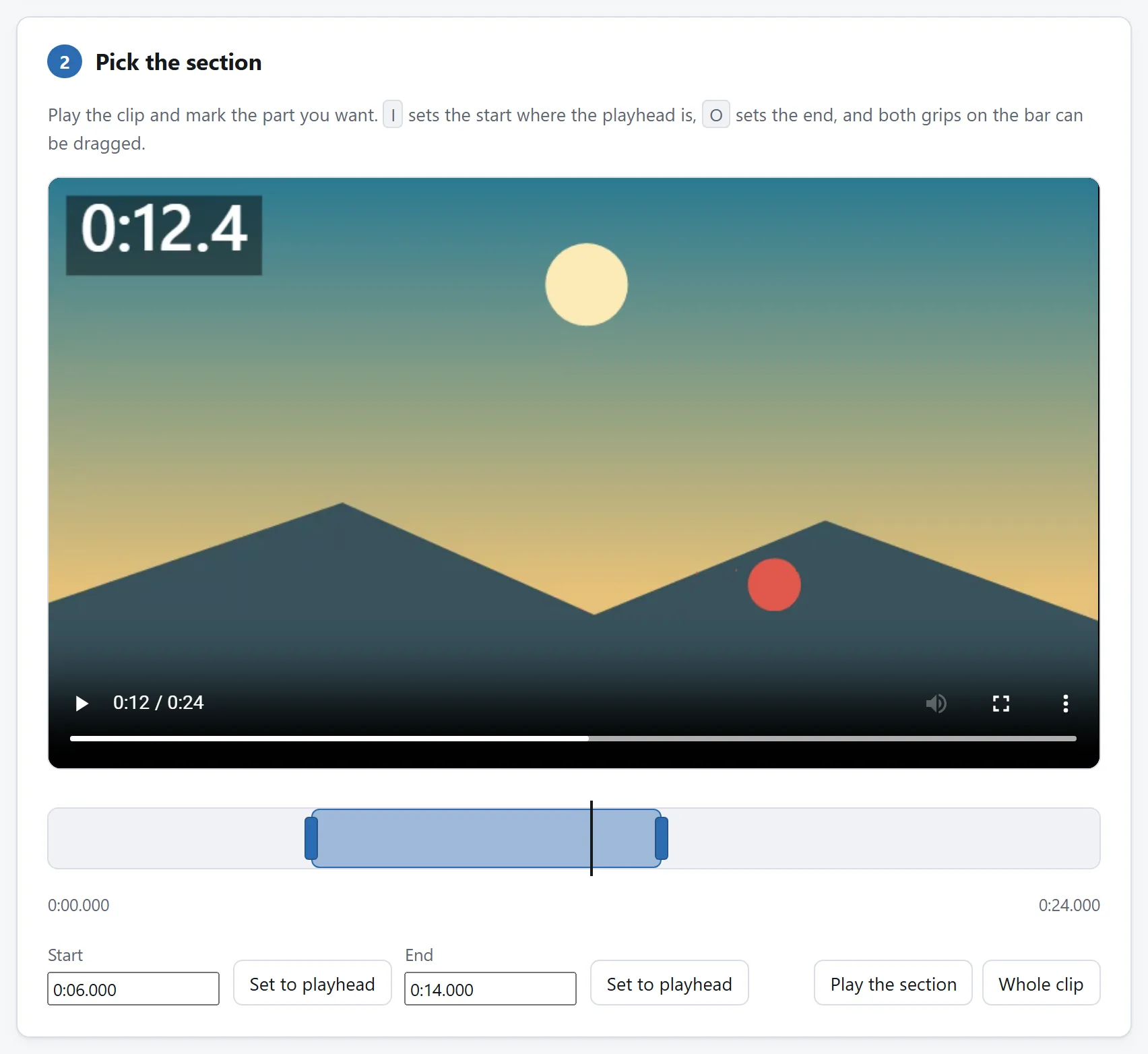
The converter has its own in and out points, and for a three-second piece of a longer clip they are enough on their own.
## When to cut with the Video Cutter first
The cutter earns its place the moment the GIF needs more than one piece:
- **Several moments, one GIF.** Mark each part with `I` and `O` as the video plays, reorder them if the best bit belongs first, and export one file. The parts are copied, not re-encoded, so nothing is lost in the assembly.
- **Two videos, one GIF.** The cutter takes more than one file and joins marked parts across them — it copies when the files agree about their format and re-encodes when they do not, and it says which it did.
- **You want the clip as a video too.** The assembled MP4 is worth keeping: it is smaller and sharper than any GIF made from it, and the right thing to post anywhere that plays video.
Then drop the assembled clip into the converter and mark nothing — the whole file is now exactly the GIF you meant.
## Spending the settings
With the seconds decided, three controls set the size, in order of how much they cost:
- **Width.** The biggest lever. 480 pixels is plenty for a chat or a forum post; 320 still reads clearly for screen recordings of text-free action. Size falls with the square of the width.
- **Frame rate.** 10 to 12 frames a second is where most GIFs live; motion still reads, and the file halves against 25. Below 8 it starts to look like a slideshow.
- **Dithering.** With 256 colours, smooth gradients band. Ordered dithering trades that banding for a fine pattern; it usually looks better and compresses slightly worse. Try the export both ways — it is your machine doing the work, so a second attempt costs nothing and uploads nothing.
## If you do this every week
The two steps live on two pages here on purpose — each page does one job, and each can prove on its own that nothing leaves your machine. But everything both pages run is open source: MIT-licensed, one folder per tool, dependency-free ES modules with a README that names each one.
So if the same chain is part of your week, you do not have to keep walking it by hand. Point a coding agent at the [repository](https://github.com/A-Box-of-Tools/website) and ask it to compose the cutter's segment logic and the GIF encoder into a single page shaped for your exact case. The modules were written to be read, and lifting them is what the licence is for.
The short answer
For one continuous moment, open the Video to GIF converter, drop the video in, and mark the section on its timeline — it converts only what sits between the marks, so there is nothing to cut in advance. Pick a width and a frame rate, and export.
For anything more than one moment — two goals from the same match, the setup and the punchline — assemble the clip first with the Video Cutter, then hand the result to the converter. The cutter joins any number of marked parts into one file without re-encoding them, so that first step costs nothing in quality and a few seconds in time.
Handing it over is one click: after the cutter exports, a row under its download button offers to carry the result straight into the converter, and the clip arrives there already loaded — no saving and re-dropping in between.
Either way the order is the same: decide the seconds first, spend the settings second. The rest of this page is why that order matters so much more for a GIF than for anything else this site makes.
Why every second of GIF is so expensive
A GIF is not video. It is a stack of complete pictures, each drawn from a palette of at most 256 colours, compressed with a scheme from 1987 that knows nothing about motion. A modern codec describes what changed between frames; a GIF largely repeats what stayed the same.
The practical consequence: a ten-second 480-pixel GIF at 12 frames a second is routinely 5 to 10 MB — ten times the size of the same clip as MP4, at a fraction of the quality. Nothing about the converter is at fault; that is what the format is. The GIF conversion guide covers when a GIF is still worth it, and when a muted looping video serves better.
Because size grows with every frame, the cheapest megabytes to save are whole seconds. Halving the width roughly quarters the size; halving the frame rate roughly halves it; but cutting footage that should never have been there saves its full cost and improves the result — a GIF that starts at the action reads better than one that spends two seconds walking to it.
When the converter's own timeline is enough
The converter's timeline marks one section: a start, an end, and everything between them becomes the GIF. If the moment you want is continuous — however long — that is the whole job, and adding the cutter to the front of it would only give the same two marks a second home.
Set the marks a touch tight rather than a touch loose. A loop hides its seam when the last frame sits close to the first, and every frame you shave from either end is paid back in file size.
The converter has its own in and out points, and for a three-second piece of a longer clip they are enough on their own.
When to cut with the Video Cutter first
The cutter earns its place the moment the GIF needs more than one piece:
Several moments, one GIF. Mark each part with I and O as the video plays, reorder them if the best bit belongs first, and export one file. The parts are copied, not re-encoded, so nothing is lost in the assembly.
Two videos, one GIF. The cutter takes more than one file and joins marked parts across them — it copies when the files agree about their format and re-encodes when they do not, and it says which it did.
You want the clip as a video too. The assembled MP4 is worth keeping: it is smaller and sharper than any GIF made from it, and the right thing to post anywhere that plays video.
Then drop the assembled clip into the converter and mark nothing — the whole file is now exactly the GIF you meant.
Spending the settings
With the seconds decided, three controls set the size, in order of how much they cost:
Width. The biggest lever. 480 pixels is plenty for a chat or a forum post; 320 still reads clearly for screen recordings of text-free action. Size falls with the square of the width.
Frame rate. 10 to 12 frames a second is where most GIFs live; motion still reads, and the file halves against 25. Below 8 it starts to look like a slideshow.
Dithering. With 256 colours, smooth gradients band. Ordered dithering trades that banding for a fine pattern; it usually looks better and compresses slightly worse. Try the export both ways — it is your machine doing the work, so a second attempt costs nothing and uploads nothing.
If you do this every week
The two steps live on two pages here on purpose — each page does one job, and each can prove on its own that nothing leaves your machine. But everything both pages run is open source: MIT-licensed, one folder per tool, dependency-free ES modules with a README that names each one.
So if the same chain is part of your week, you do not have to keep walking it by hand. Point a coding agent at the repository and ask it to compose the cutter's segment logic and the GIF encoder into a single page shaped for your exact case. The modules were written to be read, and lifting them is what the licence is for.
