The short answer
Open the Video to GIF converter, drop the clip in, mark the seconds you want, and leave the width at 480 and the rate at 12 frames a second. That is the setting most GIFs want. If the file comes out too big, take the width down before you touch anything else — it is the setting that pays twice.
The rest of this page is about why, because “my GIF is 14 MB” is the problem everybody actually has, and which knob to turn is not obvious.
Why a GIF of a video is so enormous
A video codec stores motion. It writes one full picture every couple of seconds and then, for every frame in between, a description of how that picture moved: this block of pixels slid four to the left, this area got slightly darker. A five-second clip can be a few hundred kilobytes because most of it is instructions about a picture you already have.
GIF has none of that. It was finished in 1989, before any of it existed. Every frame is a picture, compressed on its own with a scheme designed for screenshots of a spreadsheet. There is no motion estimation anywhere in the format and no way to add one.
So the number to expect is ten times the size of the video, and no converter can talk you out of it. What a good one can do is not waste anything on top of that, and give you the three settings that actually decide it.
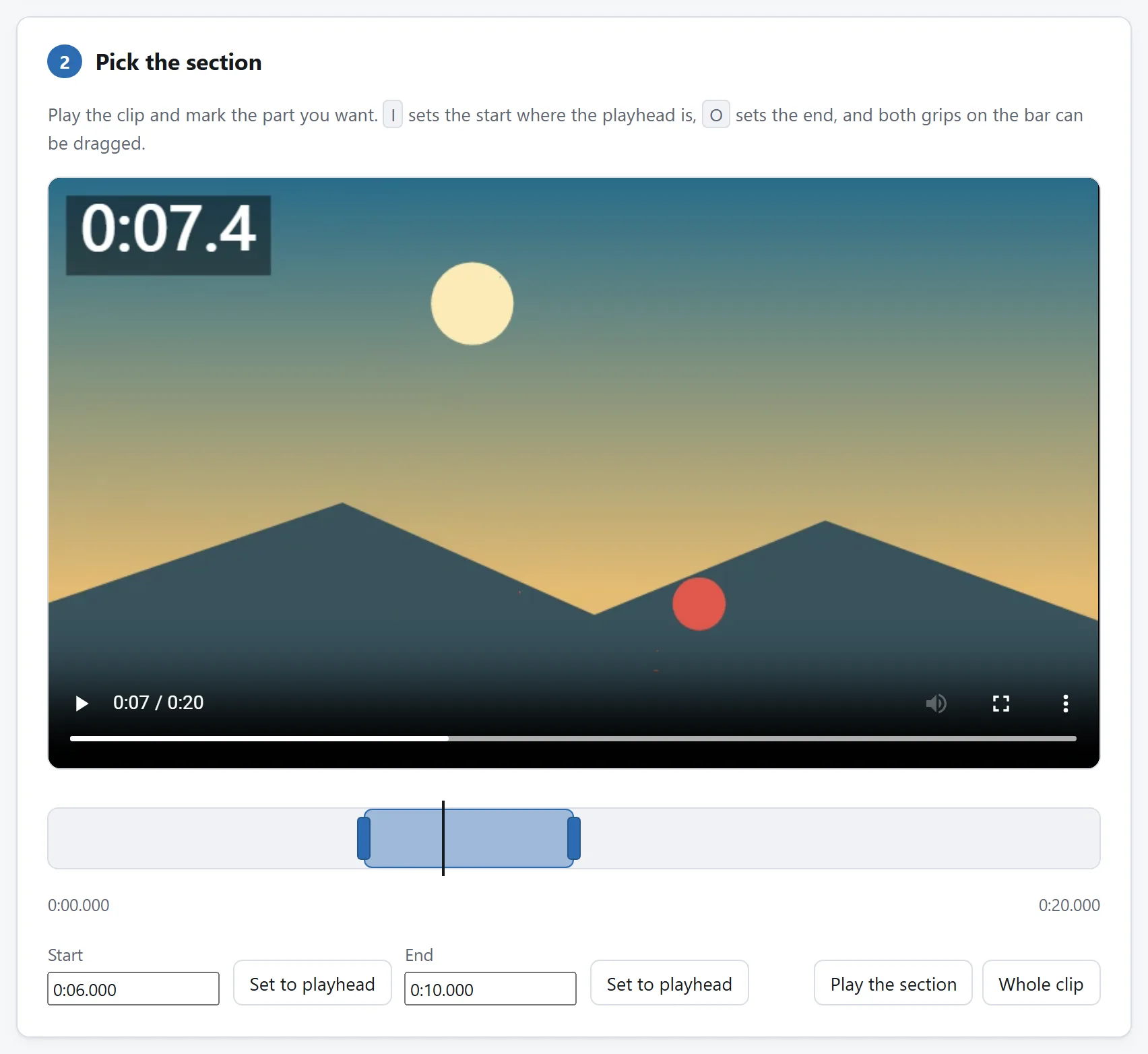
The three settings, and what each one costs
Everything about a GIF's size comes down to how many pixels it contains, which is the length times the rate times the area of one frame.
- The section — linear. Twice as long is twice as many frames and about twice the file. This is the one most people already understand, and it is worth being ruthless about: a GIF that makes its point in three seconds is a better GIF as well as a smaller one.
- The width — quadratic. Halving the width halves the height with it, so it is a quarter of the pixels. Going from 640 to 320 does not save a bit less than half; it saves about three quarters. This is the setting nobody reaches for first and the one that pays best.
- The frame rate — linear. Ten frames a second is two thirds the size of fifteen. It is also the setting where the loss is most visible, because motion that is too slow reads as broken rather than as small.
A worked example. Six seconds of a phone clip at its own 1080×1920 and 30 fps is 180 frames of two million pixels: about 350 million pixels, which is not a GIF, it is a hostage situation. The same six seconds at 480 wide and 12 fps is 72 frames of 400,000 pixels — 30 million, about a twelfth — and it looks like what people mean by a GIF.
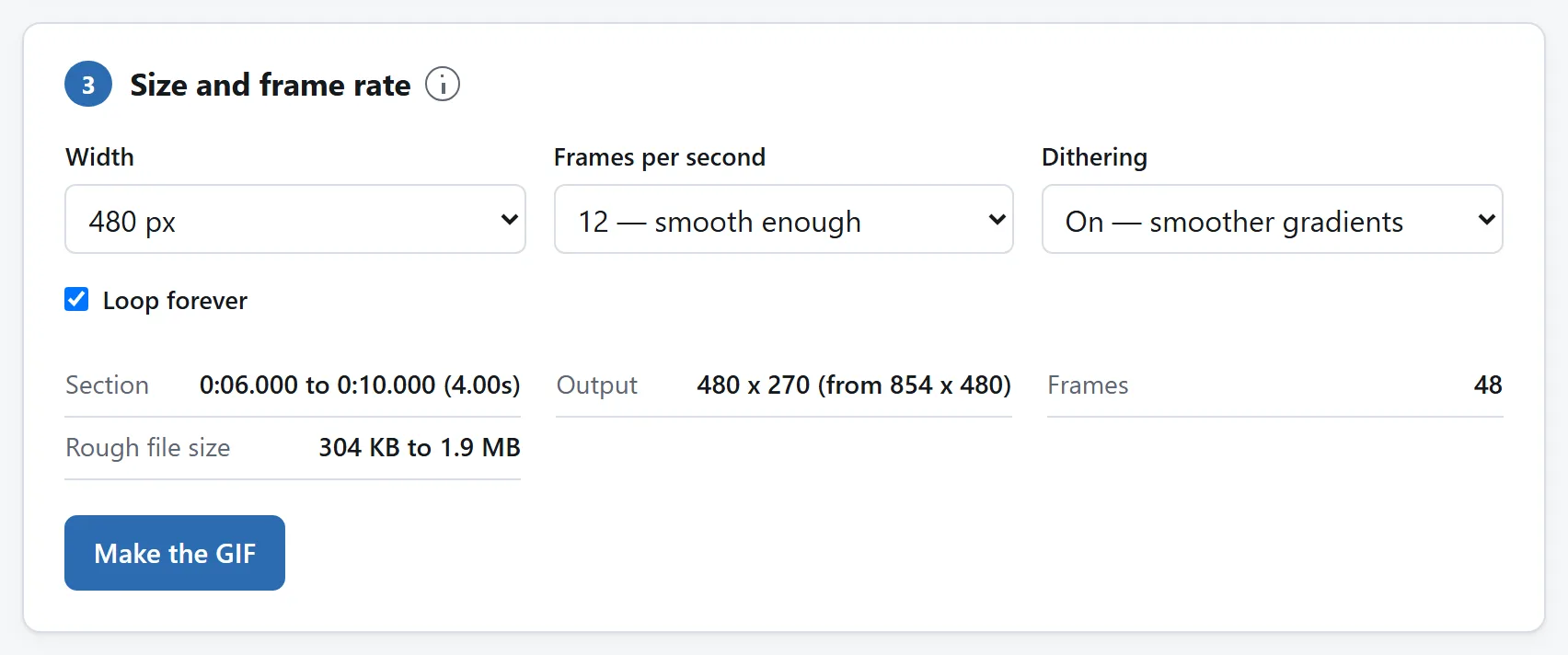
Which frame rate to pick
Twelve is the default here and the right answer surprisingly often. It is the rate hand-drawn animation has used for a century: fast enough that the eye reads it as continuous movement, slow enough that you are not paying for frames nobody can see.
- 5–8 — a slideshow feel. Fine for a slow pan or a screen recording where nothing moves quickly.
- 10–15 — normal. Reads as motion. Almost every GIF worth making is in here.
- 20–25 — smooth, and roughly twice the size of 12 for a difference most viewers will not name. Worth it for fast motion, a sports clip, anything with a whip pan in it.
There is a hard ceiling you may as well know about: GIF stores how long each frame stays on screen in hundredths of a second, and every browser treats a delay under two hundredths as ten. So 50 frames a second is the real maximum, and a file asking for 100 will silently play at 10. A converter offering you 60 fps is either ignoring that or about to surprise you.
256 colours, and what dithering is for
The other half of the format's age: a GIF carries one table of at most 256 colours, and every pixel is a number pointing into it. A video frame has up to sixteen million. Almost all of that gets thrown away, and how it is thrown away is most of what a GIF looks like.
A good converter counts the colours in your clip and picks 256 that suit it, rather than using a fixed set. A shot of a forest gets 256 greens; a shot of a sunset gets 256 oranges. That is what the tool here does, across every frame of the section rather than only the first, so a colour that only appears at the end still gets a place.
Dithering is what happens where the colour you need is still missing. Instead of rounding a whole area to the nearest available colour — which turns a smooth sky into four flat bands with visible steps between them — it alternates the two nearest colours in a fine pattern, and from a normal viewing distance your eye mixes them into the one that is not there.
- Leave it on for anything photographic: skies, skin, gradients, shadows, film.
- Turn it off for flat colour: screen recordings, line art, logos, cartoons, anything with large areas of one shade. There is no gradient to protect, and the file is smaller and cleaner without it.
One detail worth knowing if you compare converters. The obvious way to dither — error diffusion, which most image editors use — makes each pixel's result depend on the pixels around it. In an animation that means a background that is not moving still dithers differently in every frame, so it visibly crawls, and every frame has to be stored in full because every pixel technically changed. The alternative, an ordered dither, depends only on where a pixel is, so a still background stays perfectly still. That is what this tool uses, and it is why its files are smaller as well as calmer.
When not to make a GIF at all
Worth asking, because the honest answer is often “don't”. A silent, looping MP4 or WebM is around a tenth of the size of the same animation as a GIF, plays the same way, and is what every social platform converts your GIF into after you upload it anyway.
Keep the GIF where the destination genuinely needs one:
- somewhere that only accepts an image — a lot of chat, forum, wiki and email software;
- a README or documentation page, where a GIF plays inline and a video needs a player;
- a slide deck or a document that has to keep moving offline;
- an emoji, a sticker, a reaction — small enough that none of the size arithmetic above matters.
Where the sound matters, the question answers itself: GIF has never had audio and never will. Cut the video instead — the Video Cutter takes a section out without re-encoding a frame of it.
Getting under a size limit
Most of the reason anyone tunes a GIF is a limit at the far end. In rough order of how much they bite:
- Email — 10 to 25 MB for the whole message, and an attachment near that gets stripped or bounced by something in the middle. Aim well under.
- Chat and forums — commonly 8 to 10 MB, sometimes much less for an inline preview rather than a download.
- A GitHub README — 10 MB per file, and anything over a couple of megabytes makes the page feel broken on a phone.
- Sticker and emoji slots — often a few hundred kilobytes, which means a small width and a short section, not a lower frame rate.
The order to try, when you are over: shorten the section, then halve the width, then drop the rate, then turn dithering off. The first two are worth more than the last two put together.
None of this needs an upload
Converting a video to a GIF is decoding, resizing, counting colours and compressing — four things a browser has been able to do on its own for years. The tool linked at the top does all of it on your machine: the file is read off your disk, the frames are decoded by your browser, and the GIF is assembled in memory and handed to your downloads.
That is worth caring about here more than usual. The clips people turn into GIFs are personal ones — a moment from a family video, a screen recording of something at work, a few seconds of a call. A converter that wants those uploaded is asking for a copy of them, and there is no technical reason left to say yes.