The short answer
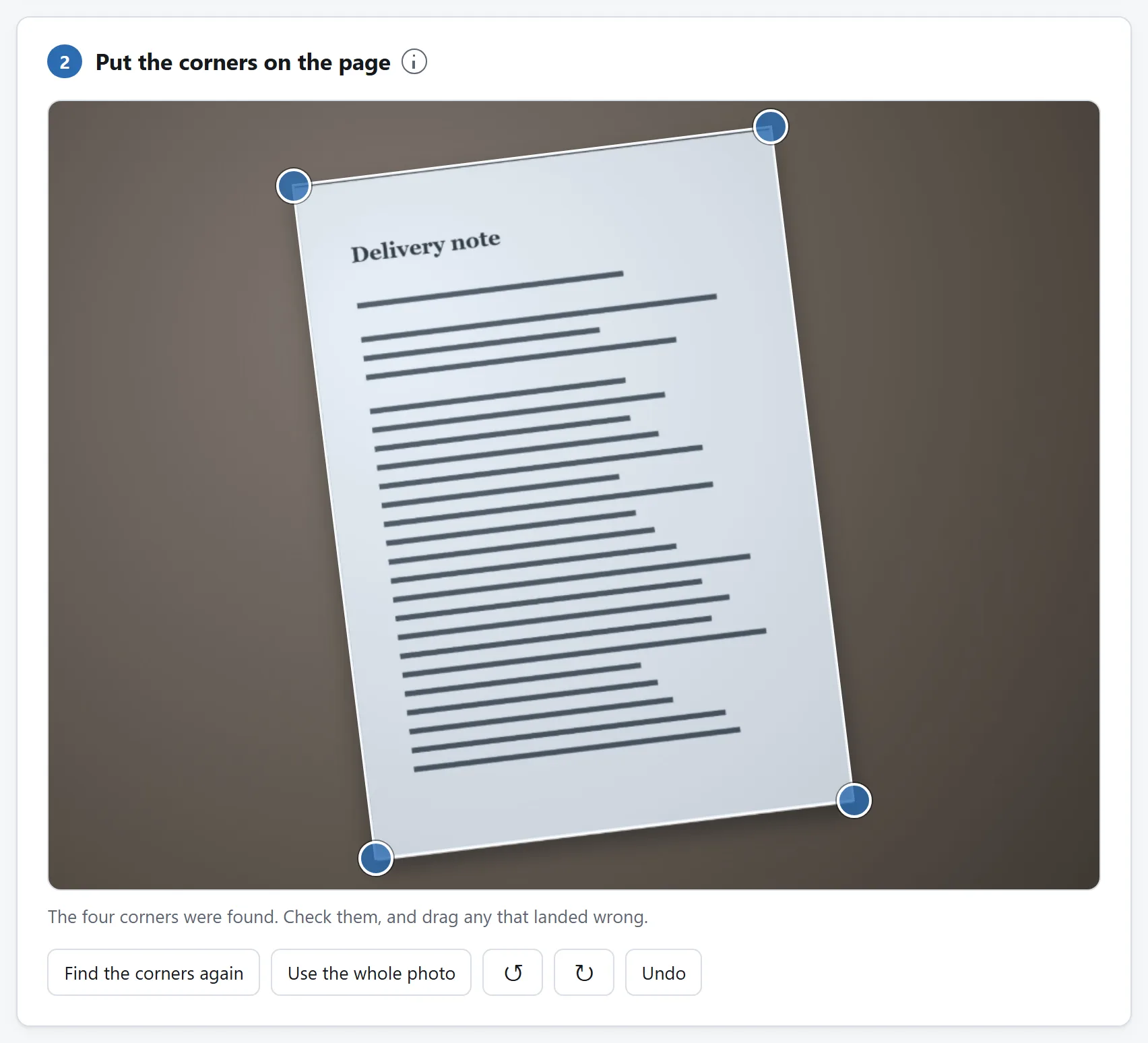
Put the page on something that is not the same colour as the page, stand over it, fill the frame, and take one photograph. Then open Document Scanner, check the four corners it found, choose “colour, evened out” or “black and white”, and save the PDF.
That is the whole job. The rest of this explains what each of those steps is fixing, because knowing which part is doing what is what lets you tell, in three seconds, whether the thing you are about to send is going to be accepted.
What actually separates a photo from a scan
Three things, and they are not equally important.
- The angle. A photograph is taken from wherever you were standing, so the page is a quadrilateral rather than a rectangle. This is the one everybody notices and the easiest to undo.
- The light. A scanner drags an even light across the page. A room does not: there is a bright patch under the lamp, a dim corner away from it, and very often your own shadow across one side. This is the one that actually makes a photograph look like a photograph, and it is the one people try to fix with “auto contrast”, which makes it worse.
- The size. A twelve megapixel photograph of a page is three to five megabytes. Twenty of them is a document that will bounce off half the mail servers it is sent to.
Taking the photo
Five things, in order of how much difference they make:
- Fill the frame. This is the only one that cannot be fixed afterwards. Detail that was not in the photograph is not in the file, and a page photographed from across the room is a page nobody can read at any resolution. Move closer rather than zooming: unless the phone switches to a second, longer lens, zooming in is a crop of the same sensor — it throws away exactly the pixels you are trying to keep.
- Put it on something a different colour. A white page on a white desk has almost no edge for anything to find — not software, and not you either, when you come to drag the corners by hand. A dark table, a book, a coat: anything.
- Do not stand between the page and the light. Your own shadow across the page is the single most common reason a phone scan looks bad. Turn ninety degrees and it goes away.
- Let it focus, then hold still. Camera shake is not recoverable by any tool, and neither is a missed focus. Tap the page on the screen, wait for it to settle, then press the button.
- Get the whole page in, corners included. Not because the corners are precious, but because they are what the straightening is measured from. A page running off the edge of the frame still works — the edge of the photograph stands in for the edge of the page — but a page with three corners in the frame and one guessed at is a page that will come out slightly wrong.
Straightening: why the shape matters more than the angle
Undoing the angle is a well understood piece of arithmetic. Four corners of a rectangle seen from anywhere determine the transformation that puts them back, and applying it to every pixel gives a flat page. Any tool that claims to straighten a page is doing that.
The part that goes wrong quietly is how big the flat page should be. The obvious method is to measure the edges of the quadrilateral and use their ratio — and a photograph taken at an angle foreshortens the far edge, so a sheet of A4 comes out visibly squat. It still looks like a scan. Every line of text on it is simply the wrong height, and nothing on the screen says so.
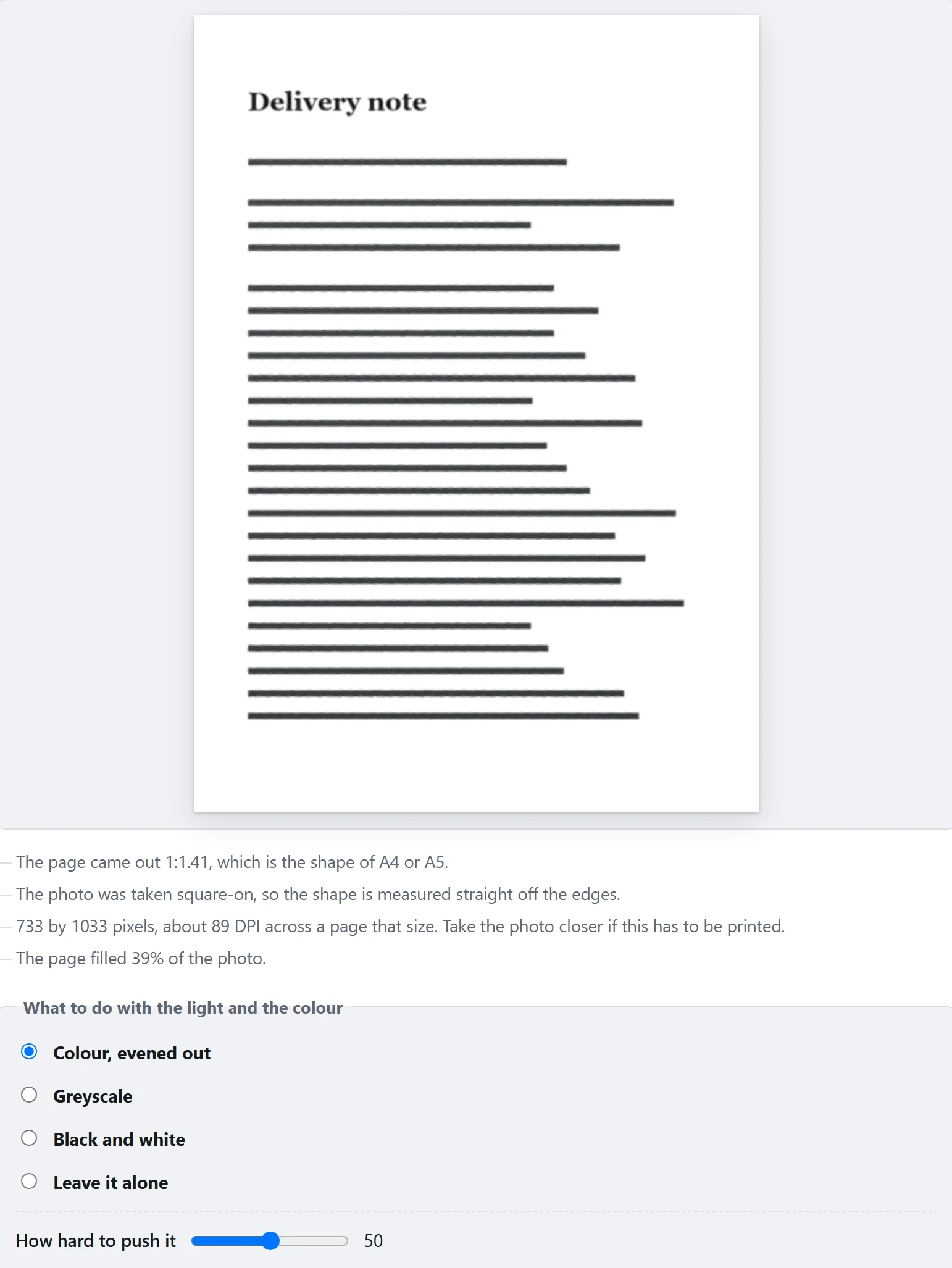
The better answer is that the perspective itself carries the information: given only that the camera is an ordinary one, a photograph of a rectangle is enough to recover both the rectangle's true proportions and the camera's focal length. The Document Scanner here does that, and then tells you what shape the page came out and whether that is a standard sheet — so a page that says “1:1.41, which is the shape of A4 or A5” is a page you can stop thinking about.
The light: divide, do not stretch
Increasing the contrast of an unevenly lit page makes the bright part white and the dark part black, and the writing in the dark part disappears along with it. The problem was never that the contrast was too low. It is that the paper is not the same brightness in one corner as it is in another, so there is no single adjustment that is right for the whole page.
What works is to estimate how bright the paper is at each point and divide by it. Paper is the bright majority of any small patch of a page, so measuring the brightness across a grid of small tiles and taking a high value in each gives the shape of the light — text is too dark and too sparse to move it. Divide by that and what is left is the ink, evenly lit, with the shadow gone and the paper back to white.
This is what “colour, evened out” and “greyscale” do. Choose colour when the colour is part of the document: a stamp, a signature in blue ink, a highlighted line, anything where somebody might later ask whether it was original.
Black and white, and why the file suddenly gets small
A page stored as a photograph is millions of pixels with sixteen million possible colours each, and the codec spends its effort on subtle gradients that a page of text does not have. A page stored as black and white is one bit per pixel — ink or paper — and compresses like the overwhelmingly repetitive thing it is.
The difference is not small: on the same pages it is something like eighteen times. A twenty page contract that runs to fifteen megabytes as photographs lands under a megabyte as one-bit pages — which is the difference between a document that can be emailed and one that cannot, and the reason every office scanner defaults to it.
The catch is that there are no half tones: a photograph on the page becomes a mess of dots. Use it for printed and written pages, which is what most documents are, and use greyscale for anything with a picture on it.
One detail worth knowing, because it explains why a good tool succeeds where a bad one produces a page with a black corner: the decision of ink or paper has to be made locally. A single threshold for the whole page cannot work when the paper in the shadow is darker than the ink in the light — and on a photographed page it very often is. Deciding each pixel against the average of its own small neighbourhood is what keeps writing inside a shadow readable.
Several pages, one document
Photograph the pages in order, add them all at once, and they become the pages of one PDF in the order they were added. Two things to watch:
- File names do not sort the way you think.
page2.jpgcomes afterpage10.jpgin an alphabetical sort, because the comparison is character by character. Check the order in the strip before you save rather than in the PDF afterwards. - The cleanup is one setting for the whole document, and deliberately so. Pages cleaned up differently look like two documents stapled together, which is exactly the impression a scan is meant to avoid. Pick the mode that suits the worst page.
Before you send it
- Open the PDF. Not the preview — the file. Every page, right way up, nothing cut off at an edge.
- Read the smallest thing on the page. A reference number, a date, an account number. If you cannot read it on screen at 100%, neither can the person you are sending it to.
- Check the corners were not cropped. What sits at the edge of a form is a page number, a signature line, or the box somebody will later say was missing.
- Check what the document says about you. A PDF has fields for the author, the producer and the creation date, and most tools fill them in. Whether that matters depends on who is receiving it, but it is worth knowing that it is there.
Why none of this needs an upload
Every step above is arithmetic on a picture your own machine has already decoded: four corners, a transformation, a division, a threshold, and a container written a byte at a time. There is nothing in it that a server can do and a browser cannot, and nothing that needs a model downloaded to do it either.
Which is worth pausing on, because of what these files are. People do not photograph pages at random. They photograph a passport, a payslip, a lease, a medical form, a contract — documents with a name, an address and an account number on them, being scanned precisely because an institution asked for them. Uploading one to a website to have its corners straightened hands a stranger the entire document. See how to tell whether a tool really needs your files for the four checks that separate the tools that have to see your file from the ones that simply do.