Playing a clip backwards sounds like the simplest edit there is, and it is the one a video file is least built for. This is what actually has to happen, what it costs, and the one step worth doing before it.
# How to reverse a video
Playing a clip backwards sounds like the simplest edit there is, and it is the one a video file is least built for. This is what actually has to happen, what it costs, and the one step worth doing before it.
[Open the Video Reverser](https://abox.tools/reverse-video/): Last frame first, sound and all.
Last updated 26 August 2026
## The short answer
Open the [Video Reverser](https://abox.tools/reverse-video/), drop the clip in, decide whether you want the sound reversed too, and export. What comes out is the same clip with its last frame first, exactly as long as the one that went in.
Unlike trimming, this has to write every frame again — the sound as well as the picture. That is not a shortcoming of a particular tool; it is what reversing is. The rest of this page is why, and what it means for how long you will be waiting.
## Why a video cannot simply be played backwards
A video file is not a stack of pictures. Roughly one frame in every fifty is a whole picture — a *keyframe* — and everything between them is a description of what changed since the frames around it. That is why an hour of video fits on a phone.
It also means a decoder can only go forwards. To show you the last frame of a clip it has to find the keyframe in front of it and decode everything in between. Ask for the second-to-last frame and it does the same work again.
So reversing is done a group at a time: decode a group forwards, hold the frames, hand them to the encoder in the other order, move to the group before it. The obvious alternative — decode the whole clip into a list and walk the list backwards — needs about 3 MB of memory per 1080p frame, or 5 GB a minute, which is why tools that do it that way fall over on anything longer than a few seconds.

What the tool worked out about the file. Reversing is the one operation that cannot be streamed, so these figures decide whether it will fit in memory.
## What happens to the sound
This is where reversing tools differ most, and where it is worth checking what you actually got.
Sound is compressed in packets of a few tens of milliseconds, each coded against the one before it. Writing those packets out back to front does *not* play a track backwards — it plays short pieces forwards in the wrong order, which sounds like a stutter or a fault rather than like a reversal. The only way to reverse sound properly is to decode the whole track, put the samples in the other order, and encode it again.
That is what happens here, and it is why the sound is re-encoded when the [Video Cutter](https://abox.tools/trim-video/) and the [Video Cropper](https://abox.tools/crop-video/) never touch it: those jobs do not change *when* anything happens, and this one changes nothing else.
If you want the picture backwards and no sound at all — which is the usual choice for anything going into a feed that plays muted — turn the checkbox off. It is quicker, and the file is smaller.
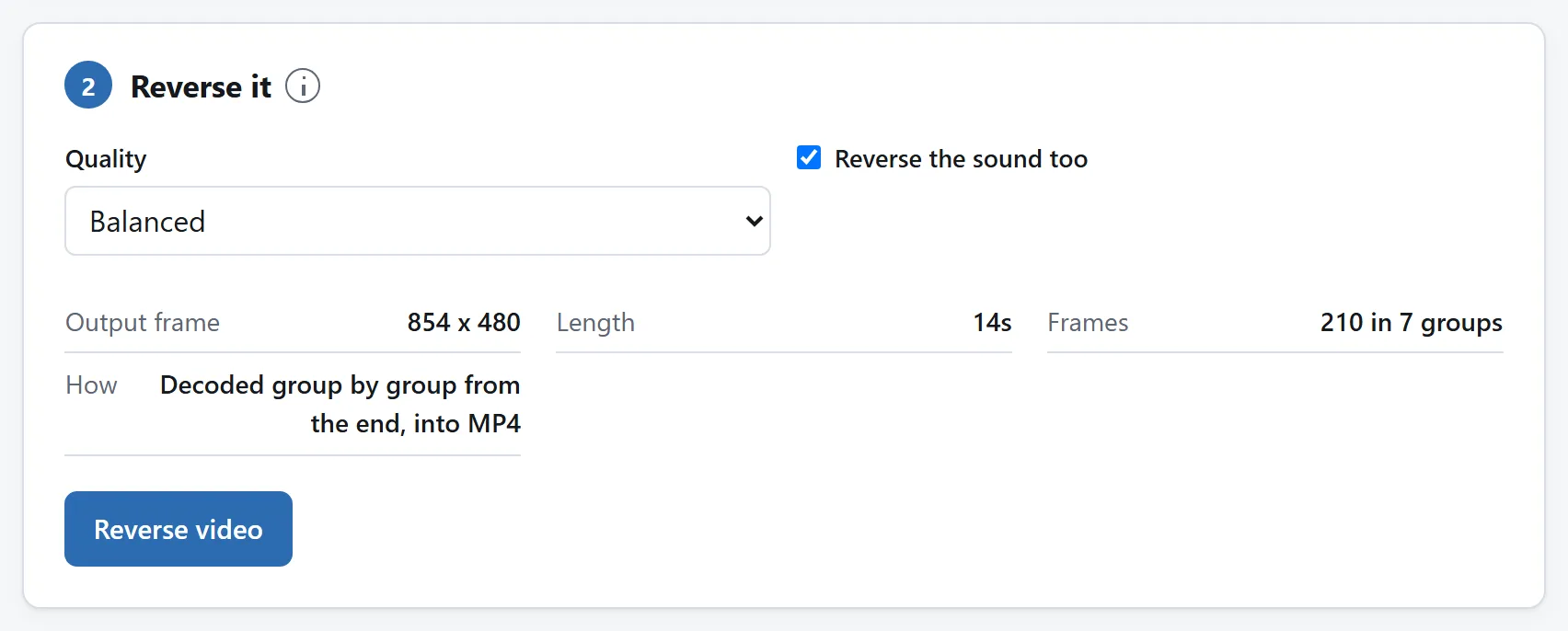
The sound switch is here because reversed speech is rarely what anybody wanted, and it is easier to decide before the export than after.
## What it costs the picture
One re-encode. The frames come out in an order nothing in the original file was coded for, so each of them has to be written afresh.
What a well-behaved tool will not do is spend *more* than the original did. A reversed clip holds exactly the same pictures as the clip that arrived, so a higher bitrate has nothing new to describe: it makes the file bigger without making it look better. The quality setting here moves within that ceiling rather than above it.
As always, lossy steps compound. Reversing an original is one generation. Reversing an export of a download of a screen recording is four, and it looks like it.
## Trim first, then reverse
If the clip needs both, cut it first. Trimming is free — a good trimmer moves whole frames across without decoding them — and every second you remove is a second nobody has to decode and encode again.
Doing it the other way round means reversing footage you are about to throw away. On a long clip that is the difference between a job that takes a few seconds and one that takes minutes. The [trimming guide](https://abox.tools/guides/trim-a-video/) covers why that first step need not cost you any quality at all.
The same order applies to cropping: cut, crop, reverse, and you pay for one re-encode of the shortest possible clip.
## What people actually use it for
- **The rewind gag.** Something falls, breaks or splashes, and reversing puts it back. It reads as a joke because real footage played backwards is unmistakable — smoke gathers, water climbs.
- **Boomerangs by hand.** Reverse a short clip and join it to the original with the [Video Cutter](https://abox.tools/trim-video/); you get the forwards-then-backwards loop without the app that usually makes it, and at your own length rather than its.
- **Reveals.** Film the tidy end state and reverse it, so a finished plate becomes ingredients or an assembled thing comes apart. Easier to film than the forwards version, which is the point.
- **Reversed speech.** Which is only interesting if the sound is genuinely reversed — see above.
## Formats, and how long it takes
**MP4, M4V and MOV** are read directly, whatever is inside them — H.264, HEVC, AV1 or VP9 — as long as your browser can decode that codec. This is the quick path: the file is walked backwards a group of frames at a time, as fast as your machine goes.
**Anything else your browser can play**, WebM most obviously, is reversed by stepping the browser's own player backwards through the clip, one moment at a time. It works, and it is slower, because each of those steps makes the browser decode from the keyframe in front of it. The page says which of the two paths it is using before you start, and why.
**AVI, WMV, FLV and most MKVs** the browser can neither read nor play, and the tool refuses them with a message rather than failing halfway through.
Either way this is one of the slower jobs on this site, because every frame is decoded and encoded and some frames are decoded more than once. A short clip is seconds; a long 4K one is worth starting and leaving alone.
## Why this does not need an upload
Decoding and re-encoding video in a browser is recent and it is real: WebCodecs exposes the same hardware encoder your phone uses to record video, and it is fast for the same reason. The work happens on the machine that already has the file, which for a large video is also the only arrangement that makes sense — uploading it and downloading the result costs more time than the encoding does.
The tool here has no network feature of any kind, and the page's `Content-Security-Policy` names every address it may contact, none of which belongs to this site. Unplug from the internet and reverse a clip anyway if you would rather check than be told.
[Is it safe to upload files to online converters?](https://abox.tools/guides/is-it-safe-to-upload-files/) sets out three more checks you can run on any tool.
The short answer
Open the Video Reverser, drop the clip in, decide whether you want the sound reversed too, and export. What comes out is the same clip with its last frame first, exactly as long as the one that went in.
Unlike trimming, this has to write every frame again — the sound as well as the picture. That is not a shortcoming of a particular tool; it is what reversing is. The rest of this page is why, and what it means for how long you will be waiting.
Why a video cannot simply be played backwards
A video file is not a stack of pictures. Roughly one frame in every fifty is a whole picture — a keyframe — and everything between them is a description of what changed since the frames around it. That is why an hour of video fits on a phone.
It also means a decoder can only go forwards. To show you the last frame of a clip it has to find the keyframe in front of it and decode everything in between. Ask for the second-to-last frame and it does the same work again.
So reversing is done a group at a time: decode a group forwards, hold the frames, hand them to the encoder in the other order, move to the group before it. The obvious alternative — decode the whole clip into a list and walk the list backwards — needs about 3 MB of memory per 1080p frame, or 5 GB a minute, which is why tools that do it that way fall over on anything longer than a few seconds.
What the tool worked out about the file. Reversing is the one operation that cannot be streamed, so these figures decide whether it will fit in memory.
What happens to the sound
This is where reversing tools differ most, and where it is worth checking what you actually got.
Sound is compressed in packets of a few tens of milliseconds, each coded against the one before it. Writing those packets out back to front does not play a track backwards — it plays short pieces forwards in the wrong order, which sounds like a stutter or a fault rather than like a reversal. The only way to reverse sound properly is to decode the whole track, put the samples in the other order, and encode it again.
That is what happens here, and it is why the sound is re-encoded when the Video Cutter and the Video Cropper never touch it: those jobs do not change when anything happens, and this one changes nothing else.
If you want the picture backwards and no sound at all — which is the usual choice for anything going into a feed that plays muted — turn the checkbox off. It is quicker, and the file is smaller.
The sound switch is here because reversed speech is rarely what anybody wanted, and it is easier to decide before the export than after.
What it costs the picture
One re-encode. The frames come out in an order nothing in the original file was coded for, so each of them has to be written afresh.
What a well-behaved tool will not do is spend more than the original did. A reversed clip holds exactly the same pictures as the clip that arrived, so a higher bitrate has nothing new to describe: it makes the file bigger without making it look better. The quality setting here moves within that ceiling rather than above it.
As always, lossy steps compound. Reversing an original is one generation. Reversing an export of a download of a screen recording is four, and it looks like it.
Trim first, then reverse
If the clip needs both, cut it first. Trimming is free — a good trimmer moves whole frames across without decoding them — and every second you remove is a second nobody has to decode and encode again.
Doing it the other way round means reversing footage you are about to throw away. On a long clip that is the difference between a job that takes a few seconds and one that takes minutes. The trimming guide covers why that first step need not cost you any quality at all.
The same order applies to cropping: cut, crop, reverse, and you pay for one re-encode of the shortest possible clip.
What people actually use it for
The rewind gag. Something falls, breaks or splashes, and reversing puts it back. It reads as a joke because real footage played backwards is unmistakable — smoke gathers, water climbs.
Boomerangs by hand. Reverse a short clip and join it to the original with the Video Cutter; you get the forwards-then-backwards loop without the app that usually makes it, and at your own length rather than its.
Reveals. Film the tidy end state and reverse it, so a finished plate becomes ingredients or an assembled thing comes apart. Easier to film than the forwards version, which is the point.
Reversed speech. Which is only interesting if the sound is genuinely reversed — see above.
Formats, and how long it takes
MP4, M4V and MOV are read directly, whatever is inside them — H.264, HEVC, AV1 or VP9 — as long as your browser can decode that codec. This is the quick path: the file is walked backwards a group of frames at a time, as fast as your machine goes.
Anything else your browser can play, WebM most obviously, is reversed by stepping the browser's own player backwards through the clip, one moment at a time. It works, and it is slower, because each of those steps makes the browser decode from the keyframe in front of it. The page says which of the two paths it is using before you start, and why.
AVI, WMV, FLV and most MKVs the browser can neither read nor play, and the tool refuses them with a message rather than failing halfway through.
Either way this is one of the slower jobs on this site, because every frame is decoded and encoded and some frames are decoded more than once. A short clip is seconds; a long 4K one is worth starting and leaving alone.
Why this does not need an upload
Decoding and re-encoding video in a browser is recent and it is real: WebCodecs exposes the same hardware encoder your phone uses to record video, and it is fast for the same reason. The work happens on the machine that already has the file, which for a large video is also the only arrangement that makes sense — uploading it and downloading the result costs more time than the encoding does.
The tool here has no network feature of any kind, and the page's Content-Security-Policy names every address it may contact, none of which belongs to this site. Unplug from the internet and reverse a clip anyway if you would rather check than be told.

