Pausing the player and pressing the screenshot key gives you a picture of a window. Sometimes that is all you need. This is what the difference is, and how to get the frame itself when it matters.
# How to save a frame from a video as a picture
Pausing the player and pressing the screenshot key gives you a picture of a window. Sometimes that is all you need. This is what the difference is, and how to get the frame itself when it matters.
[Open the Video Frame Grabber](https://abox.tools/grab-frame/): A full-quality still from any point.
Last updated 26 August 2026
## The short answer
Open the [Video Frame Grabber](https://abox.tools/grab-frame/), drop the clip in, find the moment, and press *Grab this frame*. What lands in your downloads is the frame at the video's own resolution — 3840 × 2160 out of a 4K clip, whatever size the preview on the page was.
Leave the format on PNG unless the file size is a problem. The rest of this page is about why those two sentences are not the same thing as a screenshot, and when the difference is worth caring about.
## Why a screenshot of a paused player is a different picture
Everybody already has a way to do this: pause, press the screenshot key, crop off the controls. It works, and for a quick share it is the right amount of effort. But four things have happened to the picture by then, and none of them are reversible:
- **It is the size of the window, not the size of the video.** A 4K clip in a half-screen player gives you a picture of a half-screen player. Every pixel that was in the file and not on the screen is gone.
- **It has been scaled.** Whatever the player did to fit the frame into that window — smoothing, sharpening, or plain resampling — is baked in.
- **It has been through the display pipeline.** Colour management, and on an HDR clip a tone-mapping pass chosen for your monitor rather than for the file.
- **It usually includes furniture.** Controls, a progress bar, a subtitle track, the cursor.
A frame grabber skips all four: it decodes the frame the file actually holds and writes those pixels out. The picture is the size the video is, and nothing has drawn on it.
## Landing on the frame you meant
This is the part most tools quietly get wrong, and it is worth knowing what to look for in any of them.
Video is not a strip of pictures in the order you watch them. Most frames are stored as a description of how they differ from other frames, and in any file with B-frames the order they are stored in is not the order they are shown in. A tool that seeks a player to a timestamp and grabs whatever appears is at the mercy of how that player rounds, and one that steps "forward one frame" by adding a thirtieth of a second is wrong on every clip that is not exactly 30 fps — which includes almost every phone video, because they vary their frame rate as the light changes.
The fix is to read the file's own list of frames and address them by their place in it. On an MP4, the tool here does that: the slider moves one frame per step, the arrow keys move one frame, and it can tell you that you are on frame 812 of 3,540 because it counted them. On formats it cannot read directly it says so, and steps by roughly a frame instead of pretending.
A quick way to test any frame grabber: step forward through a few frames of something with fast motion. If the picture sometimes does not change, or jumps by two, the tool is guessing at timestamps.
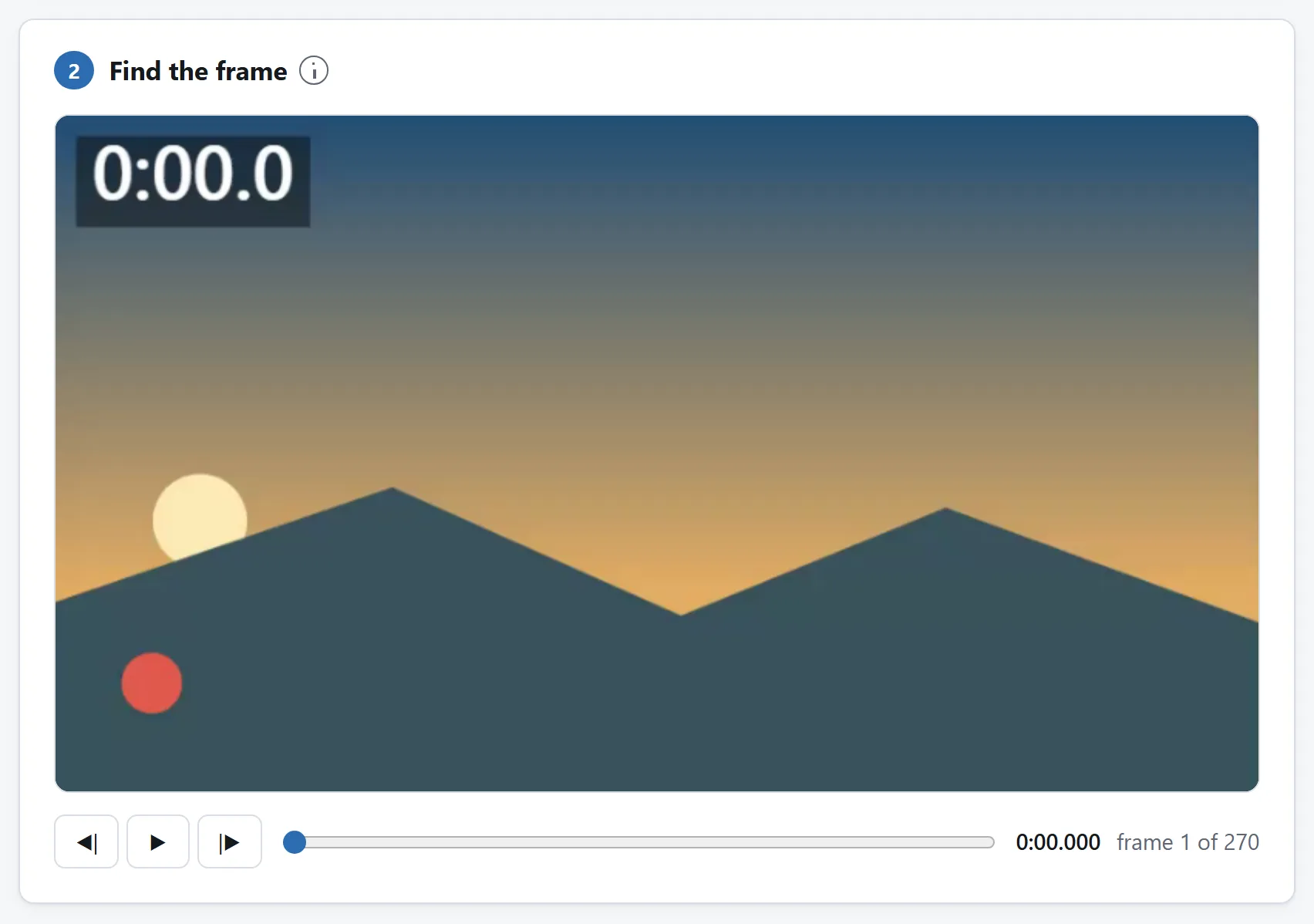
Stepping a frame at a time is how you land on the one you meant. The time and the frame number both name it, and either can be typed.
## Which format to save it in
There are only really three answers, and the choice is about what happens to the picture next.
- **PNG** — the default, and the only one that stores the frame exactly. Choose it if the still is going to be edited, printed, compared against another frame, or kept. It is also the largest: expect a few megabytes from 1080p and around eight from 4K, because a photographic image is not what PNG's compression is good at.
- **JPEG** — a tenth of the size, and universally accepted. Choose it for a thumbnail, a preview, or anything going straight into a document or a chat. It is a second round of lossy compression on top of the video's own, so it is the wrong starting point for further editing.
- **WebP** — smaller again at the same visual quality, and supported everywhere that matters now. The one caveat is old software: some desktop applications still will not open one.
One thing worth being clear about: a frame out of a video is already a compressed picture. Saving it as a PNG does not undo that, and cannot recover detail the codec threw away when the clip was made. What PNG buys you is that nothing is thrown away *twice*. If you are going to colour-correct or crop the still afterwards, that matters; if you are sending it to somebody, it does not.
## Grabbing a lot of them at once
A still every few seconds is a different job from a still at one moment, and it comes up more often than it sounds: a contact sheet of a long recording, thumbnails to pick a cover image from, an even sample of footage to check focus or exposure across a shoot.
Set an interval, press the series button, and the tool walks the clip once and takes a still at each mark. Two practical notes. Keep the interval generous on a long clip — a still every second from an hour of footage is 3,600 pictures, which is why the tool caps a run at 500. And choose JPEG for this unless you have a reason not to: a hundred 4K PNGs is most of a gigabyte held in the page before you have downloaded any of them.
They come back as a single ZIP, named by their timecode, so they sort into the order they happened in and each one can be found in the video again.
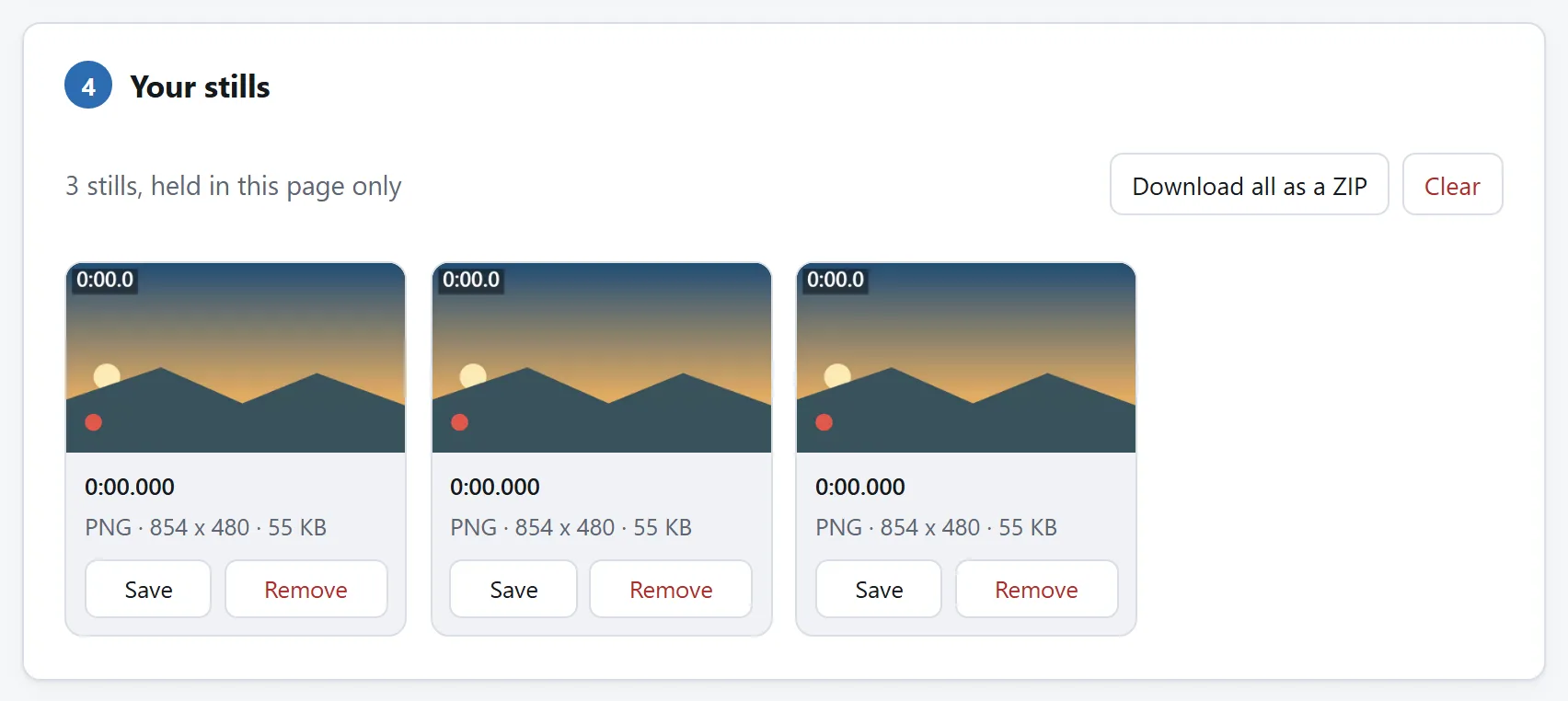
Take several and choose afterwards. They are held in the page until you save them, and saving them is one button.
## Portrait videos, and the classic sideways still
If you have ever pulled a frame out of a phone video and got it on its side, this is why. A phone films in landscape and writes a quarter turn into the file rather than turning the pixels. Players read that turn and apply it; a tool that reads only the pixels does not, and the result is a perfectly good picture of the right moment, rotated 90 degrees.
Nothing about the file is wrong, and re-rotating the still afterwards costs you nothing but the annoyance. The tool here reads the rotation off the track and applies it before drawing, so a portrait clip gives a portrait picture.
## What you cannot get back
A still can only be as good as the frame it came from, and two things limit that no matter which tool you use.
**Motion blur is in the frame.** If the subject was moving during the exposure, every frame of that movement is blurred, and there is no sharp frame in there to find. Filming at a higher shutter speed is the only fix, and it has to happen before the recording.
**Compression is in the frame too.** Video is compressed far harder than a photograph, and much harder on the frames between keyframes. If a still looks blocky, try stepping a frame or two either way: a keyframe is stored in full and often looks noticeably cleaner than its neighbours.
And if the still needs to be a different size or shape afterwards, do that as a separate step: the [Image Resizer](https://abox.tools/resize-image/) resizes, crops and converts, and [its guide](https://abox.tools/guides/resize-an-image/) covers what each of those costs.
## Why this does not need an upload
Decoding video in a browser is recent and it is real: WebCodecs exposes the same hardware decoder your phone uses to play video back. The work happens on the machine that already has the file, which for a multi-gigabyte clip is also the only arrangement that makes sense — uploading an hour of 4K to get back one 8 MB picture is a poor trade in every direction.
The tool here has no network feature of any kind, and the page's `Content-Security-Policy` names every address it may contact, none of which belongs to this site. Unplug from the internet and grab a frame anyway if you would rather check than be told.
[Is it safe to upload files to online converters?](https://abox.tools/guides/is-it-safe-to-upload-files/) sets out three more checks you can run on any tool.
The short answer
Open the Video Frame Grabber, drop the clip in, find the moment, and press Grab this frame. What lands in your downloads is the frame at the video's own resolution — 3840 × 2160 out of a 4K clip, whatever size the preview on the page was.
Leave the format on PNG unless the file size is a problem. The rest of this page is about why those two sentences are not the same thing as a screenshot, and when the difference is worth caring about.
Why a screenshot of a paused player is a different picture
Everybody already has a way to do this: pause, press the screenshot key, crop off the controls. It works, and for a quick share it is the right amount of effort. But four things have happened to the picture by then, and none of them are reversible:
It is the size of the window, not the size of the video. A 4K clip in a half-screen player gives you a picture of a half-screen player. Every pixel that was in the file and not on the screen is gone.
It has been scaled. Whatever the player did to fit the frame into that window — smoothing, sharpening, or plain resampling — is baked in.
It has been through the display pipeline. Colour management, and on an HDR clip a tone-mapping pass chosen for your monitor rather than for the file.
It usually includes furniture. Controls, a progress bar, a subtitle track, the cursor.
A frame grabber skips all four: it decodes the frame the file actually holds and writes those pixels out. The picture is the size the video is, and nothing has drawn on it.
Landing on the frame you meant
This is the part most tools quietly get wrong, and it is worth knowing what to look for in any of them.
Video is not a strip of pictures in the order you watch them. Most frames are stored as a description of how they differ from other frames, and in any file with B-frames the order they are stored in is not the order they are shown in. A tool that seeks a player to a timestamp and grabs whatever appears is at the mercy of how that player rounds, and one that steps "forward one frame" by adding a thirtieth of a second is wrong on every clip that is not exactly 30 fps — which includes almost every phone video, because they vary their frame rate as the light changes.
The fix is to read the file's own list of frames and address them by their place in it. On an MP4, the tool here does that: the slider moves one frame per step, the arrow keys move one frame, and it can tell you that you are on frame 812 of 3,540 because it counted them. On formats it cannot read directly it says so, and steps by roughly a frame instead of pretending.
A quick way to test any frame grabber: step forward through a few frames of something with fast motion. If the picture sometimes does not change, or jumps by two, the tool is guessing at timestamps.
Stepping a frame at a time is how you land on the one you meant. The time and the frame number both name it, and either can be typed.
Which format to save it in
There are only really three answers, and the choice is about what happens to the picture next.
PNG — the default, and the only one that stores the frame exactly. Choose it if the still is going to be edited, printed, compared against another frame, or kept. It is also the largest: expect a few megabytes from 1080p and around eight from 4K, because a photographic image is not what PNG's compression is good at.
JPEG — a tenth of the size, and universally accepted. Choose it for a thumbnail, a preview, or anything going straight into a document or a chat. It is a second round of lossy compression on top of the video's own, so it is the wrong starting point for further editing.
WebP — smaller again at the same visual quality, and supported everywhere that matters now. The one caveat is old software: some desktop applications still will not open one.
One thing worth being clear about: a frame out of a video is already a compressed picture. Saving it as a PNG does not undo that, and cannot recover detail the codec threw away when the clip was made. What PNG buys you is that nothing is thrown away twice. If you are going to colour-correct or crop the still afterwards, that matters; if you are sending it to somebody, it does not.
Grabbing a lot of them at once
A still every few seconds is a different job from a still at one moment, and it comes up more often than it sounds: a contact sheet of a long recording, thumbnails to pick a cover image from, an even sample of footage to check focus or exposure across a shoot.
Set an interval, press the series button, and the tool walks the clip once and takes a still at each mark. Two practical notes. Keep the interval generous on a long clip — a still every second from an hour of footage is 3,600 pictures, which is why the tool caps a run at 500. And choose JPEG for this unless you have a reason not to: a hundred 4K PNGs is most of a gigabyte held in the page before you have downloaded any of them.
They come back as a single ZIP, named by their timecode, so they sort into the order they happened in and each one can be found in the video again.
Take several and choose afterwards. They are held in the page until you save them, and saving them is one button.
Portrait videos, and the classic sideways still
If you have ever pulled a frame out of a phone video and got it on its side, this is why. A phone films in landscape and writes a quarter turn into the file rather than turning the pixels. Players read that turn and apply it; a tool that reads only the pixels does not, and the result is a perfectly good picture of the right moment, rotated 90 degrees.
Nothing about the file is wrong, and re-rotating the still afterwards costs you nothing but the annoyance. The tool here reads the rotation off the track and applies it before drawing, so a portrait clip gives a portrait picture.
What you cannot get back
A still can only be as good as the frame it came from, and two things limit that no matter which tool you use.
Motion blur is in the frame. If the subject was moving during the exposure, every frame of that movement is blurred, and there is no sharp frame in there to find. Filming at a higher shutter speed is the only fix, and it has to happen before the recording.
Compression is in the frame too. Video is compressed far harder than a photograph, and much harder on the frames between keyframes. If a still looks blocky, try stepping a frame or two either way: a keyframe is stored in full and often looks noticeably cleaner than its neighbours.
And if the still needs to be a different size or shape afterwards, do that as a separate step: the Image Resizer resizes, crops and converts, and its guide covers what each of those costs.
Why this does not need an upload
Decoding video in a browser is recent and it is real: WebCodecs exposes the same hardware decoder your phone uses to play video back. The work happens on the machine that already has the file, which for a multi-gigabyte clip is also the only arrangement that makes sense — uploading an hour of 4K to get back one 8 MB picture is a poor trade in every direction.
The tool here has no network feature of any kind, and the page's Content-Security-Policy names every address it may contact, none of which belongs to this site. Unplug from the internet and grab a frame anyway if you would rather check than be told.

