The short answer
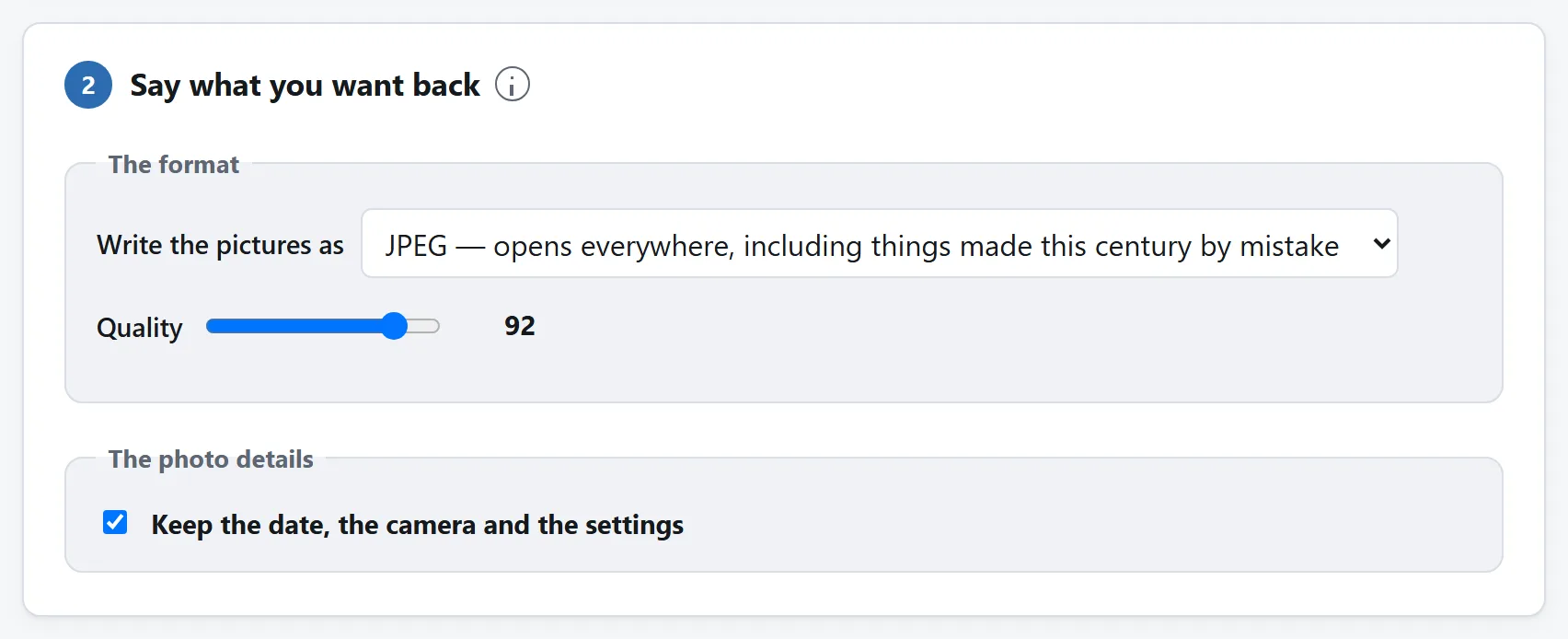
Open the HEIC to JPG converter, drop the photos in, and press “Convert”. Leave the quality slider where it is and leave “keep the date, the camera and the settings” ticked unless you have a reason not to. You get JPEGs back, one download button each, or a zip if there are several.
Nothing is uploaded while you do it. That is unusual for this particular job, and the reason why is the interesting half of this page.
What HEIC actually is
HEIC is not really an image format in the way JPEG is. It is a container — the same box structure an MP4 is built out of — with a still frame of HEVC video inside it. HEVC, also called H.265, is the codec that replaced the one your old camcorder used, and it is very good: an iPhone photo in HEIC is roughly half the size of the same photo as a JPEG at the same quality.
Apple switched to it in iOS 11, in 2017, and set it as the default. Which means that unless somebody has been into Settings and chosen “Most Compatible”, every photo their phone has taken for the better part of a decade is in a format that:
- Windows will not preview without an extension from the Store;
- most web upload forms reject outright;
- a great deal of older desktop software has never heard of;
- and no web browser except Safari will display.
The photo is fine. It is a better file than the JPEG would have been. It is simply written in a language most of the world never learned.
Why only Safari opens one
This is the part that explains every converter you have ever used, so it is worth a paragraph.
Decoding HEVC needs an HEVC decoder, and HEVC is patented. The licensing is administered by more than one patent pool, and shipping a decoder means paying somebody. Browsers deal with this by leaning on the operating system — Chrome will play HEVC video on a machine whose hardware already has a licensed decoder — but that route is wired up for video playback and not for still images. So a HEIC handed to <img> is refused, in Chrome, Firefox and Edge alike, on every operating system.
Safari on Apple hardware is the exception, because macOS and iOS have the decoder and Safari is allowed to ask it. Everywhere else, the picture is simply undecodable by the browser.
Which leaves a converter with exactly two options, and the choice between them is the whole story of this kind of tool.
Why almost every HEIC converter wants an upload
Option one: put the decoder on a server. The photo is uploaded, decoded on a machine you have never seen, re-encoded as a JPEG, and sent back. This is what nearly every “free online HEIC converter” does, and it is why they all need your files. It is not laziness — the browser genuinely cannot do it unaided.
What it costs is worth being blunt about. Photos from a phone are the most personal files most people own, and a HEIC straight off an iPhone typically carries the coordinates of where it was taken, accurate to a few metres, along with the date to the second and a camera identifier. Uploading a folder of them to a free service means handing over both the pictures and that. What happens next is governed by a privacy policy you did not read, on a server you cannot inspect, in a jurisdiction you did not choose.
Option two: put the decoder on the page. That is what this one does. It carries libheif, compiled to WebAssembly, as a file served from this site — about 1.4 MB, downloaded once and then cached. Your browser runs it on your own machine, on your own hardware, and the photo never goes anywhere. Load the page once and you can unplug from the internet altogether and it keeps working, which is a thing no uploading converter can do and the simplest proof there is.
The 1.4 MB is the entire price. If you are on a metered connection it is a real cost and worth knowing about; that is why the page says so out loud rather than downloading it quietly.
What converting costs the picture
HEIC and JPEG are different codecs, so there is no way across that does not involve decoding the picture and encoding it again. That second encode is lossy. In practice this matters much less than it sounds:
- At quality 92 — where the converter starts — a photograph is very hard to tell from the original at any normal viewing size. You are looking for differences in smooth gradients, like a clear sky, and you will generally not find them.
- The JPEG will be bigger. Usually somewhere between a third larger and twice the size, because JPEG is a codec from 1992 and HEVC is not. That is the trade: a bigger file that everything opens.
- Converting twice is what to avoid. Every lossy encode costs a little. Convert from the original HEIC, not from a JPEG somebody already made for you, and do it once.
If you want no loss at all, PNG is on the format menu. Be ready for the file: a photograph as a PNG is commonly five to ten times the size of the JPEG, because PNG's compression was designed for flat colour and line art rather than for grass and skin.
The date, the camera and the coordinates
The usual complaint about HEIC converters is that the photos come back having lost the day they were taken, so a holiday's worth of pictures sorts to the bottom of the library under today's date. That happens because converting through a canvas gives you pixels and nothing else — a canvas holds no tags — so unless a converter goes and fetches the metadata separately, it is simply gone.
The tool here copies the EXIF block out of the HEIC and writes it into the JPEG, so the date survives. There is a checkbox, and it is ticked by default. Untick it and the JPEG comes out with the picture and nothing else.
Before you decide, look at the list: each photo's row says whether the file carries GPS coordinates, and it says so before anything is converted. If the photos are going somewhere public, that is the line to read. If they are going into your own library, keeping the metadata is almost certainly what you want.
One tag is changed whatever you choose, and it is worth knowing why. A HEIC records its rotation in two places: in the container, and in the EXIF block. The decoder applies the container's rotation while decoding, so the pixels handed over are already the right way up. If the EXIF then still said “rotate this 90 degrees”, a viewer would do it again and every portrait photo would come out on its side. So the orientation tag is set to upright and everything else is copied exactly as the phone wrote it.
If what you want is to go through the tags in detail, or to strip them from photos that are already JPEGs, that is a different job and there is a guide for it.
Things that catch people out
- A HEIC called “.jpg”. Extremely common: something along the way renamed it without converting it, which is why it still will not open. Every file dropped on the converter is identified by its first bytes rather than its name, so one of these works fine. It is also why a file that genuinely is a JPEG gets told so rather than being converted into a copy of itself.
- One file, several pictures. A burst or a Live Photo can hold more than one still. All of them are converted, and the extra ones are numbered after the original name. The video half of a Live Photo is a separate file the phone keeps beside the HEIC, so it is not in there to convert.
- AVIF. AVIF uses the browser decoder and does not load the HEIC engine. Output remains JPEG, PNG or WebP. Only the first decoded image is written; color or HDR may change. AVIF metadata is always left out: the metadata checkbox applies only to HEIC. The original file stays unchanged.
- Stopping the problem at the source. On the phone: Settings → Camera → Formats → Most Compatible. New photos are JPEGs from then on. It uses more storage and it does not touch the photos you already have, but it means never doing this again.
- Sharing already converts, sometimes. AirDropping or emailing a photo to a non-Apple device often hands over a JPEG, because iOS converts on the way out. If a photo has arrived as a HEIC anyway, it came across by a route that did not.
How to tell whether a converter is uploading
This applies to any tool, not only this one, and it takes about fifteen seconds.
- Open the page, then open your browser's developer tools and go to the Network tab.
- Convert a photo, and watch. A tool that decodes on your machine makes no request at all at that moment. A tool that uploads makes one the size of your photo, and you can see the size.
- Or, more simply: load the page, disconnect from the internet, and try to convert something. A tool that sent your photo away to be decoded stops working. One that carries the decoder does not.
The converter here is built to pass both checks, and there is a longer version of this argument in is it safe to upload files.