Converting is the easy half. The question that decides whether the result is any use is the one nobody hands you an answer to: how many pixels? This is where that number comes from, and what a drawing loses on the way to becoming one.
# How to convert an SVG to a PNG at the right size
Converting is the easy half. The question that decides whether the result is any use is the one nobody hands you an answer to: how many pixels? This is where that number comes from, and what a drawing loses on the way to becoming one.
[Open the SVG to Image](https://abox.tools/svg-to-image/): Name the size. A vector has none of its own to lose.
Last updated 26 August 2026
## The short answer
Open [SVG to Image](https://abox.tools/svg-to-image/), drop the file in, and name a size. If nothing has told you what size to use, **1024 pixels on the longest side** is a good default: big enough for almost anything and small enough to email. Leave the format on PNG, leave the background on transparent, and take the file.
Everything below is what to do when that default is not good enough — when a number has been specified for you, when it is going to print, or when it comes back looking wrong.
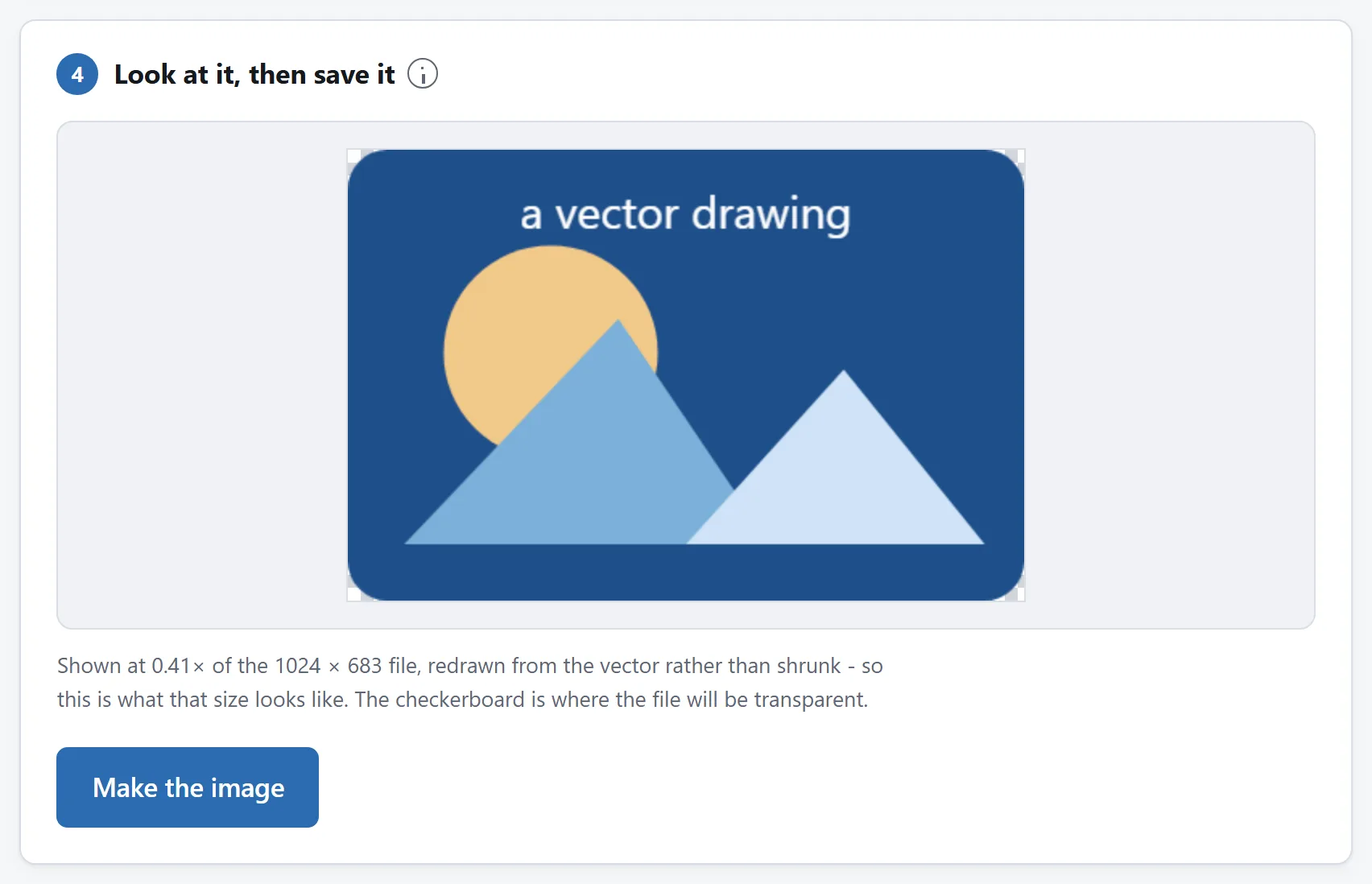
The tool draws it before it saves it, at the size it will be saved at. Anything wrong with the export is visible here first.
## Why the size is your decision and not the file's
A JPEG is a grid of measured pixels; asking how big it is has an answer. An SVG is not a picture at all, it is a set of instructions — draw a circle here, this path in that colour — and instructions have no size. A browser can carry them out at 16 pixels or at 4000 and the result is equally sharp either way, because it is not scaling anything. It is drawing again.
That is why the conversion cannot pick a number for you, and why it does not cost you anything to pick a large one. This is the one image job where “make it bigger” is free.
Most SVG files do carry a `width` and `height` attribute, and a tool will show it — but it is a default, not a limit. An icon that says `width="24"` says only that the person who drew it had a 24 pixel toolbar in mind.
## Where the number actually comes from
**For a website.** Take the size the image occupies on the page in CSS pixels and multiply by the pixel density of the screens you care about. A logo in a 200 pixel-wide slot needs a 400 pixel file for a Retina laptop and 600 for a recent phone. That is the whole of what `@2x` and `@3x` mean, and it is why a tool that writes them saves you doing the sum three times.
**For an app icon, a store listing or a favicon.** The number is published and there is nothing to work out: whatever the store's page says, exactly. For a favicon, do not rasterize at all — [make an .ico](https://abox.tools/guides/make-a-favicon/), which holds several sizes in one file, because a browser tab, a bookmark and a Windows shortcut all ask for different ones.
**For print.** Multiply the physical size in inches by the printer's resolution. A logo going onto a business card at two inches wide at 300 DPI is 600 pixels; the same logo across an A4 page, at 8.3 inches, is about 2500. Print shops ask for 300 DPI as a matter of course, and for a large-format banner viewed from across a room 150 is plenty.
**For a social preview or an OG image.** The platform names a box — 1200 × 630 for most link previews — and the box is a different shape from your logo. That is what the “pad” setting is for: the drawing centred at its own proportions, with a background colour filling the rest, rather than a stretched logo that tells everyone you did not check.
When two of these apply, use the larger. A PNG that is bigger than it needs to be is a slightly larger download; one that is too small cannot be fixed later, for the reason in the next section.
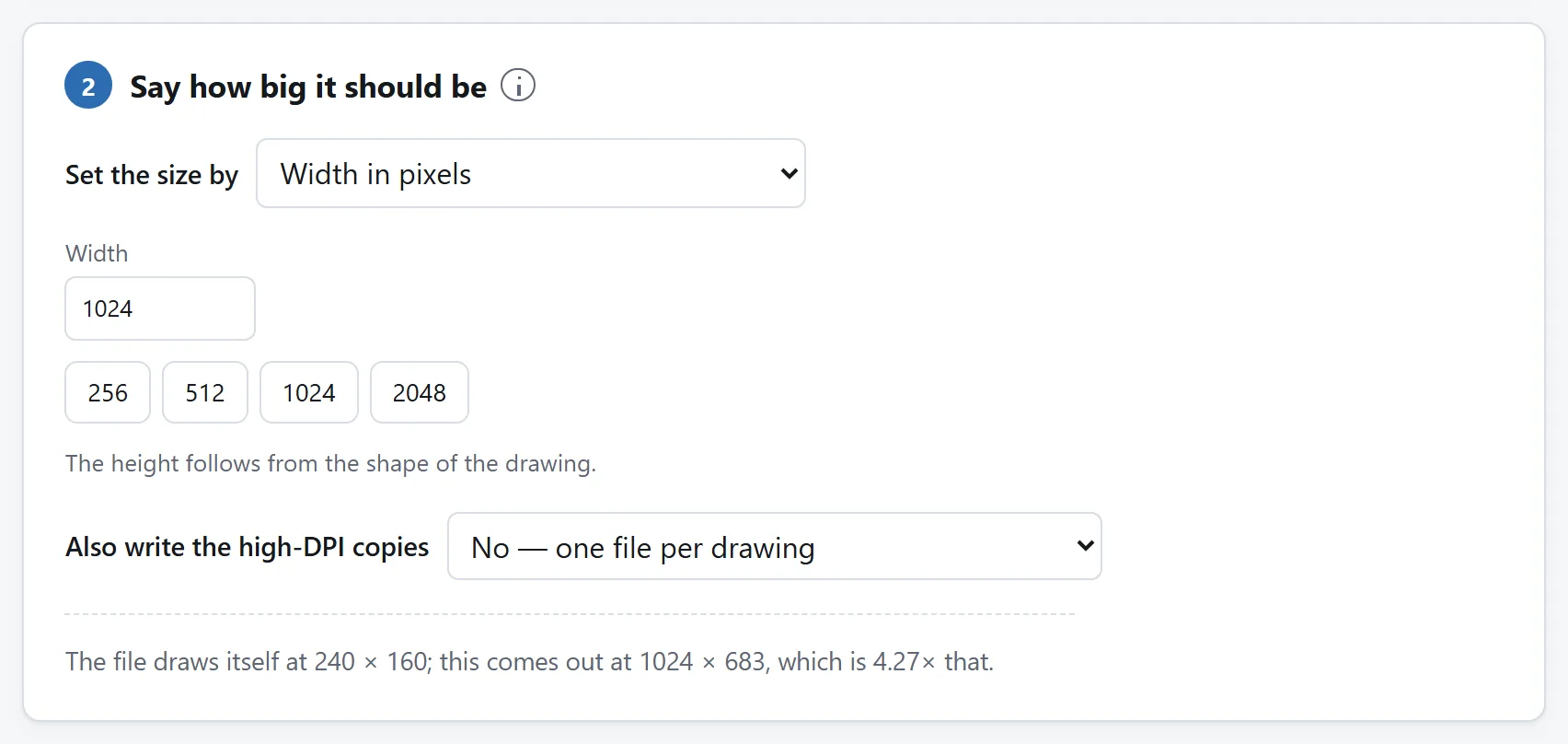
Five ways of saying the same thing. Which one is right depends on whether you were given a number or a place to put it.
## You cannot go back
Rasterizing is one-way. Once the drawing is a PNG it is pixels like any other picture, and enlarging it afterwards has to invent detail that was never measured — the same soft, smeared result you get from enlarging a photograph.
So keep the SVG. It is the master copy, it is almost always the smaller file, and every future size comes out of it perfectly. The PNG is an export for one particular use, and when you need another size the right move is to export again rather than to resize what you exported.
There is software that claims to convert a PNG back into an SVG. What it does is trace: guess at which curves might explain a grid of pixels. It works passably on flat two-colour artwork and produces expensive nonsense on anything else, and it never recovers what the original drawing had.
## Three things change the moment it becomes pixels
A rasterized SVG that looks wrong almost always looks wrong for one of these three reasons, and all three are worth knowing before you export rather than after.
**Text is drawn in whatever font the machine has.** An SVG that contains text does not contain the font — it names one and leaves the renderer to find it. If the font is not installed, a substitute is used, and the substitute has different letterforms and different widths, so the text may reflow or overflow. A file that pulls its font from a web address fares worse still: an SVG being rasterized through an `<img>` is not permitted to fetch anything at all, so nothing arrives.
The fix is the one every designer already knows: **convert text to outlines** before exporting the SVG (Illustrator calls it Create Outlines, Figma calls it Flatten, Inkscape calls it Object to Path). The letters become geometry, the font stops mattering, and the picture looks the same on every machine. Do it on a copy — outlined text is no longer editable as text.
**Hairlines go grey or disappear.** A stroke that works out to less than one pixel at your chosen size cannot be drawn as a solid line, so it is drawn as a faint one. This is why a delicate logo rasterized at 64 pixels looks washed out while the same file at 512 looks perfect. If a small size is the requirement, the answer is a simplified drawing with heavier strokes rather than a different export setting — which is the same reason a favicon is a symbol and not a wordmark.
**Animation stops.** An animated SVG rasterizes to a single still: whatever the first frame is. There is no export setting that changes this. If you need the movement, you need a GIF or a video, made a different way.
## Transparency, and which format to pick
**PNG** unless you have a reason. It is lossless, it keeps transparency, and flat colour with hard edges — which is most of what a drawing is made of — compresses well in it. A rasterized logo is usually a *smaller* PNG than it would be a JPEG, as well as a cleaner one.
**JPEG** has no transparency at all. Every transparent pixel has to become some colour, and if nothing chooses one for you it becomes black — which is where the logo-on-a-black-box result comes from that people assume is a bug. It is also lossy in the way that shows worst on exactly this kind of picture: a ring of speckle around every hard edge. Use it when something insists on it.
**WebP** does everything PNG does, in a smaller file, and is read by every current browser. The reason not to use it is what happens after the browser: older software, some print shops and a fair number of upload forms still will not open one.
Choosing a background colour with PNG is a perfectly ordinary thing to want as well. Transparency is only useful when whatever the image lands on is a colour you cannot predict; when you already know it is a white page, flattening onto white avoids a whole category of surprise.
## When the export comes out blank or wrong
**Nothing but empty space.** Usually a missing `xmlns` attribute on the root element. A file without it is not SVG as far as an image tag is concerned, and it draws as nothing. Opening the file in a browser is the quick test: if the browser shows nothing either, the file is the problem rather than the converter.
**The drawing is small, in the top left corner.** The file has a `width` and `height` but no `viewBox`, so there is no coordinate system to scale and the artwork keeps its original units on a larger canvas. A good converter puts a viewBox in for you; if yours has not, adding `viewBox="0 0 *width* *height*"` to the root element by hand fixes it, and the file is plain text so you can.
**Part of the picture is missing.** Something in the file pointed at an address rather than containing the artwork — an embedded photograph stored as a link, a stylesheet, a font. A rasterizer that refuses to fetch those is doing the right thing, and it is the same refusal that stops an SVG you downloaded from somewhere reporting back to whoever made it. Re-export from the drawing program with images embedded.
**It refuses a very large size.** Browsers cap how big a canvas can be, and they do not agree about where: past roughly 16,000 pixels on a side nothing comes back, and Safari on an iPhone or iPad gives up much earlier, at about 4096 × 4096. A tool that warns you is saving you from a blank file, because that is what a browser produces when it runs out rather than an error message.
## None of this needs an upload
Rasterizing an SVG is something every browser does thousands of times a day — it is the same machinery that draws an icon on a web page. There is no technical reason for your artwork to travel to a server and back to come out as a PNG, and the tool here does not send it anywhere: the page's `Content-Security-Policy` names every address it may contact, and none of them belongs to this site.
That matters more than usual with SVG, because an SVG is a document rather than a picture. It can contain a script and a remote address, and a logo you were sent by an agency is a file you did not write. Drawn through an image tag it is in what the specification calls *secure static mode*: the script cannot run and the address is never contacted. The browser enforces that, not the website.
Load the page, unplug from the internet, and convert something anyway if you would rather check than be told. [Is it safe to upload files to online converters?](https://abox.tools/guides/is-it-safe-to-upload-files/) sets out three more checks you can run on any tool.
The short answer
Open SVG to Image, drop the file in, and name a size. If nothing has told you what size to use, 1024 pixels on the longest side is a good default: big enough for almost anything and small enough to email. Leave the format on PNG, leave the background on transparent, and take the file.
Everything below is what to do when that default is not good enough — when a number has been specified for you, when it is going to print, or when it comes back looking wrong.
The tool draws it before it saves it, at the size it will be saved at. Anything wrong with the export is visible here first.
Why the size is your decision and not the file's
A JPEG is a grid of measured pixels; asking how big it is has an answer. An SVG is not a picture at all, it is a set of instructions — draw a circle here, this path in that colour — and instructions have no size. A browser can carry them out at 16 pixels or at 4000 and the result is equally sharp either way, because it is not scaling anything. It is drawing again.
That is why the conversion cannot pick a number for you, and why it does not cost you anything to pick a large one. This is the one image job where “make it bigger” is free.
Most SVG files do carry a width and height attribute, and a tool will show it — but it is a default, not a limit. An icon that says width="24" says only that the person who drew it had a 24 pixel toolbar in mind.
Where the number actually comes from
For a website. Take the size the image occupies on the page in CSS pixels and multiply by the pixel density of the screens you care about. A logo in a 200 pixel-wide slot needs a 400 pixel file for a Retina laptop and 600 for a recent phone. That is the whole of what @2x and @3x mean, and it is why a tool that writes them saves you doing the sum three times.
For an app icon, a store listing or a favicon. The number is published and there is nothing to work out: whatever the store's page says, exactly. For a favicon, do not rasterize at all — make an .ico, which holds several sizes in one file, because a browser tab, a bookmark and a Windows shortcut all ask for different ones.
For print. Multiply the physical size in inches by the printer's resolution. A logo going onto a business card at two inches wide at 300 DPI is 600 pixels; the same logo across an A4 page, at 8.3 inches, is about 2500. Print shops ask for 300 DPI as a matter of course, and for a large-format banner viewed from across a room 150 is plenty.
For a social preview or an OG image. The platform names a box — 1200 × 630 for most link previews — and the box is a different shape from your logo. That is what the “pad” setting is for: the drawing centred at its own proportions, with a background colour filling the rest, rather than a stretched logo that tells everyone you did not check.
When two of these apply, use the larger. A PNG that is bigger than it needs to be is a slightly larger download; one that is too small cannot be fixed later, for the reason in the next section.
Five ways of saying the same thing. Which one is right depends on whether you were given a number or a place to put it.
You cannot go back
Rasterizing is one-way. Once the drawing is a PNG it is pixels like any other picture, and enlarging it afterwards has to invent detail that was never measured — the same soft, smeared result you get from enlarging a photograph.
So keep the SVG. It is the master copy, it is almost always the smaller file, and every future size comes out of it perfectly. The PNG is an export for one particular use, and when you need another size the right move is to export again rather than to resize what you exported.
There is software that claims to convert a PNG back into an SVG. What it does is trace: guess at which curves might explain a grid of pixels. It works passably on flat two-colour artwork and produces expensive nonsense on anything else, and it never recovers what the original drawing had.
Three things change the moment it becomes pixels
A rasterized SVG that looks wrong almost always looks wrong for one of these three reasons, and all three are worth knowing before you export rather than after.
Text is drawn in whatever font the machine has. An SVG that contains text does not contain the font — it names one and leaves the renderer to find it. If the font is not installed, a substitute is used, and the substitute has different letterforms and different widths, so the text may reflow or overflow. A file that pulls its font from a web address fares worse still: an SVG being rasterized through an <img> is not permitted to fetch anything at all, so nothing arrives.
The fix is the one every designer already knows: convert text to outlines before exporting the SVG (Illustrator calls it Create Outlines, Figma calls it Flatten, Inkscape calls it Object to Path). The letters become geometry, the font stops mattering, and the picture looks the same on every machine. Do it on a copy — outlined text is no longer editable as text.
Hairlines go grey or disappear. A stroke that works out to less than one pixel at your chosen size cannot be drawn as a solid line, so it is drawn as a faint one. This is why a delicate logo rasterized at 64 pixels looks washed out while the same file at 512 looks perfect. If a small size is the requirement, the answer is a simplified drawing with heavier strokes rather than a different export setting — which is the same reason a favicon is a symbol and not a wordmark.
Animation stops. An animated SVG rasterizes to a single still: whatever the first frame is. There is no export setting that changes this. If you need the movement, you need a GIF or a video, made a different way.
Transparency, and which format to pick
PNG unless you have a reason. It is lossless, it keeps transparency, and flat colour with hard edges — which is most of what a drawing is made of — compresses well in it. A rasterized logo is usually a smaller PNG than it would be a JPEG, as well as a cleaner one.
JPEG has no transparency at all. Every transparent pixel has to become some colour, and if nothing chooses one for you it becomes black — which is where the logo-on-a-black-box result comes from that people assume is a bug. It is also lossy in the way that shows worst on exactly this kind of picture: a ring of speckle around every hard edge. Use it when something insists on it.
WebP does everything PNG does, in a smaller file, and is read by every current browser. The reason not to use it is what happens after the browser: older software, some print shops and a fair number of upload forms still will not open one.
Choosing a background colour with PNG is a perfectly ordinary thing to want as well. Transparency is only useful when whatever the image lands on is a colour you cannot predict; when you already know it is a white page, flattening onto white avoids a whole category of surprise.
When the export comes out blank or wrong
Nothing but empty space. Usually a missing xmlns attribute on the root element. A file without it is not SVG as far as an image tag is concerned, and it draws as nothing. Opening the file in a browser is the quick test: if the browser shows nothing either, the file is the problem rather than the converter.
The drawing is small, in the top left corner. The file has a width and height but no viewBox, so there is no coordinate system to scale and the artwork keeps its original units on a larger canvas. A good converter puts a viewBox in for you; if yours has not, adding viewBox="0 0 widthheight" to the root element by hand fixes it, and the file is plain text so you can.
Part of the picture is missing. Something in the file pointed at an address rather than containing the artwork — an embedded photograph stored as a link, a stylesheet, a font. A rasterizer that refuses to fetch those is doing the right thing, and it is the same refusal that stops an SVG you downloaded from somewhere reporting back to whoever made it. Re-export from the drawing program with images embedded.
It refuses a very large size. Browsers cap how big a canvas can be, and they do not agree about where: past roughly 16,000 pixels on a side nothing comes back, and Safari on an iPhone or iPad gives up much earlier, at about 4096 × 4096. A tool that warns you is saving you from a blank file, because that is what a browser produces when it runs out rather than an error message.
None of this needs an upload
Rasterizing an SVG is something every browser does thousands of times a day — it is the same machinery that draws an icon on a web page. There is no technical reason for your artwork to travel to a server and back to come out as a PNG, and the tool here does not send it anywhere: the page's Content-Security-Policy names every address it may contact, and none of them belongs to this site.
That matters more than usual with SVG, because an SVG is a document rather than a picture. It can contain a script and a remote address, and a logo you were sent by an agency is a file you did not write. Drawn through an image tag it is in what the specification calls secure static mode: the script cannot run and the address is never contacted. The browser enforces that, not the website.
Load the page, unplug from the internet, and convert something anyway if you would rather check than be told. Is it safe to upload files to online converters? sets out three more checks you can run on any tool.

