The short answer
Open the Business Profile Preview. A coffee shop is already in the form; type your own details over it, or paste your existing listing into the fold at the top and let it fill itself in. Then switch between the three previews — knowledge panel, phone, search result — and look at what is missing from the narrowest one.
That is nearly all of it. The rest of this page is the four decisions that a listing is mostly made of, and which of them you can still change cheaply once it is live.
Why a preview is worth the ten minutes
A Business Profile is filled in on one screen and read on three, and none of the three looks anything like the form. Fields get truncated, reordered and dropped depending on how much room the surface has. Two things follow from that, and both of them bite:
- What you wrote is not what is shown. A name that reads as deliberate and complete in the box — Riverside Dental Care & Implant Studio Toronto — is an ellipsis in the place it matters most.
- What is missing does not announce itself. A profile with no phone number does not show an empty Call button. It shows one fewer button, and nothing on the page says why.
Neither is visible from Google's editor, which shows you a form. The only way to see a listing is to look at one.
The three places your listing is read
They are the same profile cut to three different lengths, and it is worth knowing which is which because they are read by three different people.
The knowledge panel
The tall card on the right of a desktop search for your business by name. The most generous of the three: a photo, the name at full size, the rating, the category, a row of buttons, the address, the hours, the phone number, the website, and a few lines of description.
It is also the one you will look at most and the one that matters least, because somebody searching for you by name has already found you. Check it, then move on.
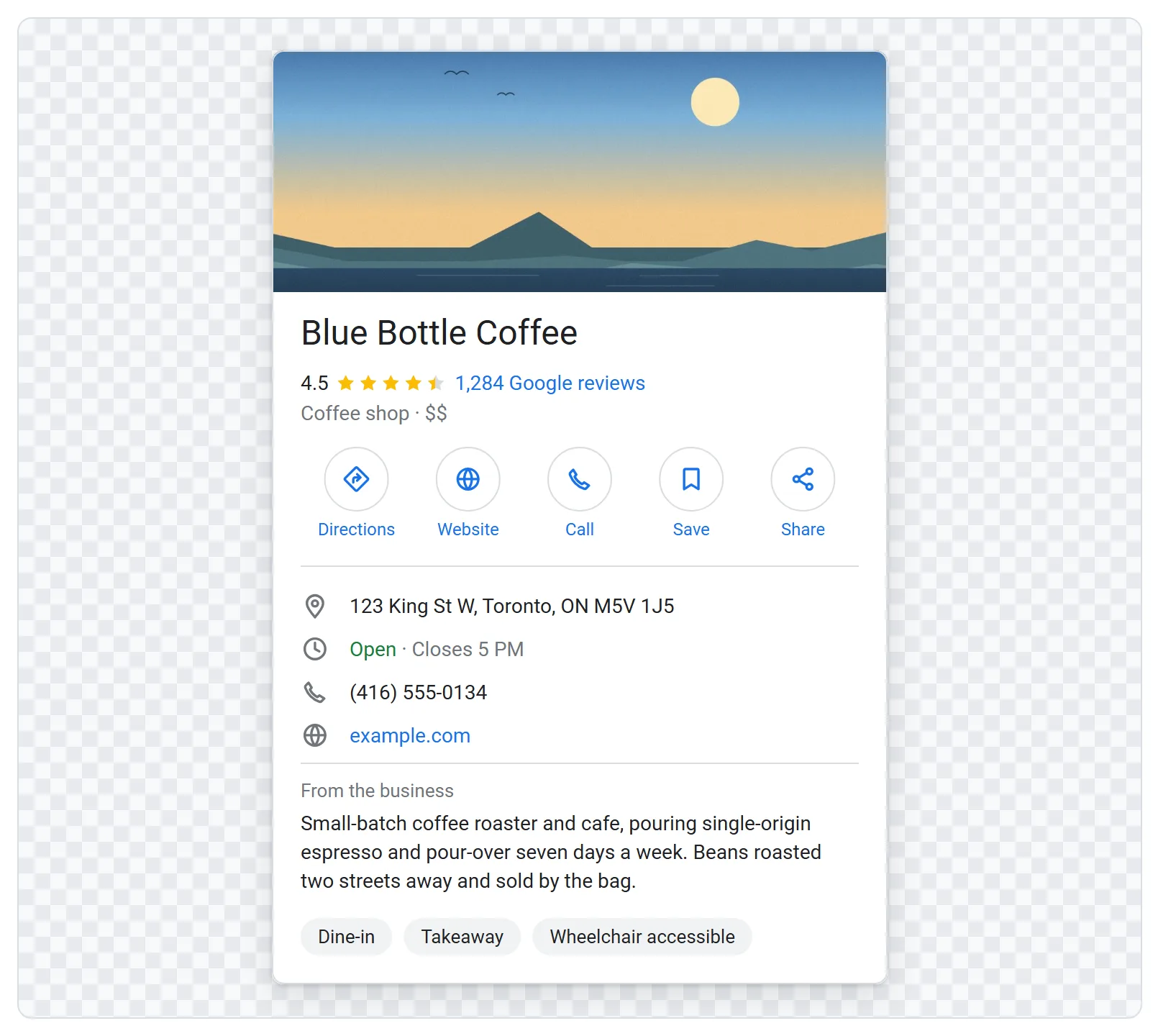
The card on a phone
What most of your visitors actually get, because most local searches are made on a phone. Narrower, so the name wraps sooner; the buttons are bigger and the first of them is filled in blue, because on a phone Directions is the thing people press.
The local pack entry
One row of the three-result block with a map above it, returned for searches about the trade rather than the name — dentist near me, coffee downtown. This is the surface that gets you customers who have never heard of you, and it is the narrowest by a long way: a line for the name, a line for the rating, a line for the category and the address together, a line for the hours, and two buttons.
Nothing you wrote in the description appears here at all. If a fact about your business only exists in the description, it does not exist for the people this row is for.
Decision one: the name, which is not a place for keywords
Google's guidelines say the name should be the real-world name of the business and nothing else — not the town, not the trade, not #1 anything. That is a rule with teeth: names stuffed with keywords get edited by Google, get edited by members of the public through Suggest an edit, and in the worse cases get the listing suspended. It is one of the most commonly reported profiles there is, often by a competitor.
Even setting the rule aside, it does not work in the place it was aimed at. A local pack entry gives the name a single line and cuts it wherever that line runs out, which is a good deal sooner than the knowledge panel does. Everything you appended is in the half that gets cut, so the keyword is invisible exactly where you wanted it and the name reads as unfinished.
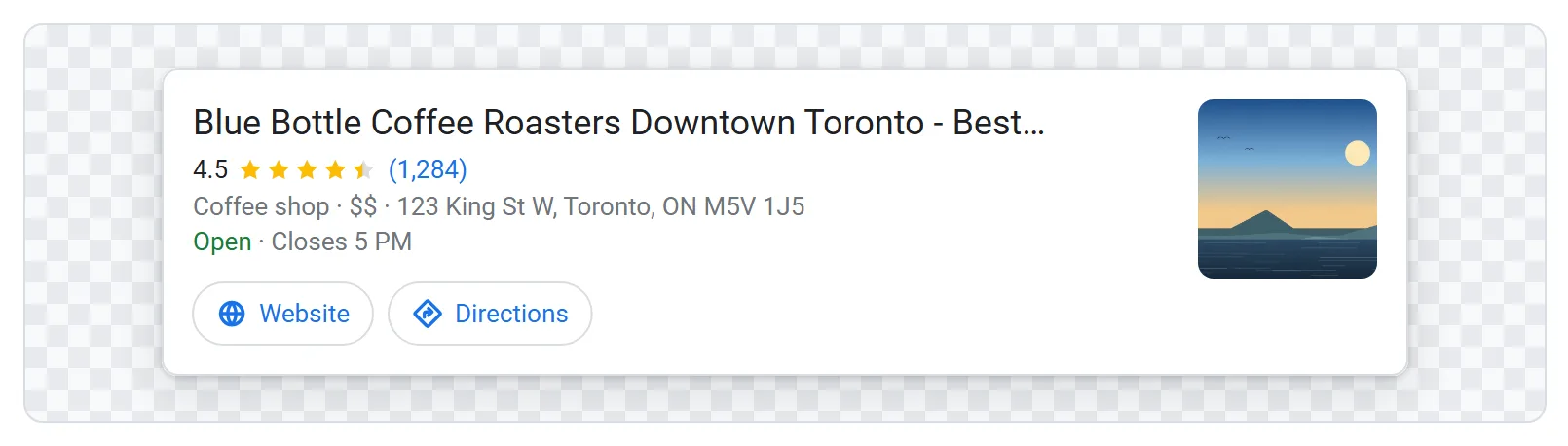
In the preview, put your name in and watch the third surface. If it ends in an ellipsis, the name is doing less work than the shorter version would.
Decision two: the category, which does the work you think the description does
The primary category is the strongest single signal about what your business is. It decides which searches you are eligible for at all, it is the line printed under your name on every surface, and it is the one field a local pack entry always has room for.
It is also chosen from Google's own list rather than typed freely, which is worth knowing before you get attached to a phrase. Two rules that hold up:
- Pick the most specific one that is actually true. Dentist is a category and so is Cosmetic dentist; the specific one wins the specific search and does not lose the general one. A category that is nearly true is worse than a general one that is true.
- Read it back as a customer. The line under your name will say Coffee shop · $$ to somebody deciding between you and two others in about a second. If that line does not describe what they would get, the category is wrong however well it matches your paperwork.
Decision three: the fields that turn into buttons
Three of them, and they are the ones that decide whether a reader can do anything at all without a second search:
- An address becomes Directions.
- A website becomes Website.
- A phone number becomes Call.
The preview shows only the buttons your fields have earned, which makes a missing field visible in a way an editor full of empty boxes never is. Delete the phone number in the form and watch the button disappear; that is what a caller sees.
If you work from home or visit customers, there is a right answer here rather than a blank: mark the business as one that visits its customers and give the area you serve. Google then shows the area instead of a street address, and Directions makes way for it. That is a considerably better listing than one with no location at all, and it does not put your home on a map.
Decision four: the hours, which are the only part that changes by itself
Everything else on a listing says the same thing all week. The status line does not: it is Open · Closes 9 PM at lunchtime and Closed · Opens 9 AM Tue on a Sunday evening, and you are unlikely ever to look at your own listing at the second of those.
This is where the preview earns its place, because it works the line out from the hours you typed and your own clock. Switch a day to closed and the line changes in front of you. Three things worth checking:
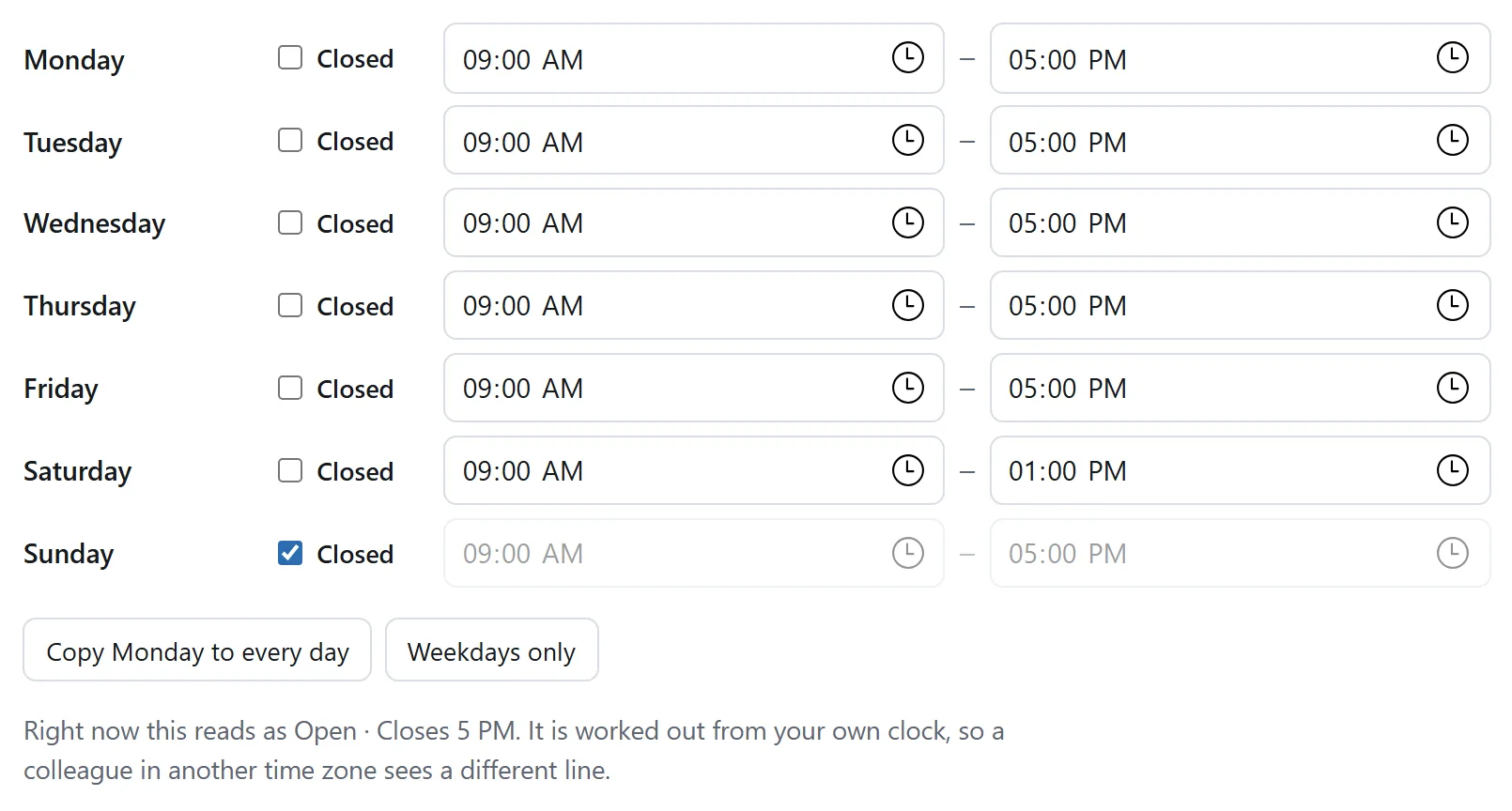
- A window that runs past midnight. A bar open
22:00to02:00is open at one in the morning on the following day. Written the other way round —02:00to22:00— it claims to be open all day, and nothing about the form will tell you which one you typed. - The day you are shut. A profile with no hours at all does not show as flexible; it shows as nothing, and a reader chooses one of the two competitors who did fill them in.
- Special hours around a holiday. Not something a preview can show, and the single most common complaint left in reviews: turning up at a place the listing said was open.
What a preview cannot tell you
Worth being straight about, because a convincing picture invites more trust than it has earned:
- It is a drawing, not a screenshot. The type on the real thing is Google Sans, which is not a font on your machine, and Google moves the layout around continually. The spacing is an approximation. What is exact is how much of each field survives the width it is given, which is the part worth previewing.
- It is not connected to your account. Nothing you do in the preview changes your real profile, and nothing about your real profile appears in it unless you type or paste it. That cuts both ways and is deliberate: the tool has no way to contact anybody, which is why your address and phone number stay on your machine.
- Ranking is not a matter of looks. Where you appear in the local pack is decided by relevance, distance and prominence — not by how good the card looks. A preview helps you convert the people who see you; it does not put you in front of more of them.
Bringing an existing listing in
If the profile already exists, do not retype it. Open it on Google, select the card, copy it, and paste it into the fold at the top of the tool. It recognises the name, the rating and review count, the category, the price band, the address, the phone number, the website, and a full week of opening hours if you expanded them before copying.
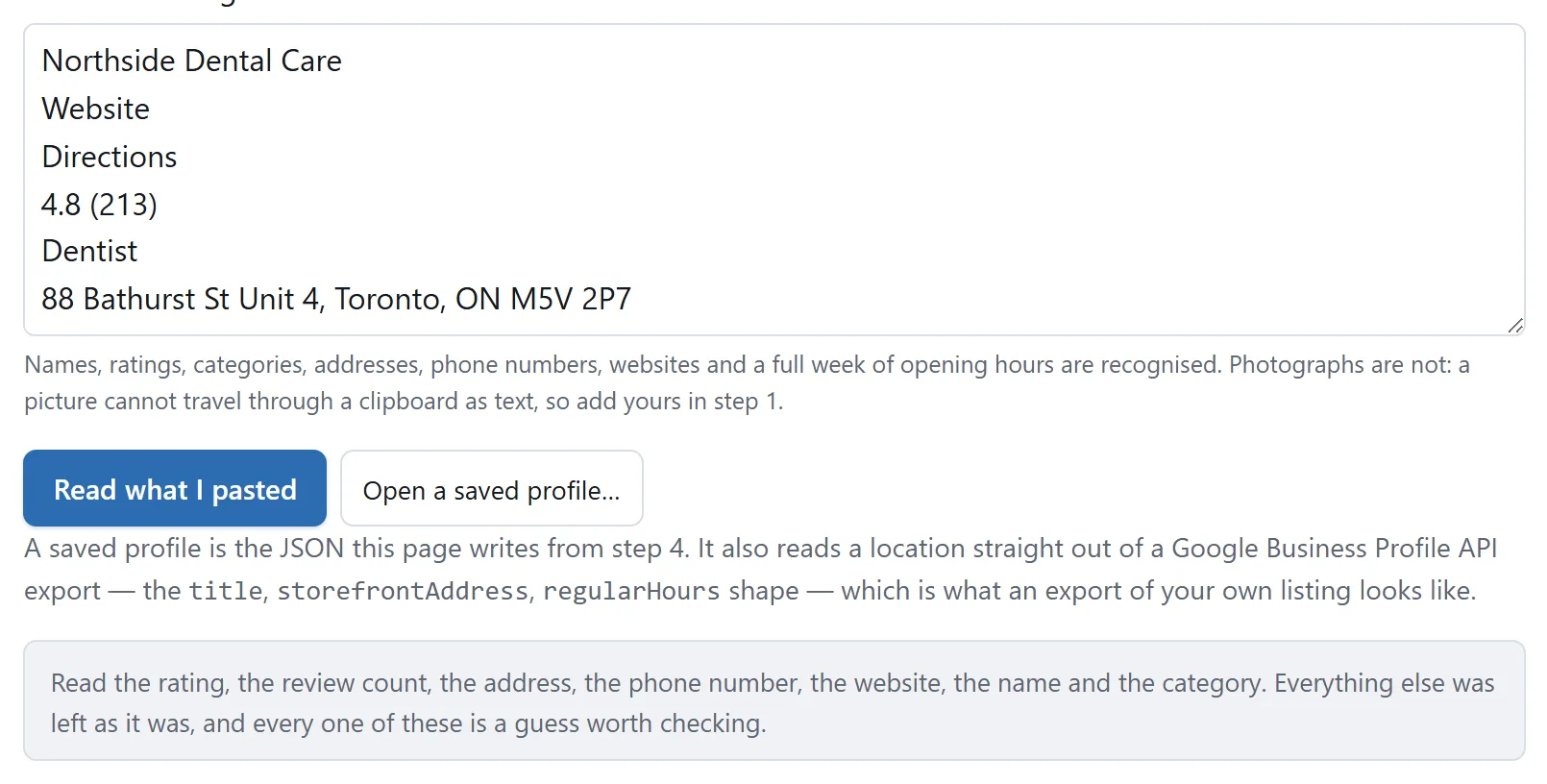
Two things about that are worth knowing. It reports every field it filled in, so a wrong guess is a five-second correction rather than something you discover later. And it reads a Business Profile API export directly if you have one, which is the exact shape rather than a guess — though an export contains no ratings, no review counts and no photographs, so those three are still yours to fill in.
What the tool will never do is go and fetch the listing for you. It cannot contact anything, and that is the point: a page that could go and get your profile is a page that could send your details somewhere. See is it safe to paste into an online tool for what that distinction is worth in general.
What to do with the picture
Download the PNG at one, two or three times its own size, or the SVG if it is going into a document. Both are drawn on your machine, with no watermark and nothing pointing back here.
The obvious use is showing a client or a colleague what a change would look like before anybody makes it — which is a much easier conversation than describing it. Say what it is when you send it: a mock-up of how the listing would look. A drawing this recognisable is easy to mistake for a screenshot of something that already exists.