Choose a video and save its decoded soundtrack as WAV in your browser. The output is audio only; its size and precision depend on the depth and channel choices.
Open the Extract Audio from VideoDrop a video in and take the sound out of it. The picture is never decoded, and nothing is uploaded.
# How to extract the sound from a video
Choose a video and save its decoded soundtrack as WAV in your browser. The output is audio only; its size and precision depend on the depth and channel choices.
[Open the Extract Audio from Video](https://abox.tools/extract-audio-from-video/): Drop a video in and take the sound out of it. The picture is never decoded, and nothing is uploaded.
Last updated 12 October 2026
## Choose the video and listen to the result
Open the extractor and choose or drop your video. The browser decodes its audio and creates a WAV automatically. Play the result before downloading it. A silent video has no soundtrack to extract, and a codec your browser cannot decode needs another decoder.
Conversion happens on your device. The file is not uploaded for decoding. Large videos still need memory for the input, decoded samples and output; local processing does not make that memory unlimited.
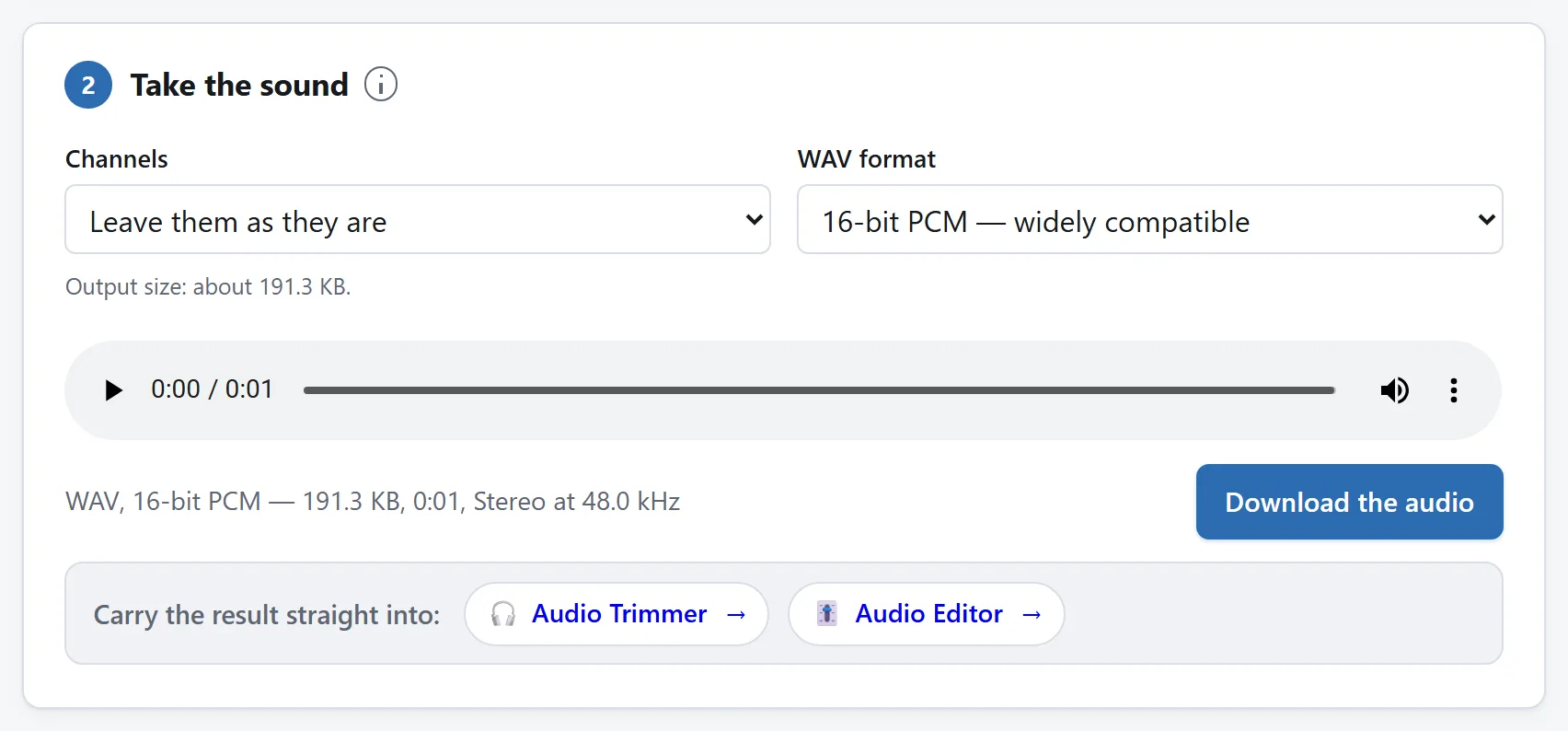
The player uses the WAV offered for download. Changing depth or channels creates a replacement result.
## Choose 16-bit or Float32
16-bit PCM is the default for broad playback compatibility. Writing it rounds and clamps the decoded samples. Float32 keeps those decoded sample values when the channels are unchanged, including values above full scale, and is useful for further editing. It does not restore detail already lost in a compressed soundtrack.
WAV stores uncompressed audio, so it can be much larger than the video’s compressed audio track. The extractor does not produce MP3: this tool ships no MP3 encoder. A local encoder in another application can create MP3 without uploading the file.
## Keep the channels or mix to mono
Keep the source channels to preserve their separation. Mono averages them into one channel; it can make a smaller file, but removes stereo placement and can cancel sounds when the channels oppose each other. Listen after changing this option.
The tool reads the source sample rate where its header exposes it and decodes at that rate. When it must assume a rate, the output facts say which one. Check those facts if timing or sample rate matters to your next application.
## Save, cancel or try again
Changing depth or channels replaces the previous result automatically. Download the version you have listened to. Cancel retires the current job; a browser decode already in progress may finish internally, but its late result will not replace your newer choice. If a write fails, use Create WAV again with the current source.
For a shorter soundtrack, continue in the [audio trimmer](https://abox.tools/trim-audio/). For fades, gain or reversing, use the [audio editor](https://abox.tools/edit-audio/).
Choose the video and listen to the result
Open the extractor and choose or drop your video. The browser decodes its audio and creates a WAV automatically. Play the result before downloading it. A silent video has no soundtrack to extract, and a codec your browser cannot decode needs another decoder.
Conversion happens on your device. The file is not uploaded for decoding. Large videos still need memory for the input, decoded samples and output; local processing does not make that memory unlimited.
The player uses the WAV offered for download. Changing depth or channels creates a replacement result.
Choose 16-bit or Float32
16-bit PCM is the default for broad playback compatibility. Writing it rounds and clamps the decoded samples. Float32 keeps those decoded sample values when the channels are unchanged, including values above full scale, and is useful for further editing. It does not restore detail already lost in a compressed soundtrack.
WAV stores uncompressed audio, so it can be much larger than the video’s compressed audio track. The extractor does not produce MP3: this tool ships no MP3 encoder. A local encoder in another application can create MP3 without uploading the file.
Keep the channels or mix to mono
Keep the source channels to preserve their separation. Mono averages them into one channel; it can make a smaller file, but removes stereo placement and can cancel sounds when the channels oppose each other. Listen after changing this option.
The tool reads the source sample rate where its header exposes it and decodes at that rate. When it must assume a rate, the output facts say which one. Check those facts if timing or sample rate matters to your next application.
Save, cancel or try again
Changing depth or channels replaces the previous result automatically. Download the version you have listened to. Cancel retires the current job; a browser decode already in progress may finish internally, but its late result will not replace your newer choice. If a write fails, use Create WAV again with the current source.
For a shorter soundtrack, continue in the audio trimmer. For fades, gain or reversing, use the audio editor.
